
Opening MediaStudio
MediaStudio ai is your library for everything that should be seen online: photos for your website, your logo, product images for your shop, the menu as a PDF. You open it from your dashboard or directly: Open MediaStudio.
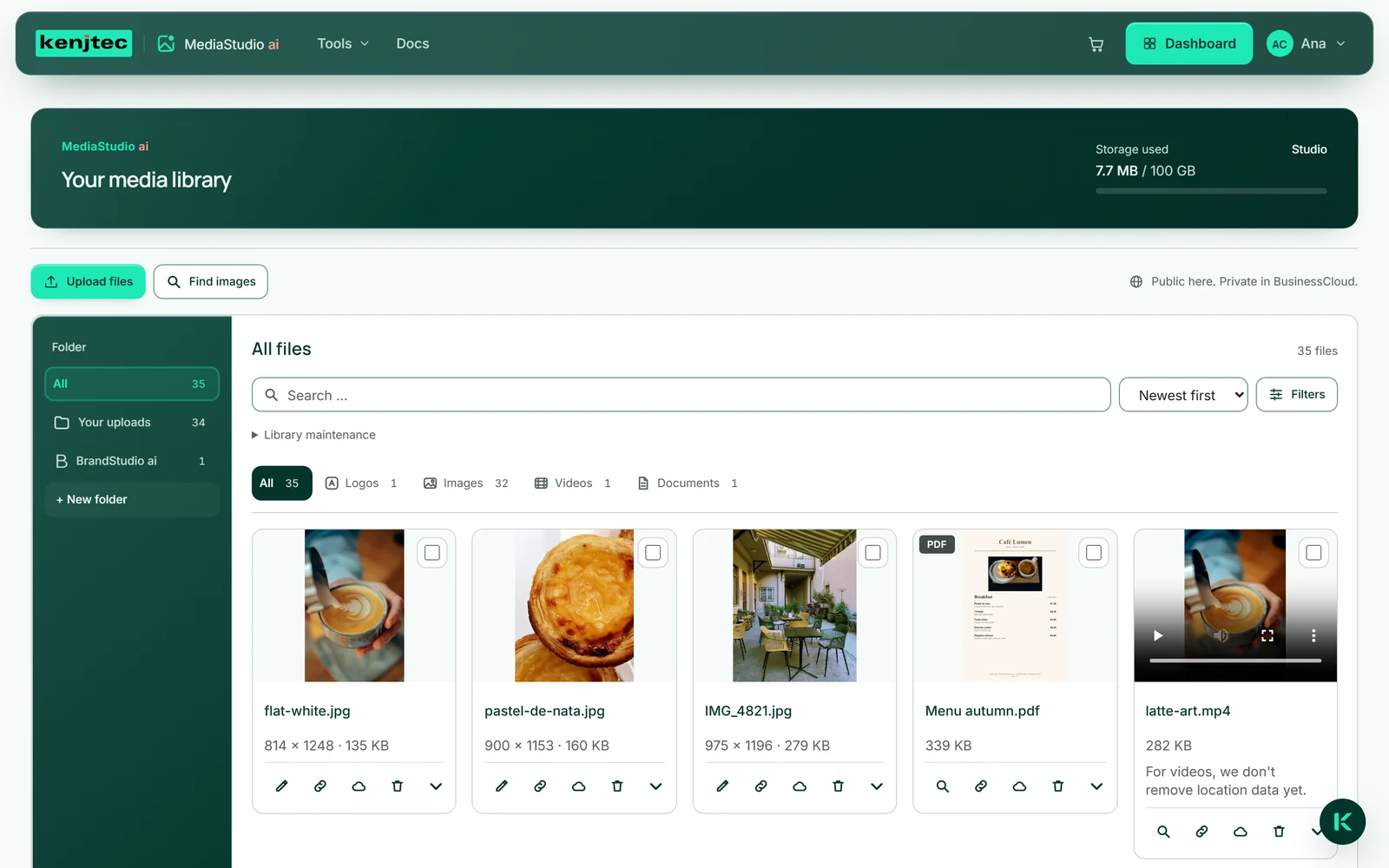
At the top are “Upload files”, “Find images” and “Create with Kenji”, with which Kenji, KENJTEC’s AI, creates an image for you. Your folders are on the left — on a phone behind a button carrying the open folder’s name. Next to them are search, sort order and “Filters”, below them the bar of types and the grid with your files. Top right shows how much storage is used.
Everything in here is public: every file gets an address that anyone who knows it can open — no sign-in needed. That is exactly what MediaStudio is built for, which is why the top reads “Public here. Private in BusinessCloud.” Contracts, invoices and anything confidential belong in BusinessCloud.
A file’s address is long and cannot be guessed — but it is not a password. Anything nobody should see does not belong here.
Uploading files
You can upload one file or many at once — by clicking or by dragging them onto the drop area. The files go up one after another, and the button counts along, for example “Uploading 2/5 …”. Each finished file appears at the front of the grid straight away.
If a file fails — too large, wrong type, storage full — its name and the reason appear above the grid, and the upload stops there. The files before it have arrived; you select the remaining ones again afterwards.
New files always land in the “Your uploads” folder, even if another folder is open at the time. You move them into a folder of your own afterwards (see Folders).
- Click “Upload files” at the top. The drop area opens.
- Click “Upload files” in there and choose one or more files — or drag them from your file manager onto the area.
- Wait until the button reads “Upload files” again. The new files are at the front of the grid.
Creating images with Kenji
If you cannot find a suitable photo, have one created. “Create with Kenji” at the top of MediaStudio opens a field for your description — up to 2,000 characters — and the formats with their dimensions: “Square” (preselected), “Portrait”, “Story”, “Link preview”, “Wide” and “Pin”. This button does not appear in the tools’ image picker.
The image has exactly the dimensions of the format, then sits in the “AI generated” folder with the label of the same name; its name is the start of your description. It is checked like any file. The file records, machine-readably, that an AI made it — as do formats and background-free or enlarged versions of it. The image description stays empty until you add one.
Every image uses AI credit. If Kenji turns a description down, creating fails or your storage is too full, nothing is charged, and the message says so. Kenji is set up not to depict children or well-known people. After ten failures within an hour, the message asks you to try later.
- Click “Create with Kenji” at the top.
- Leave “Image” selected and describe in the “What should be created?” field what the image should show.
- Choose a format, such as “Portrait”.
- Click “Create”. Once Kenji has finished, the view switches to the “AI generated” folder, with the new image at the front.
The “License record” of a created image says that it comes from AI and names Kenji and the date.
Which files, how large
MediaStudio accepts images as JPEG, PNG, WebP and GIF and documents as PDF — up to 25 MB per file. Videos go in as MP4 or WebM, up to 200 MB. These limits apply per file; how much you can store in total depends on your plan.
We do not accept SVG files: an SVG can contain program code, and it would sit publicly under our address. For a logo, use PNG or WebP — both can have a transparent background.
What is checked is the content, not the file name. A file called “photo.jpg” that is not an image is turned away, and the message says why. A GIF stays as it is, movement included.

Location and device data
A phone photo often carries where and with what it was taken — the location down to a few metres. Before an image goes online, we remove this information: location, camera, time taken, editing history. It happens in your browser, before the file leaves your computer, and we check again when it arrives.
We do not re-encode the image itself, so it loses no sharpness. Only what is needed for display stays: the rotation, so a portrait photo does not lie on its side, and the colour profile, so colours do not turn pale. The tile’s details then read “No location or device data”.
In PDF documents the information inside the document, such as the author, stays unchanged. Nothing is removed from videos — a video’s tile says so.
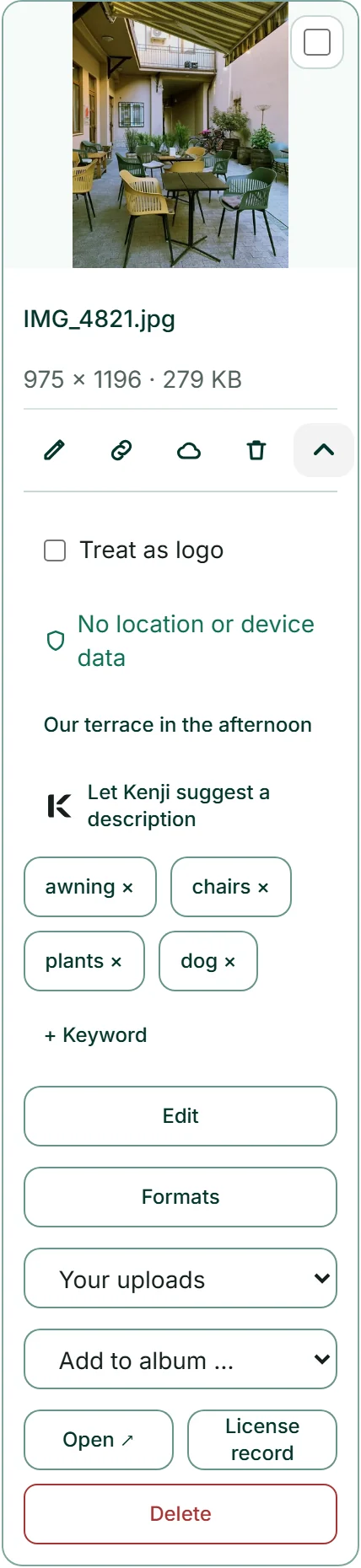
Files from before this protection existed can be cleaned afterwards with “Clean up older files” — see Tidy up.
The same file again
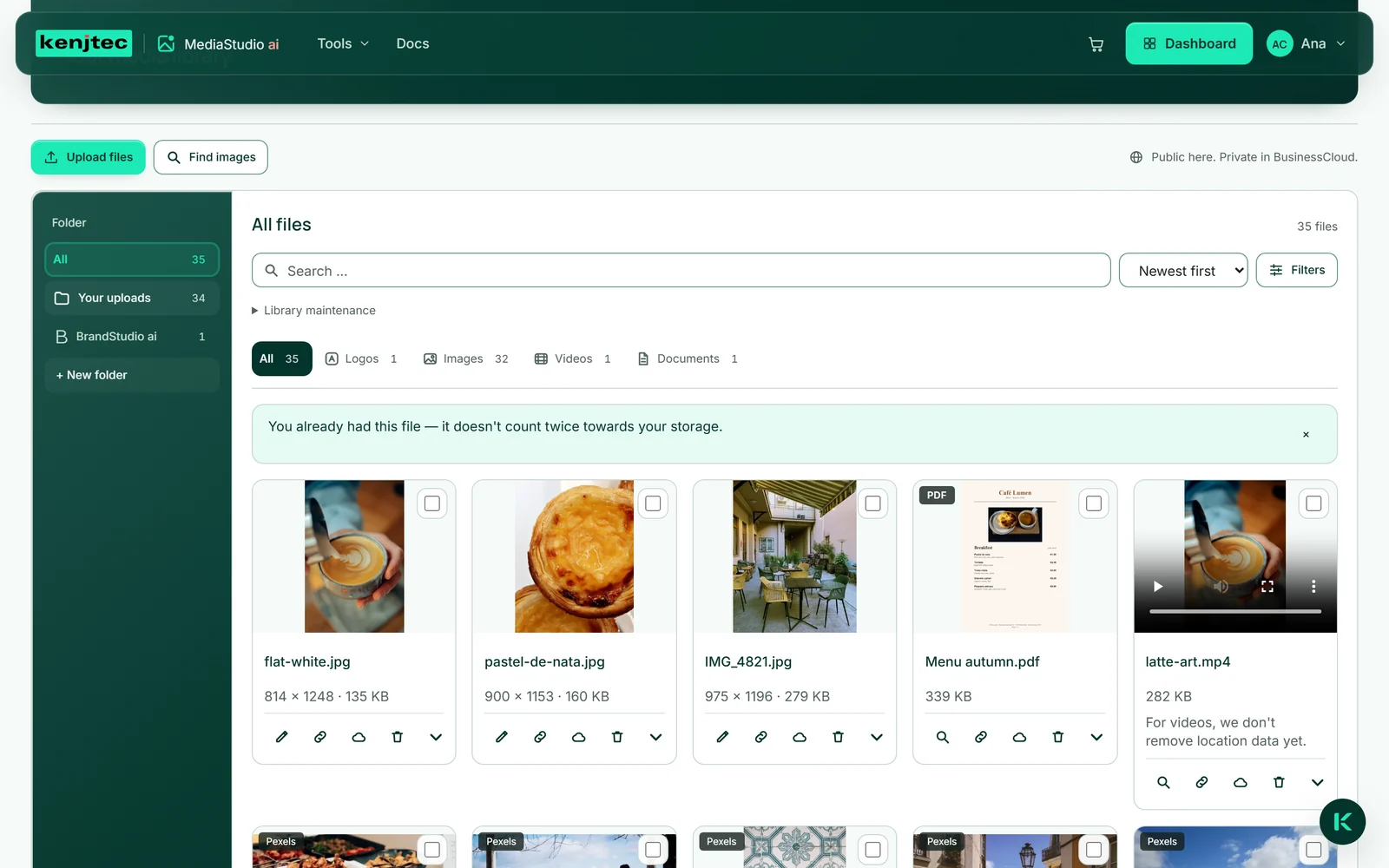
If you upload a file you already have, MediaStudio does not create a second one. This is recognised by the content, not the name: the same photo under another name is the same file; an edited photo is a new one.
Instead of a second tile, the notice above the grid reads “You already had this file — it doesn't count twice towards your storage.” The existing tile stays where it is. The same applies to formats that already exist and to free images you add a second time.
This does not work for videos: two identical videos make two files. Duplicates from before this recognition show up under “Tidy up” in the “Duplicates” view.
The check on upload
Whatever you store in MediaStudio, we deliver under our own address. We are responsible for that, so every image is checked before it can be reached — free images you add, images from your BusinessCloud and every edited version too.
The check is automatic and looks only for what must never appear on a business site: sexual content, violence, disturbing images and hate symbols — and only triggers when it is very sure. A photo of a bar or a wine list is not affected. A scaled-down copy is checked, not your original.
If an image is turned away, a red message with the file name and the reason appears above the grid. The file is not stored and takes up no space. For a PDF, the first pages are checked, and the message then also names the page.
If the check cannot be reached at the moment, the image goes through and carries “unchecked” on its tile — never “checked”. Videos carry “cannot be checked”. If you find something on a site running on KENJTEC that you believe is illegal, report it via Report content; what may appear on your own pages is set out in our Terms.
Your storage
Top right, under “Storage used”, you see the name of your plan, how much is used and how much your plan includes; the bar underneath shows the share. From 80 per cent, a line below names the next larger plan.
Every file counts towards your storage, including every version created by editing or cropping. A file you already had does not count twice. If there is not enough room for a new file, the message says so before anything is uploaded — with your plan and the space used.
You free up space by deleting what you no longer need or by moving files to BusinessCloud. What takes up a lot of space is shown under “Tidy up” in the “Large images” view. How much space each plan has is listed under Plans.

If you switch to a smaller plan, all your files stay. No new ones can be added until there is room again.