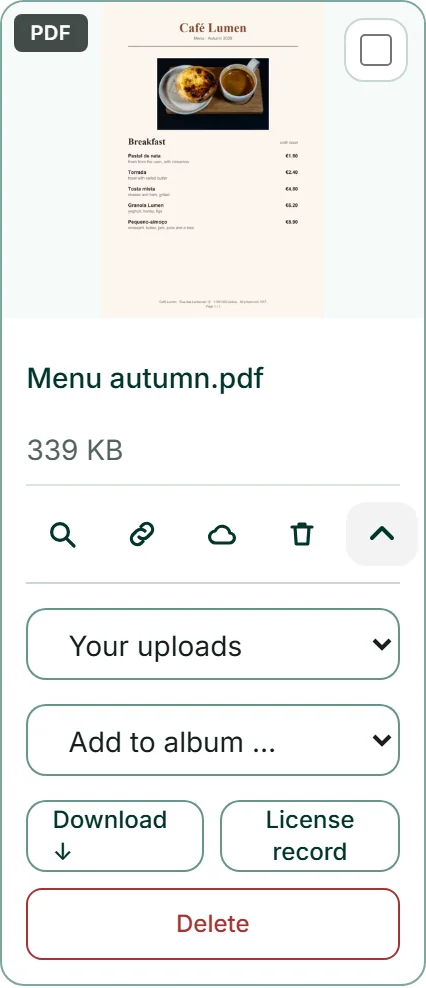
Deleting files
You find “Delete” as a bin on every tile and every version, as a button in the large window and in the details. The dialogue names the file and asks again; “Delete” in there is final and cannot be undone.
If a file has versions, the dialogue shows “Also delete the … versions”, ticked in advance. Untick it, and the crops and edits stay as files of their own.
A deleted file disappears from storage and can no longer be reached at its address either; previews and PDF pages go with it. Your storage figure drops straight away. Copies in your website or your forms are not affected. If a lock appears instead of the bin, the file is embedded — see Why a file is locked.
- Click the “Delete” bin on the tile.
- Decide in the dialogue whether the versions go too.
- Click “Delete”.
Several files at once
Every tile has a tick box at its top right. As soon as you tick one, a bar appears along the bottom edge: “… selected”, “All on this page”, “Move to BusinessCloud”, “Delete” and “Clear selection”. “All on this page” selects everything currently loaded in the grid.
Both actions apply to all selected files at once, with their versions if you leave that ticked in the dialogue. While it runs, the bar counts along, such as “Deleting … 12 of 40”.
Locked files are not sorted out beforehand; they simply stay. Afterwards a window names each one with its reason — “Not everything could be deleted” or “Not everything moved”.
- Tick the box at the top right of each tile that should go.
- Click “Delete” or “Move to BusinessCloud” in the bar at the bottom.
- Confirm in the dialogue.
Tidy up: what takes space and what is missing
Under “Library maintenance”, “Tidy up” opens four views of your library, each with a count and a size: “Not linked anywhere” — files older than 90 days that are linked nowhere; “Large images” — images and videos over 4 MB; “No description” — images without an image description; “Duplicates” — files that are in your library more than once.
A click on a view filters the grid to it; a second click removes the filter. Nothing is suggested or ticked — you decide what goes. “Not linked anywhere” does not mean “unused”: images copied by your website and forms appear there even if your website shows them; your website stays intact if you delete them.
If your library still holds files from before location and device data were removed, “Clean up older files” appears below. The button removes that data after the fact and makes duplicates recognisable; the addresses stay the same.
- Open “Library maintenance” and click “Tidy up”.
- Click one of the four views, such as “Large images”. The grid now shows only those files.
- Click it again to see everything.
Bringing older files up to date
Two buttons under “Library maintenance” give older files what new ones get automatically. “Add keywords to library” adds recognised keywords to images that have none yet. “Add missing previews” creates the pages to browse for older PDF documents and new previews for images with a transparent background.
Both work in batches and show how many are still open. At the end a line tells you whether everything is done. If a PDF cannot be displayed because it is encrypted or damaged, that line says so — a second click will not change it.
For files you upload today, you need neither button.

If you cancel your plan
Cancelled doesn’t mean blocked: until the end of the term your files stay in MediaStudio and their addresses keep working as usual. Once your plan ends, the addresses can no longer be reached publicly — pages that embed a file no longer show it either. Nothing is deleted, not even after a payment problem: if you take out a plan again, the same addresses work again.
Your files stay in your account, even without a plan: in MediaStudio you download each one with “Download ↓”. They are only deleted if you want them to be — one by one or together with your account. How to cancel and what applies until the contract ends is described under Cancelling a contract.