
Cancelling in the dashboard
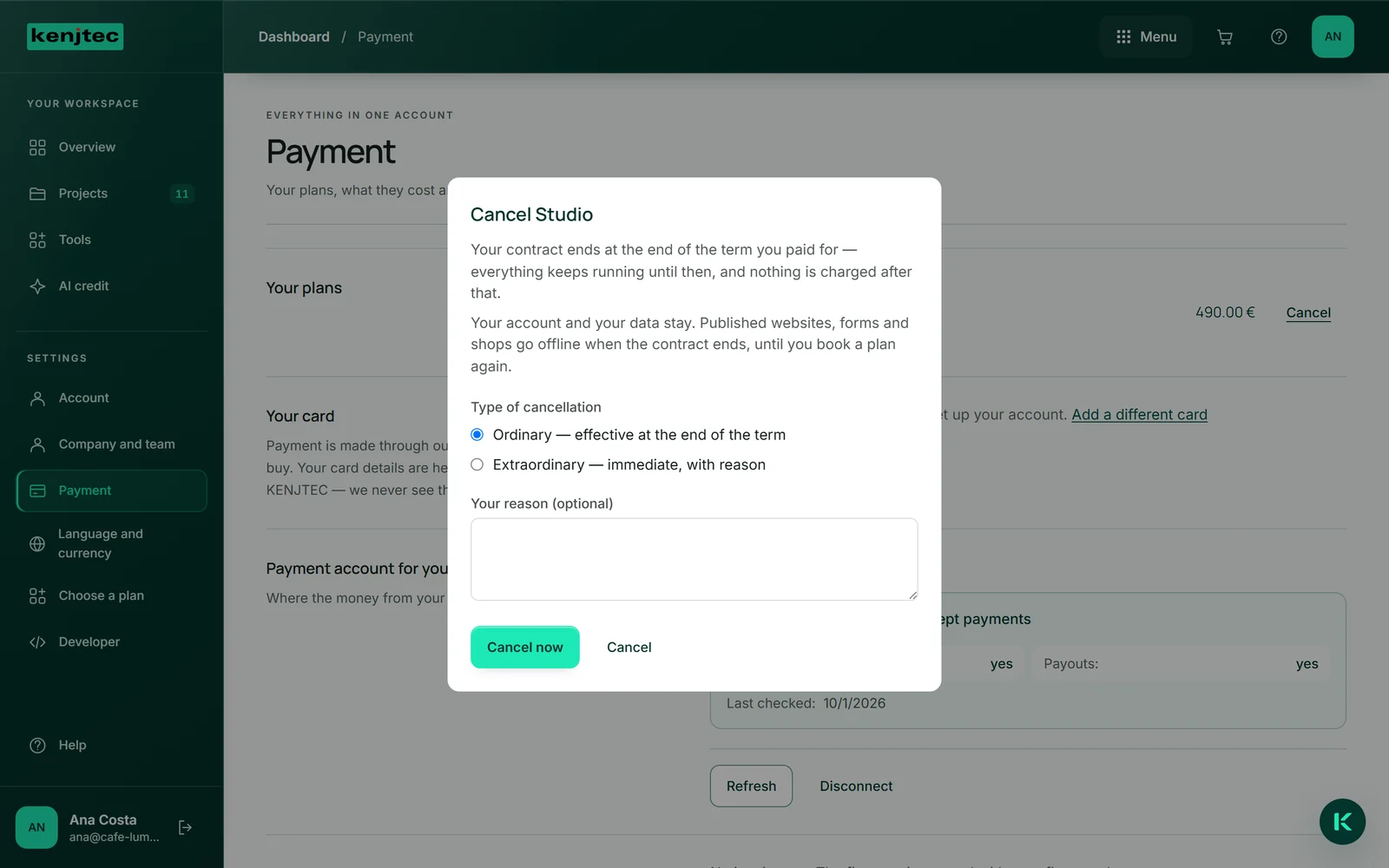
Under “Payment”, every running contract has a “Cancel” button. A window explains what happens: the contract ends at the end of the term you paid for, everything keeps running until then, and nothing is charged after that.
You choose the “Type of cancellation” and can give a reason — optional for an ordinary cancellation. “Cancel now” sends it; the window’s other button, “Cancel”, closes it without any effect. The window asks for nothing more, and it offers you nothing to make you stay.
- Open “Payment” in the dashboard.
- Click “Cancel” on the contract.
- Choose the type of cancellation and, if you like, write a reason.
- Click “Cancel now”.
Ordinary or immediate
“Ordinary — effective at the end of the term” is carried out straight away: the confirmation names the day the contract ends.
“Extraordinary — immediate, with reason” needs a reason. A person checks whether it justifies an immediate cancellation; the window then says “We are reviewing your cancellation and will be in touch.” Your declaration still counts as made from the moment you send it.
The confirmation
Once sent, the window shows “Your cancellation has been received.” with a case number. The same details — case number, time of your declaration, type, contract and end date — also arrive by email at your sign-in address.
Under “Your plans”, the contract then shows “cancelled, runs until” and the date.
If you didn’t declare the cancellation yourself, reply to the confirmation email — we’ll withdraw it and your contract continues.
Everything keeps running until the end
Cancelled doesn’t mean blocked. Until the end date you use everything as usual: websites stay reachable, forms accept responses, your shop keeps selling. An AI pack attached to this plan ends on the same day as the plan.
After the contract ends, your account and your data stay: your published websites, forms and shops go offline, and whatever needs a plan only opens again with a plan. Nothing is deleted — if you book a plan again, everything is back.
Your account itself is only deleted if you want it to be — a cancellation deletes nothing. It is then deleted no earlier than 30 days after your request and the end of your last contract; before that, download what you want to keep, for example by exporting your website. How that works is described under Deleting your account.

Deleting your account
Under “Account” in the dashboard you find “Delete account”. First you see what is still holding up the deletion, each item with “Take care of it here”: a domain that is still running, or an outstanding payment. As long as something is listed there, the button stays locked. You move a running domain to another provider — “Take care of it here” takes you straight there (Move to another provider) — or you let it expire by turning off “Renew automatically”.
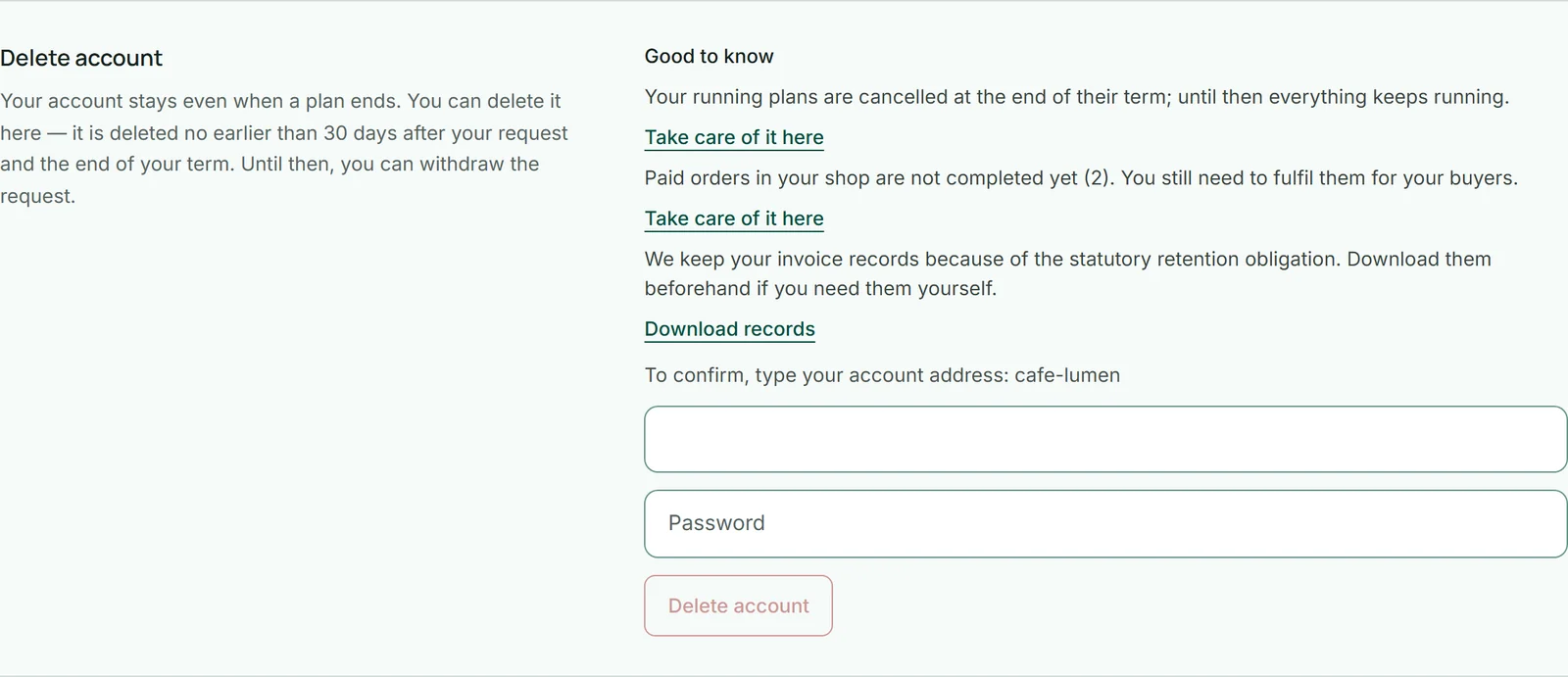
Under “Good to know” you find points that block nothing: your running plans are cancelled at the end of their term, you export your WordPress sites beforehand, and you get your invoice records with “Download records”.
To confirm, you type your account address and enter your password. The account is deleted no earlier than 30 days after your request and the end of your last term; the date then shows in the same place. Until then you withdraw the request with “Withdraw deletion” — cancelled plans stay cancelled.
- Open “Account” in the dashboard.
- Take care of whatever is listed under “This is still holding up the deletion:”.
- Type your account address and enter your password.
- Click “Delete account”.
If you can no longer get into your account, write to legal@kenjtec.com from the address your account runs under. We then record the request for you — with the same periods.
Cancelling when you can’t get into the dashboard
If you can no longer get into your account, cancel without signing in via “Cancel contracts here” in the footer of every page on kenjtec.com. The link opens the cancellation page: you enter the email address your account runs under, choose the type of cancellation and send it with “Cancel now”. If you don’t name a specific contract, the cancellation covers all current contracts for that address; the confirmation arrives by email.
Cancelling informally by email to legal@kenjtec.com is just as effective. Give the email address your account runs under; an ordinary cancellation needs no reason.
- Click “Cancel contracts here” in the footer of any page on kenjtec.com.
- Under “Your e-mail address”, enter the address your account runs under and choose the “Type of cancellation”.
- Click “Cancel now”.