The PDF
“PDF” in every row of the list opens the document in a new window. An issued document comes from the archive exactly as it was issued — even if your brand or design has changed since. A draft is drawn fresh and shows the word “Draft” in the document’s language instead of a number.
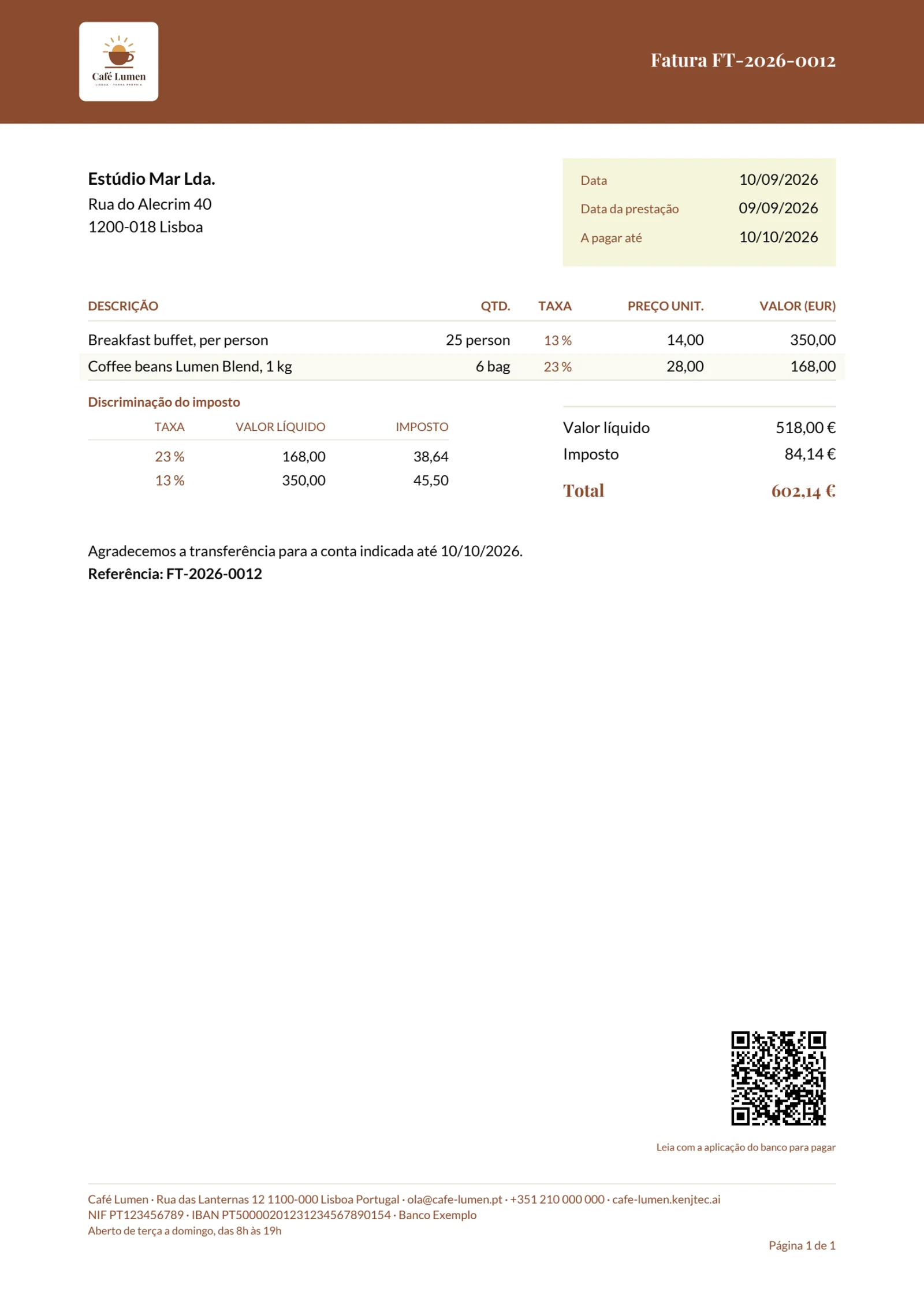
The PDF carries your letterhead with logo or company name, title and number, the customer’s address, a box with date, date of supply and due date, the items and the totals. Below them come the payment request with the payment reference if an IBAN is on file, your tax note and the closing line. The footer with address, contact details, tax numbers and bank details appears on every page, with the page number; from page two the header repeats with the word “continued”.
The PDF contains real text: you can search it, and screen readers can read it.
Sending by email
“Send” (send) in the row of an issued document opens the “Send document” (send document) window. Address, subject and text are prepared — in the document’s language — and you can change all of it. “Attachments” (attachments) lists what goes with it: the PDF and, for invoices where possible, the e-invoice. “Copy to (optional)” (copy to) sends a copy, to yourself for example.
Sending goes through KENJTEC: your customer’s inbox shows your company name, and replies go to your own address. That is why the message is not in your own mailbox — the outbox shows what went out. Afterwards the list shows “sent” (sent) below the number.
Drafts cannot be sent; they have no number yet. If the customer has no email address, enter one in the “To” (to) field. If the “Send” button is missing altogether, the outbox is not enabled — the settings then say so; open the PDF and send it yourself.
- Click “Send” on the issued document.
- Check “To”, “Subject” (subject) and “Text”, and fill in “Copy to (optional)” if needed.
- Click “Send now” (send now).
The outbox
Everything Invoice has sent in your name is in the outbox — documents and payment reminders, with subject, recipient and time. What did not go out is listed too: each row says “delivered” (delivered) or “not sent” (not sent), and for “not sent” the reason.
You find it at the very bottom of “Settings” under “View outgoing mail” (view outbox). It shows the last 200 messages.

- Open “Settings”.
- Click “View outgoing mail” at the very bottom.
E-invoice
Every issued invoice is a ZUGFeRD invoice: a PDF/A-3 that carries the EN 16931 e-invoice inside as the file “factur-x.xml”. Invoice checks it against the official rules first.
Every invoice is also available as an XRechnung for German public authorities and e-invoice portals and as a Peppol file following Peppol BIS 3.0 (UBL) — under “More …” with “Download XRechnung (XML)” and “Download Peppol (UBL)”. For a public authority, enter its Leitweg-ID on the customer under “Buyer reference / Leitweg-ID”; without an entry, the invoice number goes there. For Peppol, you and your customer each need a Peppol ID (such as 0208:0123456789); you send the file into the Peppol network through an access point of your choice.
An issued invoice comes with an e-invoice: an XML file following the European standard EN 16931, which accounting software can import instead of retyping the PDF. Download it under “More …” with “Download e-invoice (XML)” (download e-invoice); if you send the invoice by email, it is attached automatically.
You also get the same XML file on its own. It needs name, street, town and country for both you and the customer; if something is missing, Invoice says what in a single sentence. Your sender details also need a tax number or VAT ID. Invoices issued before 25 October 2026 stay as they are. Quotes and drafts have no e-invoice.
If a recipient requires a particular format, check with them beforehand whether they accept this file.
- Click “More …” on the invoice.
- Click “Download e-invoice (XML)”.
Payment code on the invoice
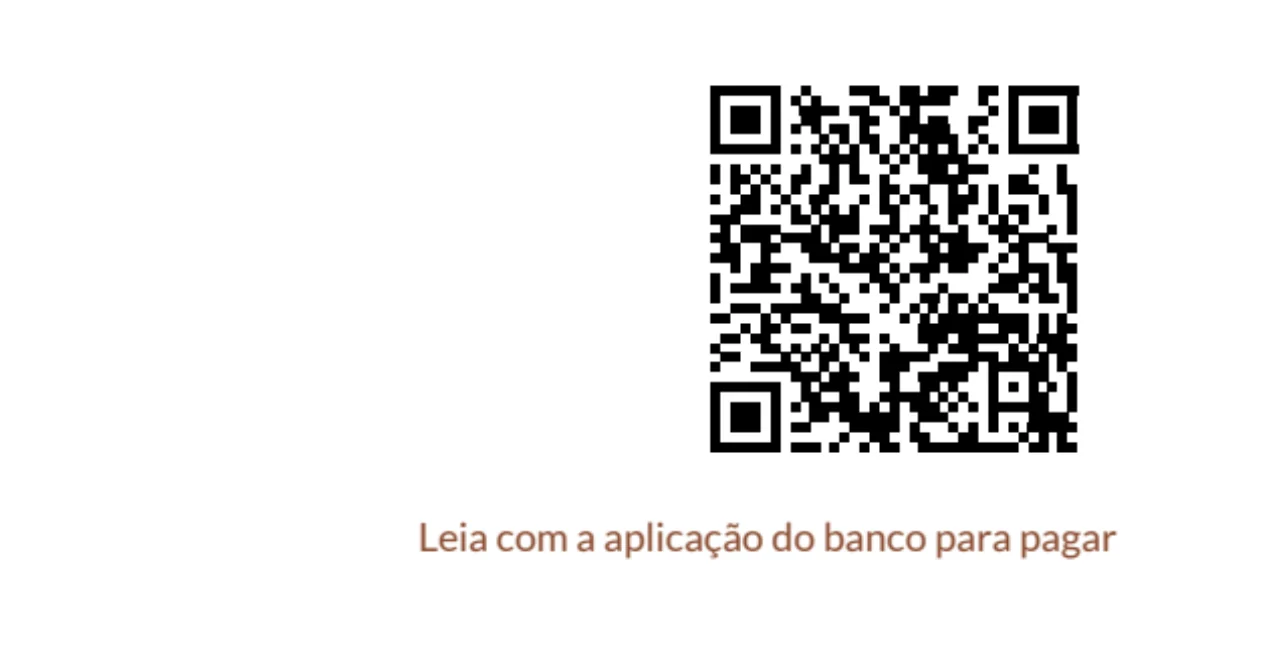
Invoices in euros carry a QR code at the bottom right when a valid IBAN is in your settings. Your customer scans it with their banking app, and recipient, IBAN, amount and payment reference — the invoice number — appear ready in the transfer. Below it, a line in the document’s language says that it can be scanned with a banking app.
Other currencies, quotes and invoices without an IBAN get no code; the standard for these codes only knows the euro. The bank details are in the footer as always.