
Where to find Invoice
Invoice writes quotes and invoices. It lives in your BusinessCloud ai, where it appears in the tool menu under its name in your language — “Invoices” in English, “Facturas” in Spanish, “Faturas” in Portuguese, “Rechnungen” in German. You are signed in with your KENJTEC account; there is no second password. Invoice works with exactly that account: with your brand from BrandStudio and your data. It uses no AI credit.
Invoice’s screens follow your selected platform language; your documents themselves are set in your customer’s language. Along the top are seven tabs: “Overview” (overview), “New document” (new document), “Documents” (documents), “Customers” (customers), “Services” (services), “Recurring” (recurring) and “Settings” (settings). At the top right are “+ New document” and “Download everything” (download everything). You can switch tabs with the arrow keys; every window closes with “Cancel” (cancel) or the Escape key.
As long as your company name or address is missing, Invoice opens “Settings” straight away and marks the tab with a warning sign. Once they are in place but you have no customers yet, it opens “Customers”.
If you run a WooCommerce shop in WordPressBuilder ai, its paid orders can arrive in Invoice as invoices. The switch for this is called “Orders become invoices in Invoice” there.
- Open your dashboard and choose “Tools”.
- Click “BusinessCloud ai”. If it says “Add on” underneath, BusinessCloud is not yet part of your plan.
- Open the BusinessCloud tool menu and click “Invoices” — or its name in your language.
Your company on the document
Whatever is in the “Settings” tab appears on every new document: under “Your company” (your company) the company name, address, country, email, phone and website; under “Tax” (tax) your tax number and your “VAT ID / tax ID” (VAT ID or tax ID); under “Bank details” (bank details) IBAN, BIC and bank. On the PDF these details sit in the footer of every page.
For your company, Invoice requires a company name, street and town when issuing an invoice. Postcode and tax numbers are optional in Invoice; you enter any further details your country requires yourself. Quotes can be issued without these company details.
Enter the country as a two-letter code, for example PT, GB or US. It decides which tax rates Invoice suggests and what the tax is called. If you leave the field empty, Invoice saves DE.
Changes apply from the next document. Issued documents keep the details they had.
- Open the “Settings” tab.
- Fill in the fields under “Your company” — those marked with an asterisk are required.
- Under “Tax” and “Bank details”, add what belongs on your invoices.
- Click “Save settings” (save settings) at the bottom.
With an IBAN, your euro invoices also carry a payment code — see Payment code on the invoice.
The sender follows your brand
If you have entered your company in BrandStudio ai, you don’t need to type it again here. As long as company name, street and town are empty in Invoice, every new document carries your brand’s name, address and contact details. The card at the top of the tab then reads “These details come from BrandStudio.” (these details come from BrandStudio), and the fields are read-only. Change the company in BrandStudio and it changes here too.
Colours and type always come from the brand, and so does the logo — unless you upload your own. Tax numbers, bank details and defaults are always yours and stay in Invoice.
“Use separate details for invoices” (use your own details for invoices) opens the fields, filled with the brand’s values; after “Save settings” your own apply. “Back to the brand” (back to the brand) clears company name, address and contact again; tax, bank and defaults stay. If company name or address is missing in BrandStudio, the tab says so — invoices then work only once they are there.
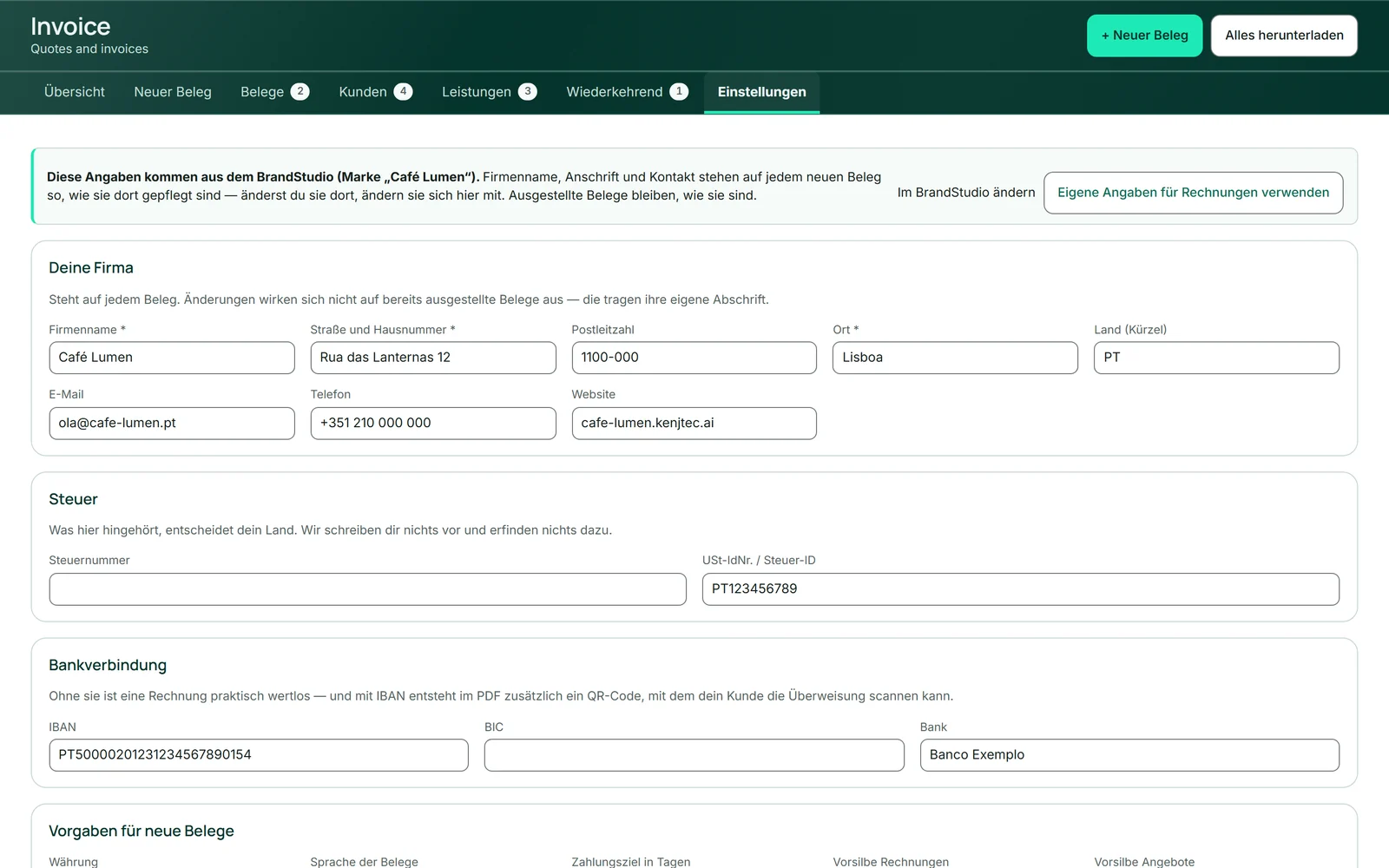
- Open “Settings” and click “Use separate details for invoices”.
- Change company name, address or contact details and click “Save settings”.
- To go back, click “Back to the brand” and confirm.
Issued documents freeze the sender — including logo, colours and type. A new brand does not change yesterday’s invoice.
If you run several brands
If you run several brands in BrandStudio — as an agency, for instance — Invoice does not guess which one belongs on your documents. The card at the top of “Settings” reads “You manage multiple brands.” (you run several brands), and until you choose, your own details from the fields apply.
Once you have chosen a brand, the same rule applies as with a single one: colours and type come from it, the logo unless you upload your own, and the company details as long as your fields are empty. The same brand also appears on your letterhead for Office.
- Open “Settings”.
- In the “Choose a brand …” (choose brand) field, pick the brand for your documents.
- Click “Use for documents” (use for documents).
Logo in the letterhead
The logo sits at the top left of every new document. Without a logo of your own, Invoice uses your brand’s logo from BrandStudio; the “Logo” card in the settings shows which one currently applies and where it comes from. If there is none at all, your company name appears there instead.
A logo of your own, just for invoices, takes precedence: PNG or JPEG, 2 MB at most. “Remove separate logo” (remove own logo) takes it off again — then the brand’s logo applies, or your company name if you have no brand.
On the colour band, a dark logo automatically gets a light background so it stays legible. Documents already issued keep their old logo.
- Open “Settings” and scroll to the “Logo” card.
- Choose a PNG or JPEG file.
- Click “Upload” (upload).
Defaults for new documents
The card “Defaults for new documents” (defaults for new documents) fills in every new document, so you don’t set the same things each time: “Currency” (currency), “Language of documents” (document language — applies unless the customer has one set), “Payment terms in days” (payment terms in days — fills in the due date for you), the prefixes for invoice and quote numbers, a “Tax note on every document” (tax note on every document) and an “Custom footer” (custom footer) for your company registration, directors or opening hours.
If you never charge tax, switch on “New documents do not show tax by default” (new documents show no tax from the start). Write the reason yourself in the tax note, for example “VAT exempt”. If you write nothing, nothing appears on the document — Invoice adds no wording of its own.
Every default can be changed on an individual document. Invoice remembers the design by itself: the one you chose last applies to the next document.
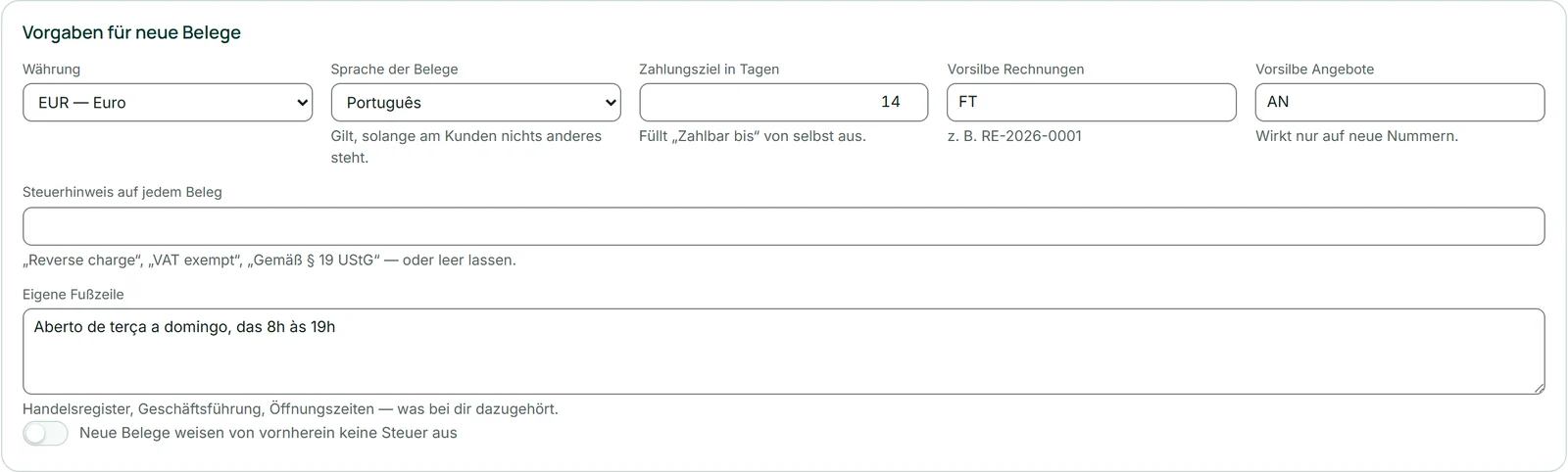
- Open “Settings” and scroll to “Defaults for new documents”.
- Set currency, language and payment terms; add prefixes, tax note and footer if you need them.
- Click “Save settings”.
Without a footer of your own, the document uses the additional lines of your brand from BrandStudio, such as your company registration entry.