
The overview
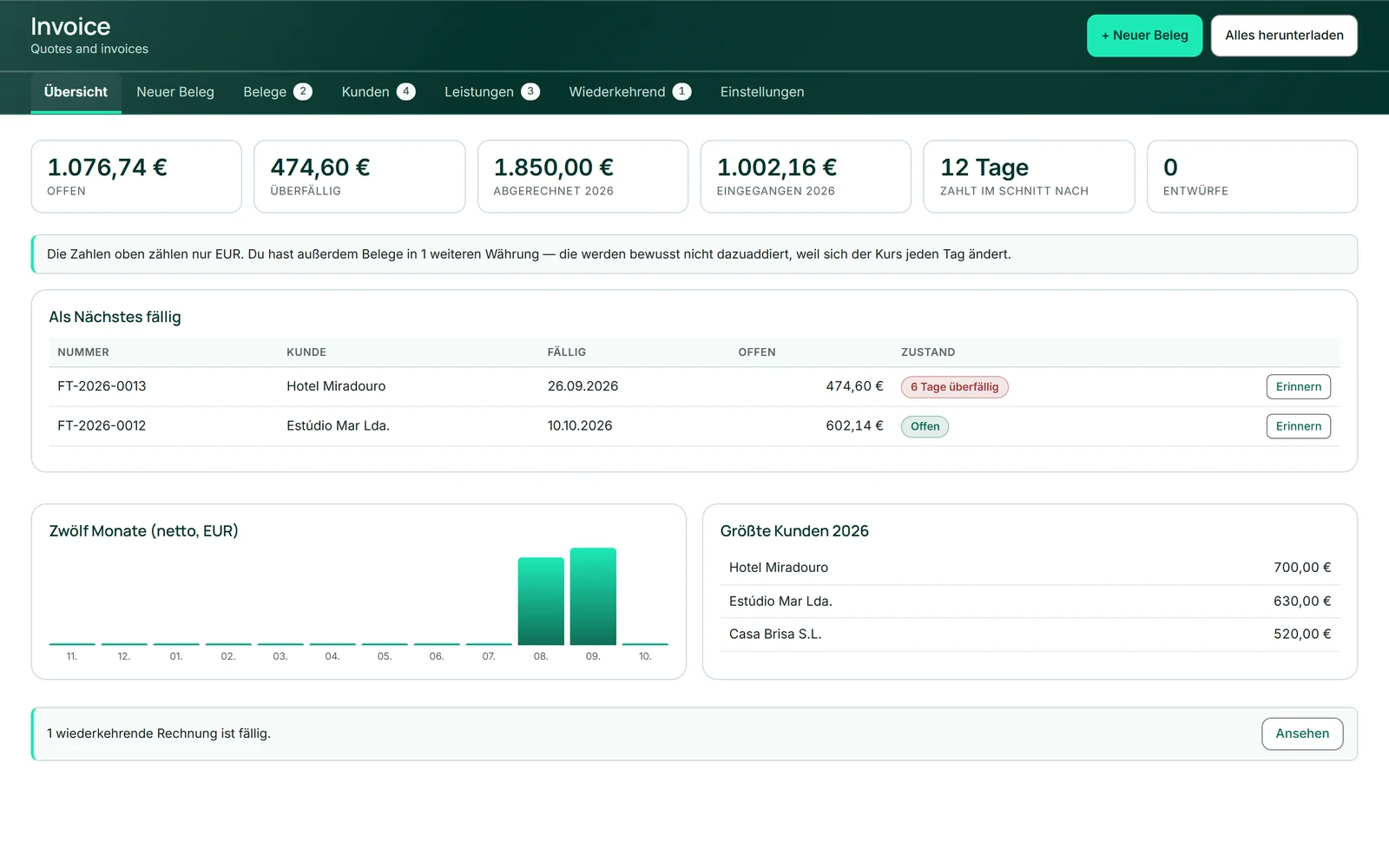
The “Overview” (overview) tab answers the questions you open an invoicing program with. At the top are six tiles: “Open” (outstanding), “Overdue” (overdue), “Abgerechnet” (billed) and “Eingegangen” (received) in the current year, “Average time to payment” (pays on average after) — the days from issuing to the last payment — and “Drafts” (drafts).
Below, “Next due” (due next) lists the outstanding invoices, most overdue first, with “Send reminder” (remind) in every row. “Twelve months” (twelve months) shows your net revenue per month, “Top customers” (largest customers) the five with the most revenue in the year. If a recurring invoice is due, a note with “Take a look” (view) appears here.
Everything is calculated in your default currency. The overview does not add up documents in other currencies, because exchange rates change daily; it only mentions that they exist.
Finding documents
The “Documents” (documents) tab lists all quotes and invoices, newest first. The search field finds by number or customer name; the buttons next to it filter: “All” (all), “Open” (open), “Overdue” (overdue), “Drafts” (drafts), “Paid” (paid) and “Quotes” (quotes).
Every row states its status in words — “Draft”, “Open”, “Partially paid” (part-paid), “Paid”, “Canceled” (cancelled), “Cancellation invoice” (cancellation invoice), “Accepted” (accepted), “Declined” (declined) or the number of days past the due date. Below the number it says “sent” (sent) if the document went out by email, and below the status how often you have sent a reminder. For part payments, a bar next to the amount still owed shows how much has arrived.
- Open “Documents”.
- Type a number or customer name into the search field.
- Narrow it down with a filter, for example “Overdue”.
Recording a payment
When money arrives, click “Payment” (payment) in the invoice’s row. In the window the outstanding amount is already in the amount field, together with “Received on” (received on) and “Payment method” (paid how) — free text such as “Bank transfer” (bank transfer), “Bar” (cash) or “M-Pesa”.
The invoice itself does not change, only its status: a part payment makes it “Partially paid”, the full amount “Paid”. A remainder of one cent counts as paid — rounding on international transfers should not trigger a reminder.
Made a typo? “More …” lists each payment under “Payments received” (payments received) with “entfernen” (remove); Invoice then recalculates the status.
- Click “Payment” on the invoice.
- Check amount, date and “Payment method”.
- Click “Record” (record).
Payment reminders in three stages
Once an invoice is past its due date, “Send reminder” (remind) appears in its row — from the day after “Payable by”, and in the overview too. The “Zahlungserinnerung” (payment reminder) window shows the next stage with address, subject and text, all in the customer’s language and all editable.
The three stages build on each other without becoming rude: first a friendly note that the invoice has probably slipped through, then a second enquiry offering to talk about a solution, and finally a request to get in touch. They name the amount still owed, not the original amount, and the invoice is attached as a PDF. Invoice adds no fees and no late-payment interest.
“Send” (send) sends the reminder through KENJTEC, just like a document. The stage only goes up once the message has actually gone out, and after the third it stays at the third; the row shows how often you have sent a reminder.
- Click “Send reminder” on the overdue invoice.
- Read subject and text and change them if you like.
- Click “Send”.
With the switch “Automatically remind customers about overdue invoices” (send reminders for overdue invoices automatically) in the settings, Invoice sends the next level by itself — at night, once an invoice is overdue by as many days as set (default 3, 14 and 30). Without the switch no reminder goes out without you; sending requires a subscription.
Just recording a reminder
If you have phoned or written yourself, record it in the same window with “Record only” (just record): the stage goes up, nothing is sent. That is a deliberate action and therefore counts — your next reminder will be the following stage.
If the outbox is not enabled, “Send” is missing from the window and “Record only” is the way to go. The finished text is still there; copy it and send it yourself.
- Click “Send reminder” on the invoice.
- Copy the text if you need it.
- Click “Record only”.