
Starting a document
“+ New document” at the top right, or the “New document” tab, opens the form: fields on the left, the sheet on the right. Under “Document type” (document type) choose “Invoice” (invoice) or “Quote” (quote). In the “Customer” (customer) field, type a name, town, postcode or email and pick your customer from the suggestions — with the mouse or with the arrow keys and Enter; the arrow at the right of the field shows everyone.
An invoice needs a “Service date” (date of supply); Invoice fills in today and you can change it. “Payable by” (due by) — on quotes “Valid until” (valid until) — is filled from the customer’s payment terms, otherwise from your settings; the line below the field says where the default comes from. Whatever you change here applies to this document only.
The document date itself is the day you issue it.
- Click “+ New document”.
- Choose “Document type” and “Customer”.
- Check “Service date” and “Payable by”.
Items, discount and texts
Each item has a description, quantity, unit, unit price and — as long as the document shows tax — a tax rate; Invoice works out the total. “+ Item” (add item) adds a line, “Choose from services” fetches a saved service, and the cross at the end of a line removes it. Items without a description are dropped when you save.
Type amounts and quantities the way you are used to — 1,250.50, 1 250,50 or 1.250,50; the lakh style (12,34,567.89) and digits of other scripts work too. Invoice respects the decimals of the currency: the yen has none, the Kuwaiti dinar has three. Anything Invoice cannot read is marked in red at the field — nothing is saved until it is right.
“Discount” (discount) applies to the whole document, “as a percentage” (as a percentage) or “as an amount” (as an amount), and never makes it negative. Invoice spreads it proportionally across the tax rates; the PDF then shows subtotal and discount. “Introduction (optional)” (introduction) sits above the items, “Closing text (optional)” (closing line) below the totals — up to six lines each on the PDF.
- Write the first item or click “Choose from services”.
- Add more with “+ Item”.
- Under “Discount”, choose the type and enter the value if there is one.
- Add an introduction and a closing line if you need them.
Currency
Invoice knows 55 currencies, each written the way it really is: the yen has no decimals, the Kuwaiti dinar has three, and the Bangladeshi taka groups digits in twos after the first three. The default comes from your settings; the “Currency” (currency) field changes it for a single document.
How the number is written on the PDF also follows the document language — the same euro amount looks different on a French invoice than on a German one. The currency symbol is printed as a real sign — €, ৳, ₹ or ₩; only a symbol that none of the PDF’s typefaces knows appears as its code.
The overview only calculates in your default currency. It counts and names documents in other currencies but does not add them up.

- Choose the currency of this document in the “Currency” field.
- Check totals and sheet — they switch to the new format straight away.
In your customer’s language
A document is for the person paying it. Under “Document language” (document language) you choose one of twelve languages: Deutsch, English, Français, Español, Italiano, Nederlands, Português, Dansk, Svenska, العربية, 日本語 and हिन्दी. Headings, columns, dates and numbers on the PDF follow it — Arabic is joined and runs right to left —, and so do the email that goes with the document and the payment reminders. Invoice’s screens follow your selected platform language.
It is pre-set to the customer’s language, otherwise to the one in your settings. When you issue the document, the language is fixed with it.
The PDF sets names and texts in Latin, Greek, Cyrillic, Arabic, Bengali and Devanagari script as well as in Japanese. Characters from other scripts — Korean, Hebrew or Thai, for example — appear as question marks.
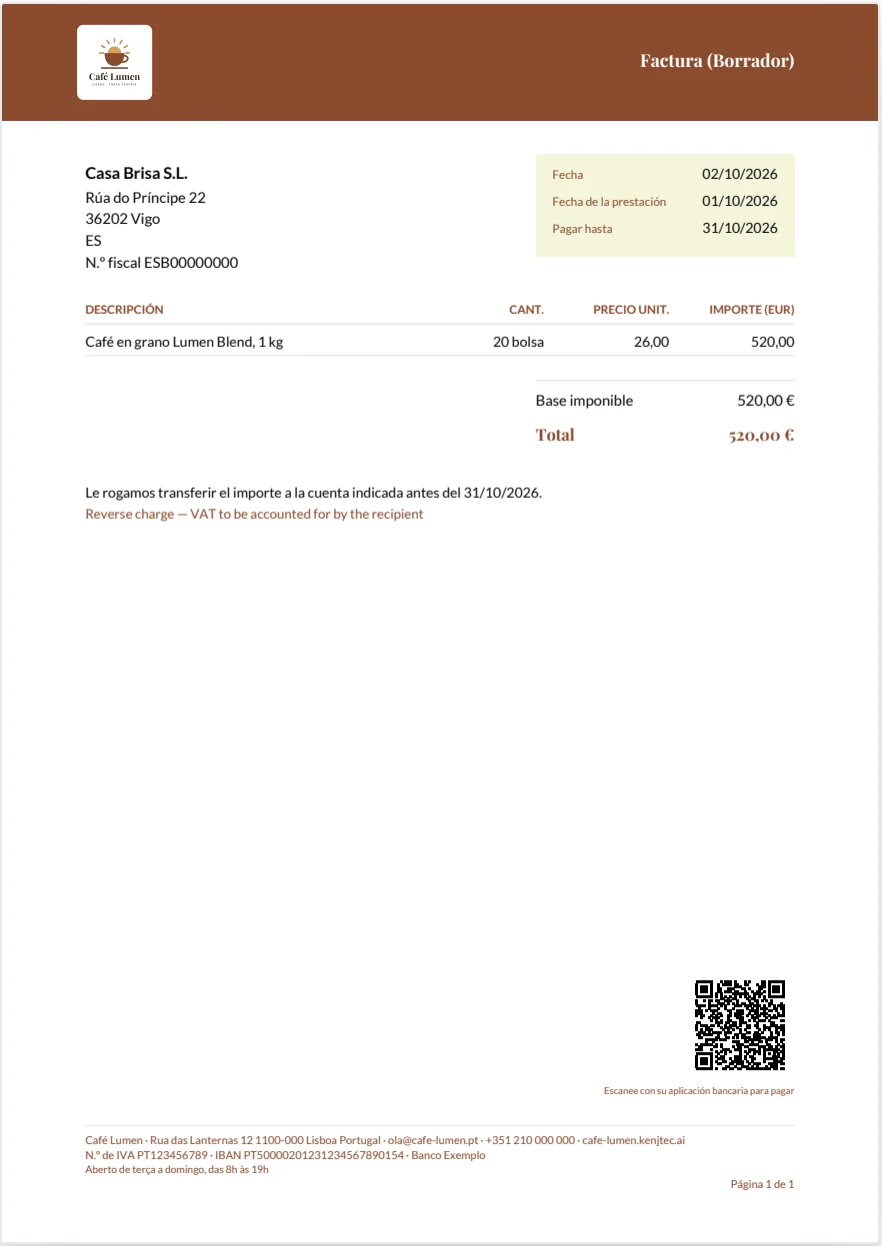
- Choose your customer’s language in the “Document language” field.
- Look at the sheet to see the document in that language.
Tax rates, no tax, tax note
Each item’s tax field lists the rates usual in the country from your settings — for Portugal 23, 13, 6 and 0 per cent. If none fits, choose “another rate …” (other rate) and type it in; any figure is allowed, 8,1 included. A new item starts at that country’s standard rate, so 23 % in Portugal; if Invoice doesn’t know your country, it starts at 0 % and you enter the rate that applies to you. If several rates occur or there is a discount, the PDF also prints the tax per rate.
“Do not show tax on this document” (show no tax on this document) removes tax from the document, and the tax column disappears. Write the reason in “Tax note (optional)” (tax note) — for example “Reverse charge” or “VAT exempt”. Whatever you write there is printed below the totals, on documents with tax too.
You know best what your country requires; Invoice adds nothing on its own.
- Choose the tax rate on each item.
- Switch on “Do not show tax on this document” if the document is without tax.
- Write the reason in “Tax note (optional)”.
A suggestion for customers abroad
If your customer is in a different country from you, Invoice suggests above the items how the document might be treated — in two cases. If you are both in the EU, in different countries, and the customer’s VAT ID is on file, the suggestion is: no tax, with the note “Reverse charge — VAT to be accounted for by the recipient”. If you are in the EU and your customer is outside it, the suggestion is: no tax, with the note “Export — VAT exempt”.
It is a suggestion with a reason, not a decision: nothing is ticked automatically. Only “Apply” (apply) switches tax off and sets the note, and you can change both again afterwards. In all other cases there is no suggestion.
Whether it fits your case is your decision. Check the number first with Checking a VAT ID.
- Choose a customer from another country.
- Read the suggestion above the items.
- Click “Apply” if it fits your case.
Design and preview
Next to the form is the sheet. It is not an imitation but the PDF itself: shortly after your last keystroke, Invoice draws it again, with sender, logo, customer and all totals. Below it reads “This is the PDF exactly as your customer will receive it.” (this is the PDF as your customer receives it). The preview shows up to eight pages; you see longer documents in full in the PDF.
Under “Styling” (design) you decide how much of your brand goes on the sheet: “Farbband” (colour band) with a strong bar in your brand colour, “Leise” (quiet) with a light header and a single line, or “Linie” (line) with no filled areas at all. Colours and type come from your brand. The choice is available for invoices and quotes, and Invoice remembers it straight away for the next document.
The sheet is hidden from screen readers — its content is in the fields on the left.
- Under “Styling”, choose “Farbband”, “Leise” or “Linie”.
- Look at the sheet to see the result.
Saving as a draft
“Create as a draft” (save as draft) saves the document without issuing it. A draft has no number yet — it gets one when you issue it, so no gaps appear in the numbering. In “Documents” it is marked “Draft” (draft), and everything about it can be changed.
“Edit” (edit) in the list opens it in the form again. “Save draft” (save draft) keeps your changes; “Discard” (discard) ends editing without saving and clears the form — the last saved version stays in the list. “Save and issue” (save and issue) saves and issues in one step.
When you save, Invoice also adds each item to your services. A draft you no longer need cannot be deleted here; it has no number and does not affect the numbering.
- Click “Create as a draft”.
- Open it later in “Documents” with “Edit”.
- Keep changes with “Save draft”.