
Adding a customer
At the top of the “Customers” (customers) tab is the “New customer” (new customer) card. “Name”, “Street and number” (street and number) and “City” (town) are required — without an address no document can be issued. You need the email address if Invoice is to send documents and reminders for you.
Enter the country as a code (ES, GB, US); it helps decide whether Invoice offers a tax suggestion while you write. If you leave it empty, Invoice saves DE. Each name exists only once: if you add the same name again, the existing customer stays.
A customer you add here also lands in your BusinessCloud address book, in the group “Customers” — email address included. In the “Your customers” (your customers) list, “new document” (new document) starts a document for that customer straight away.
- Open the “Customers” tab.
- Under “New customer”, fill in at least name, street and number, and town.
- Click “Add customer” (add customer).
Language and payment terms per customer
Two details on the customer save you work on every document. “Language of their documents” (language of their documents) sets the language Invoice uses for their PDF, email and reminders. If it says “as set for the sender” (as set for the sender), the language from your settings applies.
“Payment terms in days” (payment terms in days) applies to this customer only. When you choose them on a new document, Invoice fills in the due date for you; if the field is empty, your payment terms from the settings apply.
The order is always the same: what you choose on the document comes first, then what is set on the customer, then your default.
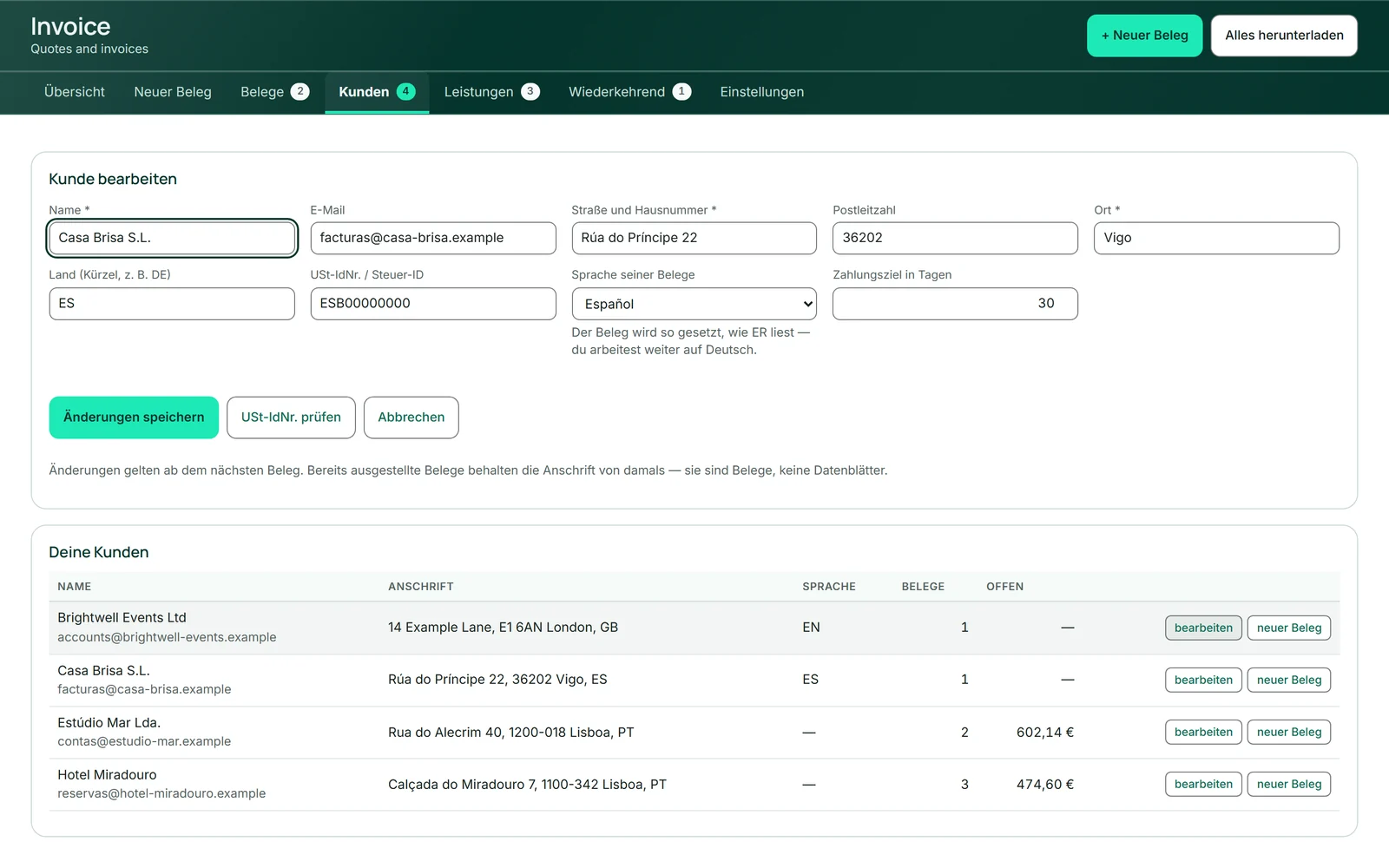
- In “Your customers”, click “bearbeiten” (edit) next to the customer.
- Choose “Language of their documents” and enter “Payment terms in days”.
- Click “Save changes” (save changes).
Customers from the address book
Anyone already in your BusinessCloud contacts doesn’t need typing again. In the “Customers” tab, the card “Import from the address book” (take over from the address book) lists the contacts that are not yet customers; “use” (take over) turns one into a customer. If a contact has a company, the company becomes the customer; the card shows the person beneath it.
It is even quicker while writing: the “Customer” field of a new document suggests these contacts too, marked “from the address book” (from the address book). Choose one and Invoice adds it as a customer when you save.
Customer and contact stay linked, so no duplicate appears next time. Their details do not sync, though: if you later change the customer in Invoice or the contact in the address book, the other side stays as it is. If a contact has no country, Invoice fills in DE.
- Open “Customers”.
- Find the contact under “Import from the address book” and click “use”.
- Then check country, language and payment terms with “bearbeiten”.
Checking a VAT ID
“Check VAT ID” (check VAT ID) asks the EU register whether the number in the “VAT ID / tax ID” field exists and, for a valid number, shows the registered name and town. It is worth doing before you write a document without tax to a business in another EU country.
The answer appears below the form: valid, unknown to the register, or the register is not answering right now. Numbers from outside the EU cannot be checked, because there is no shared register there. The check never holds you up — you can save the customer either way.
- Enter the number with its country prefix in “VAT ID / tax ID”, for example ESB12345678.
- Click “Check VAT ID”.
- Read the answer below the form.
Changing and deleting customers
“bearbeiten” in the “Your customers” list opens the customer in the form at the top. Changes apply from the next document; issued documents keep the address they had.
“delete” (delete) only appears for customers without documents. If a document is still attached — even a draft — or a recurring invoice runs for them, the customer stays. The contact in the address book is kept when you delete.
The list shows each customer’s address, language, number of documents and what is outstanding.
- Click “bearbeiten” next to the customer.
- Change the details and click “Save changes” — or “Cancel”.
Services you bill again and again
The “Services” (services) tab holds what you bill often: description, unit, price per unit and tax rate. You don’t have to maintain it — every item of a document you save in the form lands here by itself. The same description at the same price counts up instead of adding a second line.
The “Your services” (your services) list is sorted by use, not alphabetically; the “Used” (used) column shows how often. On a document, “Choose from services” (choose from services) adds a service as a new item.
Changes and deletions affect future documents only — what is already on a document stays.
- Open “Services”.
- Under “Add service” (add service), enter description, unit and “Preis je Einheit” (price per unit) and choose the tax rate.
- Click “Add service”.
“delete” removes a service without asking.