
The five colour roles
Under “Design” and “Colours” you’ll find “Your colour palette”. Every colour has a job: “Background” is the base of the whole page, “Surface” is everything that sits on it — cards, boxes, fields. “Text colour” is for body text, “Accent colour” for buttons, links and everything that acts. “Text on buttons” is the label colour on the accent; leave it empty and we calculate it so that it’s readable.
You set a colour by clicking its swatch or typing its hex value below, such as #8A4B2E, and confirming with Enter. A dashed swatch means: not set yet, the template decides. The × next to a set colour releases it again, and the small i next to each role explains it in one sentence.
- Open “Design” and choose “Colours”.
- Click a role’s swatch or type its hex value.
- Check the preview — saving happens on its own.
Combinations on the colour wheel
“Explore colour combinations” opens the colour wheel. Its large dot is the “Base colour”, and that is your accent colour: whatever you pick on the wheel is saved as your accent colour straight away. You drag the dot with a mouse or finger; when it has focus, the arrow keys work too, with Shift for bigger steps. The “Brightness” slider below makes the colour lighter or darker.
Next to it you choose a “Harmony”: “Analogous”, “Monochromatic”, “Complementary”, “Split complementary”, “Triadic”, “Square”, “Shades” or “My own”. The “Palette” below shows the matching colours with their hex values; “Use as …” under a colour puts it on a single role.
“Apply to the brand” spreads the palette in one go: the base as accent, plus a light background, a light surface, a dark text colour and button text in black or white — calculated to be readable. Afterwards you can change each role individually.
- Under “Colours”, expand “Explore colour combinations”.
- Drag the large dot onto your main colour and choose a harmony.
- Click “Apply to the brand”.
Readability
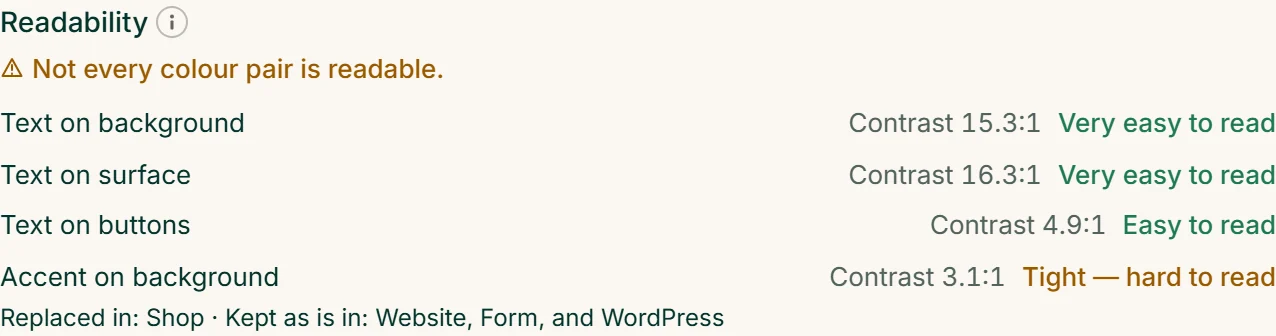
Below the palette, the “Readability” box measures four colour pairs: “Text on background”, “Text on surface”, “Text on buttons” and “Accent on background” — against WCAG, at least 4.5:1. Each pair shows its contrast and a verdict in words: “Very easy to read”, “Easy to read”, “Tight — hard to read” or “Not readable”. A pair where one colour isn’t set yet isn’t measured.
If a pair isn’t readable, the warning appears at both colours (“Too little contrast with: …”) and the box shows what happens in each tool. “Replaced in: …” means that tool shows a readable colour there instead of yours — website, form and WordPress use black or white, the shop first its own colour. “Kept as is in: …” means the tool shows exactly your colours, even if they’re hard to read.
Below that, “Ways to make it readable” offers up to three finished palettes in which every pair passes. We calculate all pairs together, so that no fix breaks another pair — each colour only gets lighter or darker and keeps its hue; the text on buttons stays your colour or becomes black or white. A small preview shows the four pairs for each suggestion, and next to it which colour moves how. “Apply” puts the palette on your brand, “Undo” brings your colours back.
Readable colours help everyone: people with low vision, and anyone looking at a phone in bright sunlight.
Checking contrast in detail
“Check contrast in detail” takes a close look at one pair. At the top you choose the pair; its ratio is shown large, such as 5.20 : 1. Below are the foreground and background, each with a swatch and a “Brightness” slider — what you change here changes your brand’s colour.
The table shows which levels the pair reaches: “Large text”, “Small text” and “Graphics and UI”, each for AA and AAA with “Pass” or “Fail”. Body text needs 4.5:1, large headings 3:1; for an accent against the background, 3:1 is enough. Next to it you see the pair as a small page with a heading and a paragraph.
If the contrast isn’t enough, “Suggestions — same hue, just lighter or darker” appear: one click puts the suggested colour on the role. If the hue can’t get there at all, the box tells you to pick one of the two colours afresh.
- Under “Colours”, expand “Check contrast in detail”.
- Choose the pair that isn’t readable at the top.
- Click a suggestion or drag the “Brightness” slider until “Pass” appears.