Company, address and contact
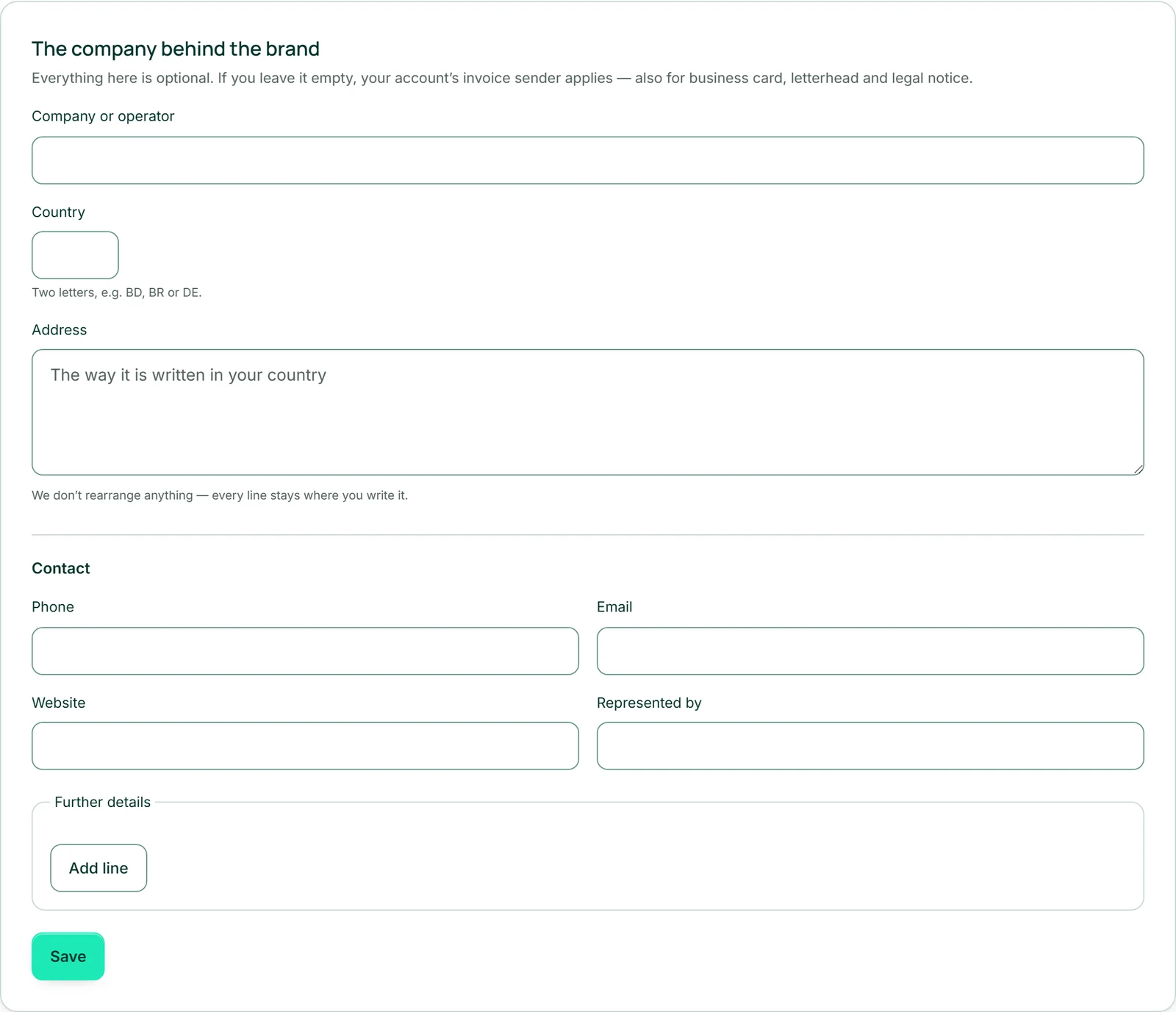
Under “Company” you enter who is behind the brand: “Company or operator”, the “Country” as two letters — its name appears next to it, for PT that’s Portugal — and the “Address”. Under “Contact” follow “Phone”, “Email”, “Website” and “Represented by”.
The address is a free block of up to eight lines. Write it the way it’s written in your country; we don’t rearrange anything, every line stays where you put it. All fields are optional.
“Save” stores the whole form, and “Saved.” appears next to it. After saving, the fields show exactly what applies — including anything that was too long and has been shortened.
- Open “Company”.
- Enter “Company or operator”, the address and at least one email address or phone number.
- Click “Save”.
Further details: registers, tax numbers and more
Details that only exist in some countries go under “Further details” — you write both the label and the value yourself. That way it fits anywhere: “NIF” in Portugal, “VAT number” in the UK, “Handelsregister” in Germany, “CNPJ” in Brazil. “Add line” adds up to ten lines, “Remove” takes one away; lines without a label or without a value are dropped when you save.
The lines appear in the legal notice exactly as you write them — unchanged in every language — and in the footer of your letterhead.
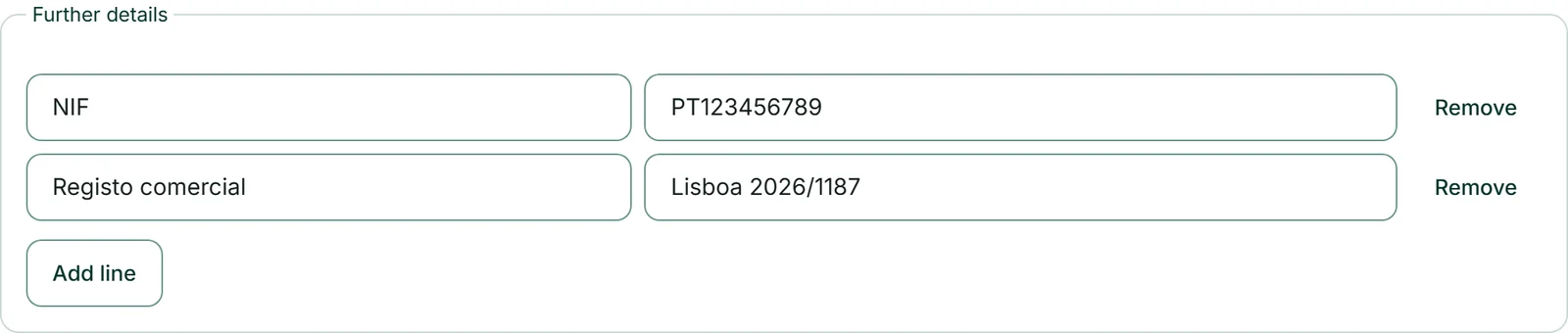
We don’t check which details your country requires, and we don’t suggest any. What you enter is what appears.
Opening hours
Under “Company”, you enter when your business is open in the “Opening hours” box: a tick per day and up to three time slots, plus the “Time zone”. “Copy Monday to Tuesday through Friday” saves you the weekdays, and “Save opening hours” stores everything. A day without a tick is closed; a time slot ends on the same day — for hours past midnight, enter two time slots on two days.
Your websites show the hours in their language, such as “Mon–Fri 09:00–18:00 · Sat 10:00–14:00”, and pass them to search engines in the exact format — as long as a website doesn’t have its own wording. In BusinessCloud, they become your availability the next time you sign in, as long as you don’t enter your own there; if you do, yours stays.
Leave it empty: then your invoice sender applies
If you leave “Company” completely empty, the sender details you keep in Invoice for your invoices apply — for the legal notice, business card, letterhead and the check before publishing. So you don’t have to type anything twice.
As soon as you fill in even one field here, the brand’s details apply as a whole. They aren’t mixed field by field with the invoice sender — so enter everything that’s needed.
The same works the other way round: if your sender in Invoice has no company details of its own, new invoices and quotes take the brand’s details. More under Invoice.
The legal notice
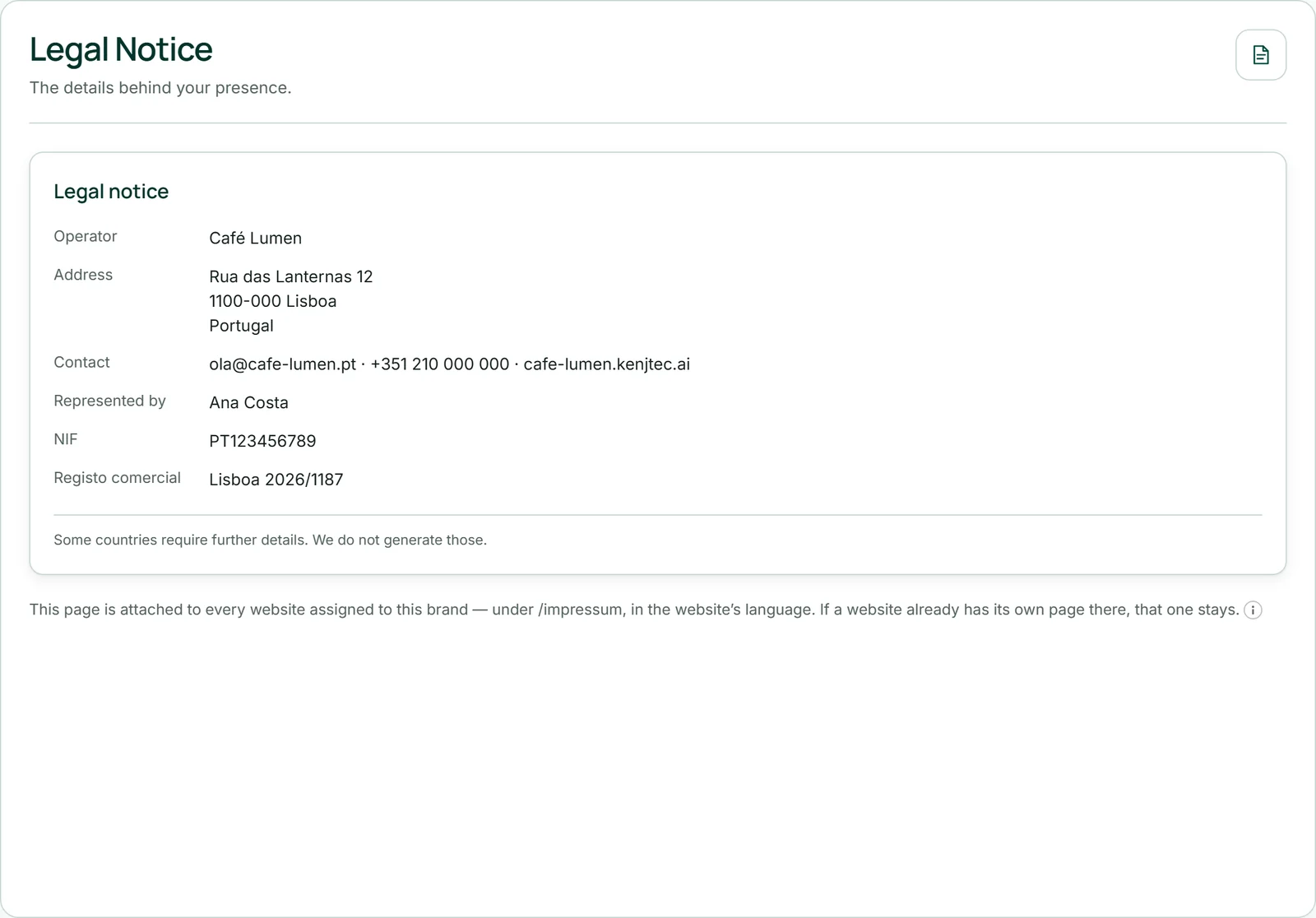
Your company details become a legal notice. Under “Legal Notice” you see it as a preview in the language you’re using KENJTEC in: the title, then one line per detail — operator, address, contact, represented by, then your further details — and finally the sentence “Some countries require further details. We do not generate those.”
The page is attached to every website of this brand under /legal-notice, in the website’s language: on an English site it’s called “Legal notice”, on a Portuguese one “Aviso legal”. If a website already has its own page there, that one stays. The code under “Country” doesn’t appear on it — if the country should be named, write it into the address.
No AI is involved, and it uses no AI credit: the page says exactly what’s in the fields. If everything is empty, there’s no page and no link; the preview then takes you back with “To the company details”.
Before anything goes online
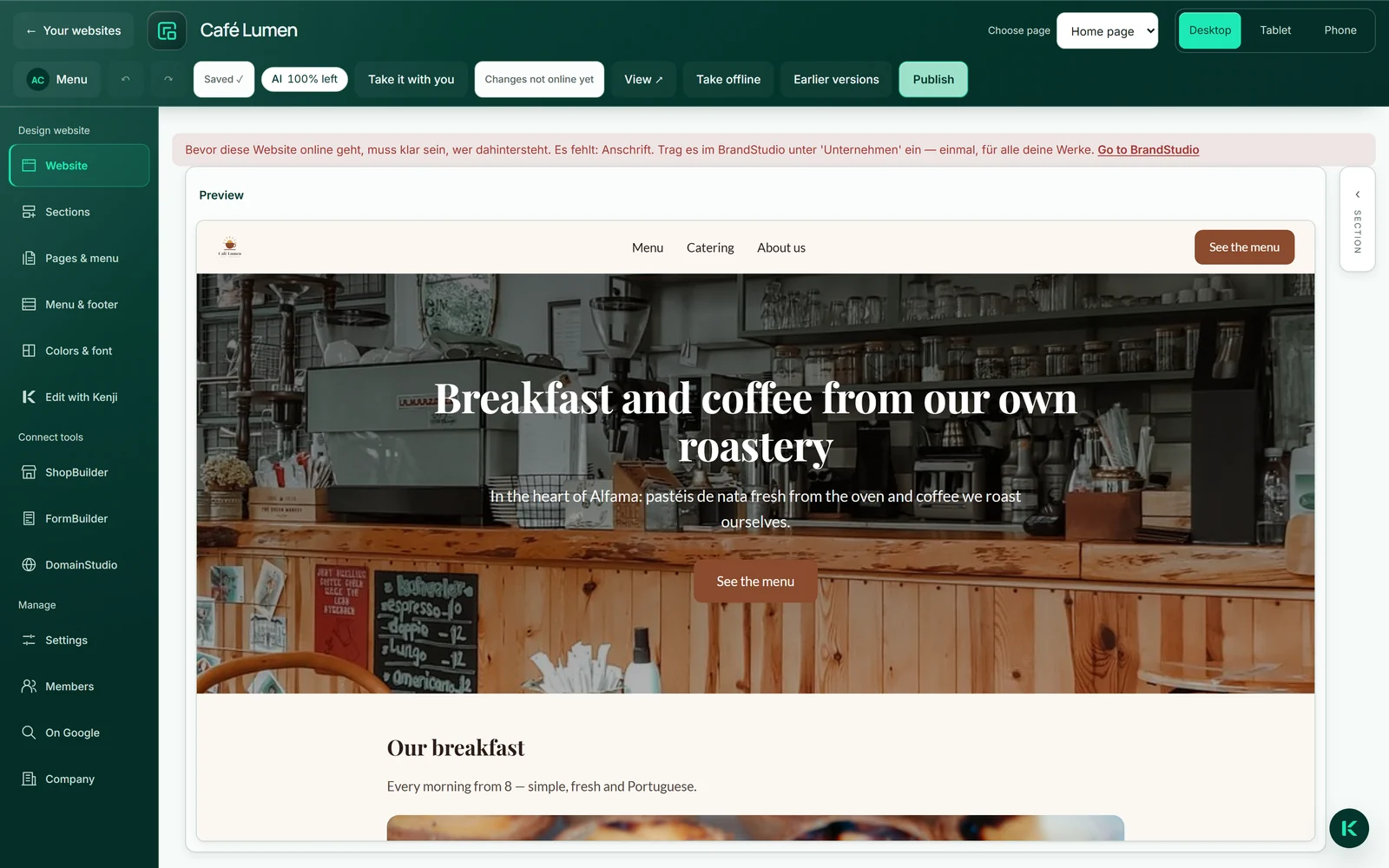
Before a website, form, shop or WordPress site goes online — or a domain points to one of them — it has to be clear who is behind it. Three things are enough: “Company or operator”, the “Address”, and an email address or phone number. They come from the brand, otherwise from your invoice sender.
If something is missing, the tool tells you what when you publish; in WebSiteBuilder the link “Go to BrandStudio” sits right next to it. A logo, colours or a tax number aren’t needed for this.
Editing, previews and drafts always work. What’s already online stays online; the question only comes up the next time you publish.
If you have several brands, each project belongs to exactly one. If it doesn’t belong to one yet, the tool asks “Which brand?” when you publish — see Which brand each project uses.