The rule: whatever is empty follows the brand
What you set in BrandStudio is the default for your tools. The order is always the same: the brand beats a tool’s template and Kenji’s suggestions; what you set yourself on an individual piece of work beats the brand.
Nothing is copied along the way. Your website, forms and shop read the brand every time they’re shown. Change the accent colour and it appears everywhere the brand applies shortly afterwards — including published pages, without you publishing again.
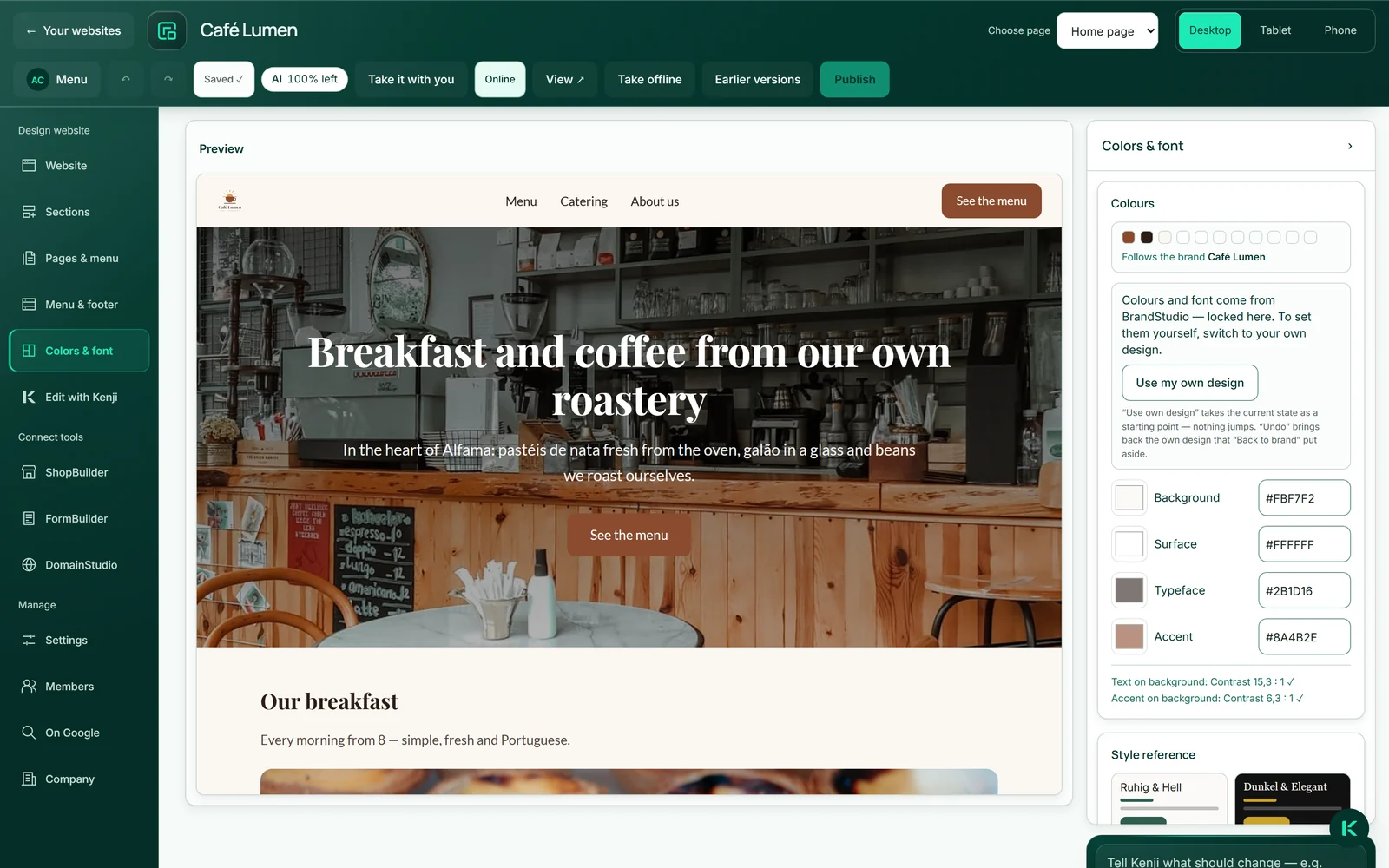
In the design of a website, shop or WordPress site you can see where you stand: “Follows the brand” with your brand’s colour dots — or the “own design” badge with the roles you’ve set there yourself. In FormBuilder, the “Take the design from BrandStudio” switch shows it.
Detaching and bringing back
While a piece of work follows the brand, its colour and font fields are locked. “Use my own design” unlocks them: the current state is copied into the work so that nothing jumps, and from then on it no longer follows the brand.
“Back to the brand” removes the work’s own values again; afterwards it follows the brand — including all later changes. If that was a mistake, “Undo: own design from …” brings back the design that was set aside. That’s one step: the next “Back to the brand” replaces it.
That’s what the buttons are called in WebSiteBuilder and ShopBuilder. In FormBuilder it’s a switch, “Take the design from BrandStudio”; WordPress has buttons of its own, see below.
- Open your work’s design — in WebSiteBuilder, for example, under “Colors & font”.
- Click “Use my own design” and change what you like.
- To follow the brand again, click “Back to the brand”.
Website
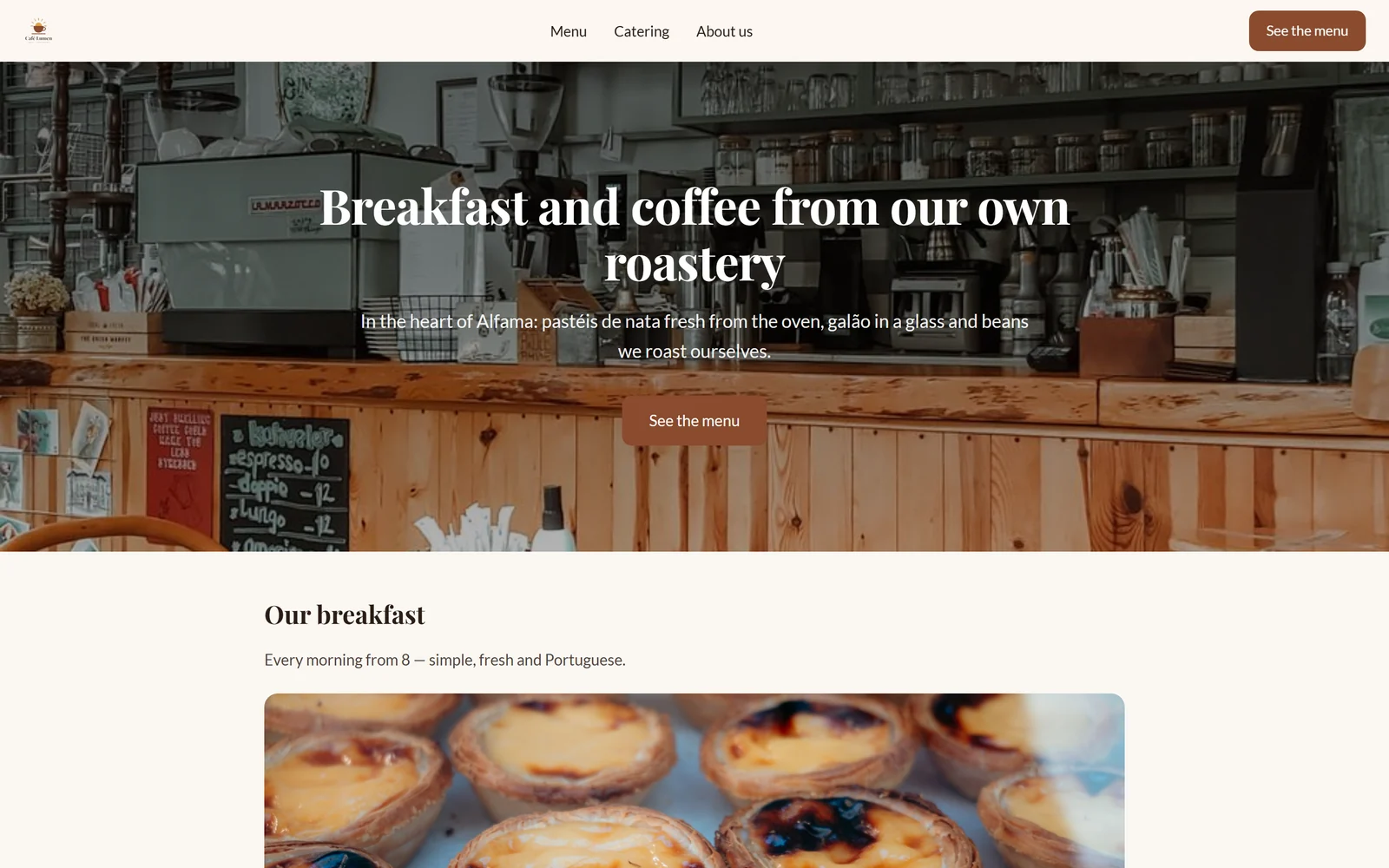
A website follows the brand for colours, button and card shape and fonts, as long as you haven’t set anything of your own in its design; the editor then says “Colours and font come from BrandStudio — locked here.” A new website starts out this way.
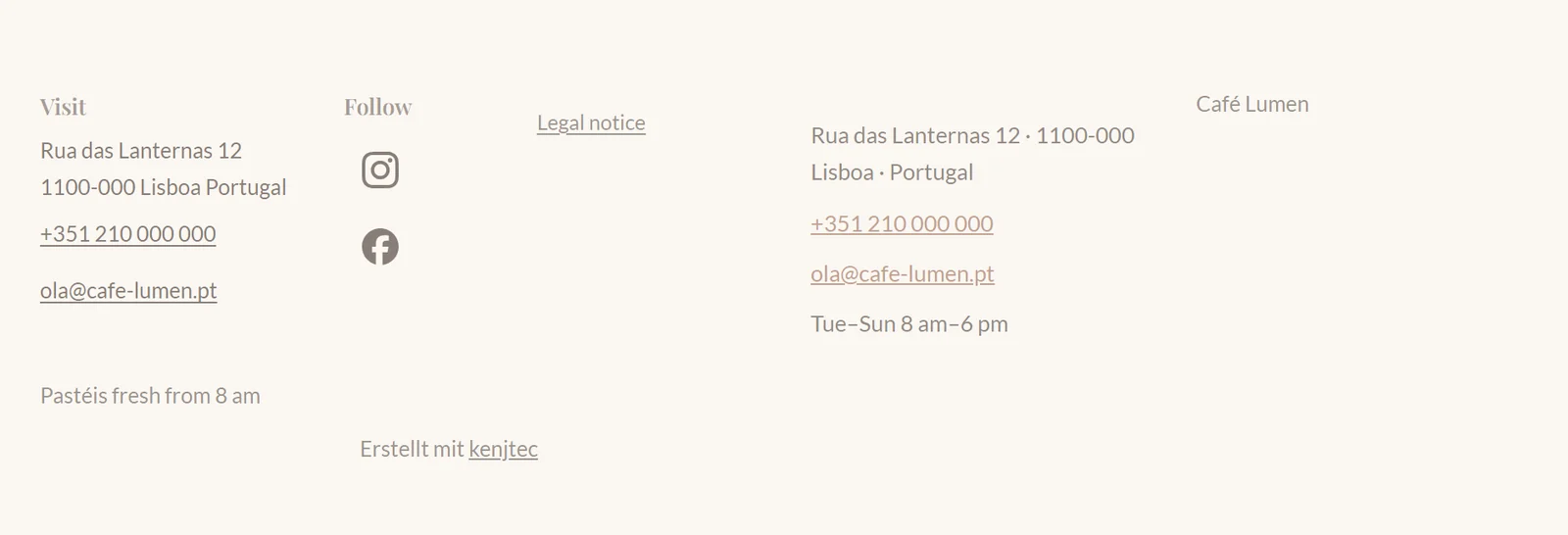
A new website also takes the brand’s company name, address, phone and email for its footer and contact block; fields that are empty in the brand come from the website’s own details. It carries the logo as long as you haven’t set your own in the menu, and the legal notice is attached under /legal-notice.
Your social channels appear in the footer as long as the website has no list of its own. More about the editor under WebSiteBuilder ai.
Forms and shop
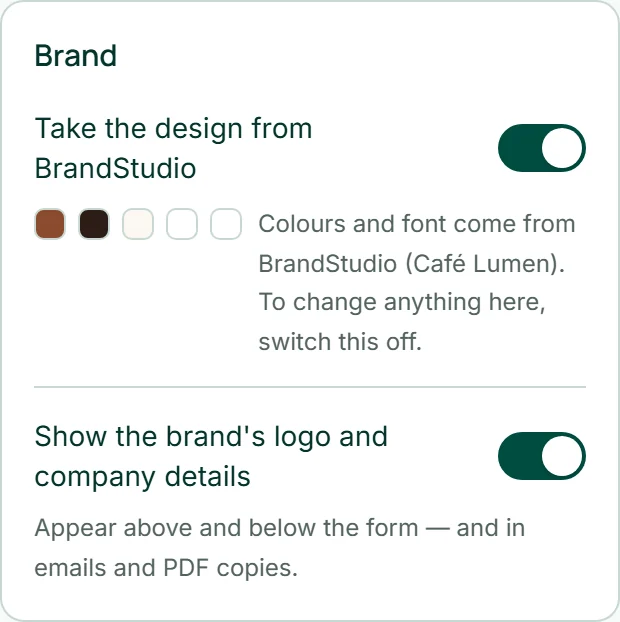
In FormBuilder, the “Brand” card sits at the top of the design panel. With “Take the design from BrandStudio” on, colours, shape and font come from the brand, and the controls below are locked. Switch it off and the form keeps the current state; switch it on again and your design is set aside, and “Undo: own design from …” brings it back. The second switch, “Show the brand's logo and company details”, puts logo and company details above and below the form — and into emails and PDF copies.
In ShopBuilder, the “Design” section shows the box “Design and details come from BrandStudio”: the colour field and logo are locked there until you choose “Use my own design”. If you leave the legal notice empty in the shop’s settings, it comes from BrandStudio.
Details are under FormBuilder ai and ShopBuilder ai.
WordPress
A WordPress site carries your brand when you say so: when creating it with “With my brand”, or later in its control panel under “Brand” with “Apply brand”. The KENJTEC One theme is then on the site, and colours, font, logo and name come from the brand — visible to every visitor straight away.
Afterwards it says “This site follows its brand”, and every change in BrandStudio is passed on automatically. “Detach from brand” ends that; the design stays as it is. The brand only applies with KENJTEC One — another theme doesn’t read it.
More under WordPressBuilder ai.
Invoices and letterhead template
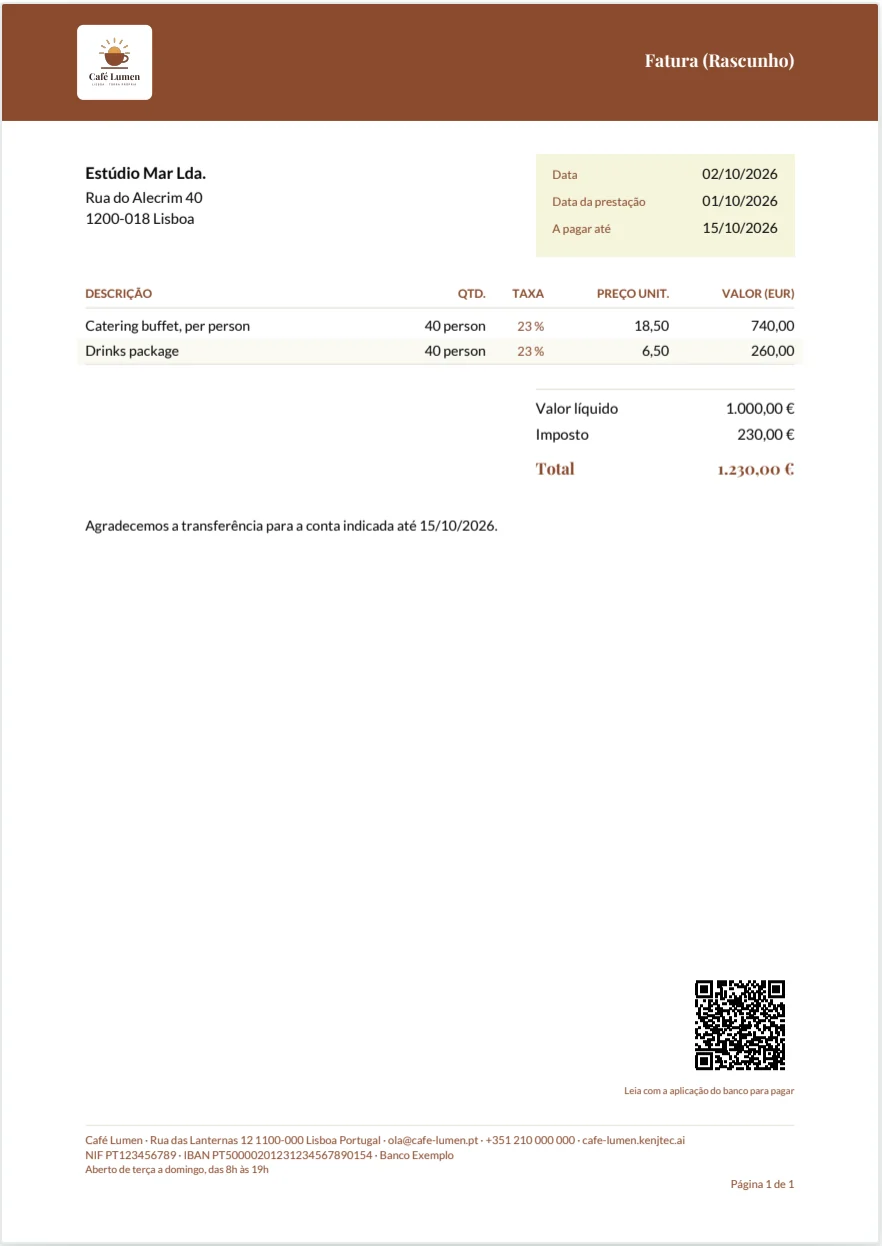
For new invoices and quotes, Invoice takes company name, address and contact from the brand, as long as your sender there has no company name, street or city of its own. The logo comes from your own upload in Invoice, otherwise from the brand; colours and font always come from the brand. If you have several brands, you choose in Invoice which one applies to your documents — it then applies to the letterhead as well. Documents already issued stay as they are.
BusinessCloud also keeps a letterhead of your brand in your templates folder, as “Letterhead.odt” — with logo, colours, font and company details, as a template for new documents. It’s refreshed when you sign in or open Invoice.
How to detach the sender in Invoice or bring it back is explained under Invoice.
Print matter and social channels
In PrintStudio, business card, letterhead, flyer, folder and printed forms carry your logo, your colours, both fonts and your company details; fields you leave empty there follow the brand. See PrintStudio ai.
You manage your social channels in SocialStudio; in BrandStudio, “Channels in SocialStudio” takes you there. They’re stored on the brand: website, shop and form show them as icons in the footer as long as they have no list of their own, and so do WordPress sites with KENJTEC One that follow their brand. On business card and letterhead, the first channel appears as a name, such as @your.company.