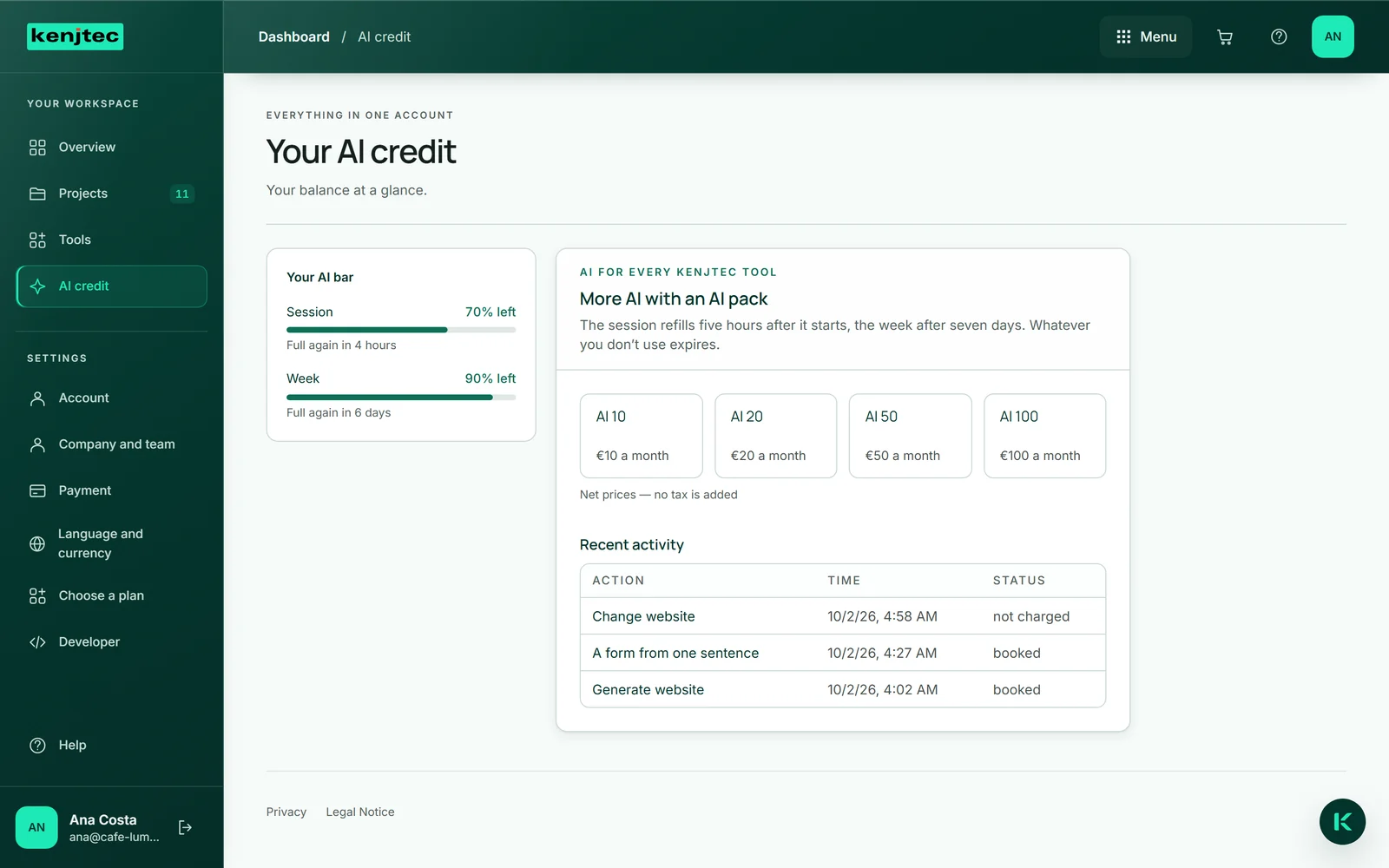
The AI bar
Everything Kenji does for you — drafting a website, building a form from one sentence, suggesting an image description — uses AI credit. It is one credit for all tools.
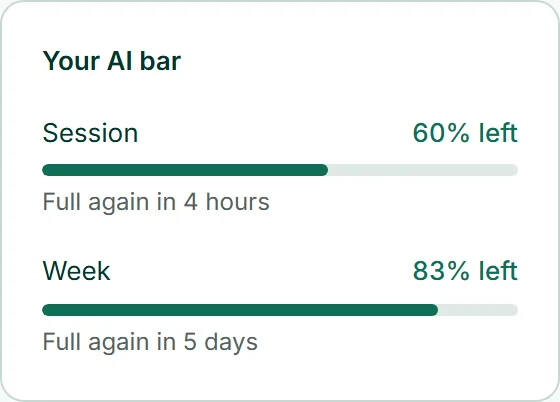
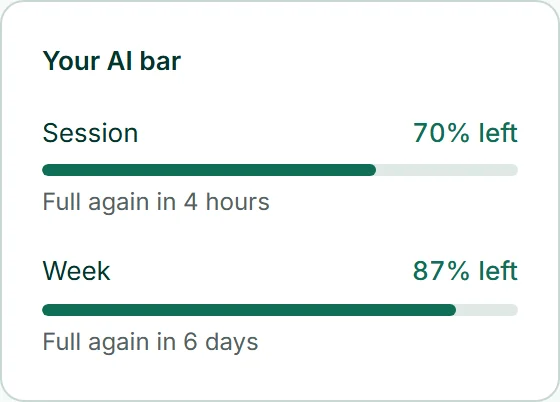
You see it as two bars, “Session” and “Week”. Each shows how much is left and, below it, when it will be full again. How long the bars are depends on your plan. For screen readers, each bar is a progress indicator with the share left in per cent.
The bars appear in the dashboard under “Overview” and “AI credit”. In some tools, such as the WebSiteBuilder editor, a small indicator at the top — “AI … % left” — shows the lower of the two.
How much a request takes from the bar depends on the work the AI really does: an image description takes hardly anything, a whole website draft noticeably more. Kenji picks for every task an AI that does it well — and, where it can, an economical one; what is saved stays in your bar. At the bottom of every Kenji field you see after each request how much it was.
Working by hand never uses AI credit — and neither do questions to Kenji in the chat window.
How the bars refill
Both bars start running with your first task for Kenji. The session is full again five hours later, the week after seven days — on its own, without you doing anything. The next period then starts with your next task. Whatever you haven’t used by then expires; nothing carries over into the next week.
The session is shorter than the week. That way the week can’t be used up in a single afternoon.
As long as both bars still show something, every task starts — even one that needs more than is currently left.
When the bar is empty
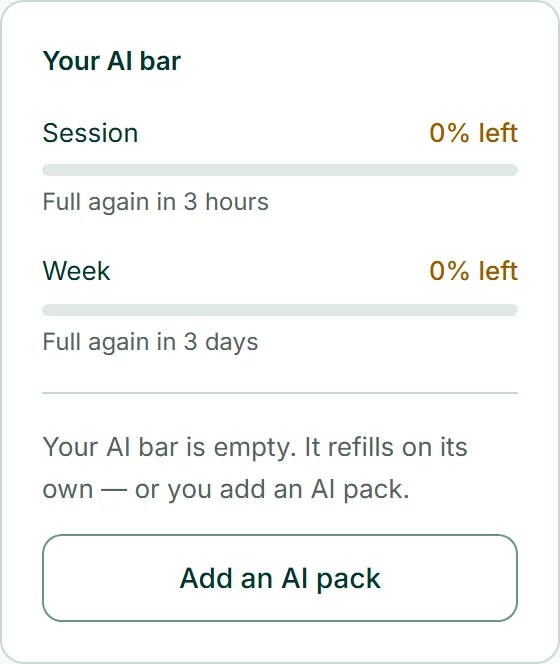
When a bar runs low, “Your AI bar is running low.” appears below it. Once it is empty, no task for Kenji starts any more, and you see: “Your AI bar is empty. It refills on its own — or you add an AI pack.”
You then have two options: wait until the bar is full again — the time is shown below it — or add more with “Add an AI pack”. Everything you do by hand carries on as usual.
Adding an AI pack
An AI pack makes the bars longer. It is added to a running plan and billed together with it, on the same card. Without a plan you see “An AI pack is added to a plan.” and the link “Choose a plan”.
Under “AI credit”, “More AI with an AI pack” lists the packs, each with its price. After you click a pack, the page asks you to confirm. With “Book now”, the share up to the end of the current billing period is paid straight away with your plan’s card, and the bars last longer from that moment; below them you then see “With” followed by the pack’s name.
You switch to a different pack the same way. When you switch, the difference is settled straight away.
- Open “AI credit” in the dashboard.
- Under “More AI with an AI pack”, click a pack.
- Read the confirmation and click “Book now”.
If the payment fails, no pack is booked and the page tells you so. What the packs cost is on the pricing page.
Cancelling an AI pack
Below the packs is “Cancel AI pack”. One click is enough: the pack stays active until the end of the paid period, the tile shows “Cancelled as of” and the date, and nothing more is charged for it after that. You can book a pack again at any time, just like the first time.
If you cancel your plan, an AI pack attached to it ends on the same day as the plan.
- Open “AI credit” in the dashboard.
- Click “Cancel AI pack”.
What Kenji did recently
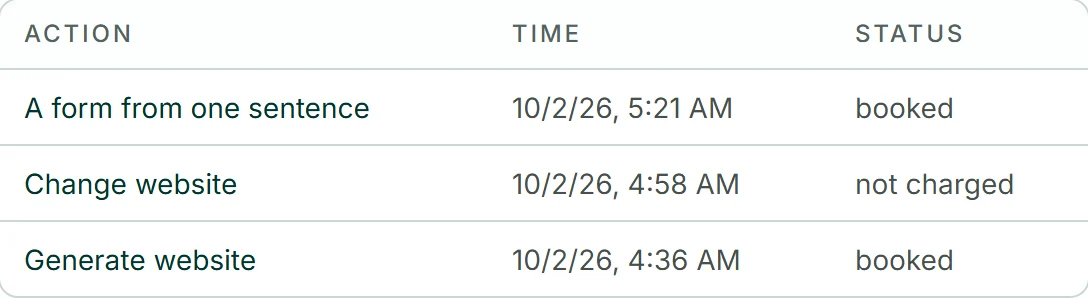
“Recent activity” lists your latest tasks for Kenji: the “Action” — such as “Generate website” or “A form from one sentence” —, the “Time” and the “Status”. The list shows no usage; the bars do that.
“reserved” means the task is running right now, “booked” that it finished and counts, and “not charged” that it didn’t finish and used nothing.
A task that breaks off uses no AI credit
Kenji only deducts once the result is there. If a task fails — the connection drops, the AI doesn’t answer — nothing is used, and “Recent activity” shows it as “not charged”.
If the page sends the same task again, for instance because the answer took a while, it counts only once.
This also holds after an error message, as long as you don’t change the task: if Kenji finished anyway, the next click picks up the result instead of working it out again. If Kenji is still working, the page says “Kenji is still working on this task …” and asks again by itself a few seconds later. A changed task is a new one — and after reloading the page, even the same click counts as a new task.