
Tutorials
Short videos that show every KENJTEC tool step by step: from your first sign-in to a finished website, a shop and your first invoice.
Getting started
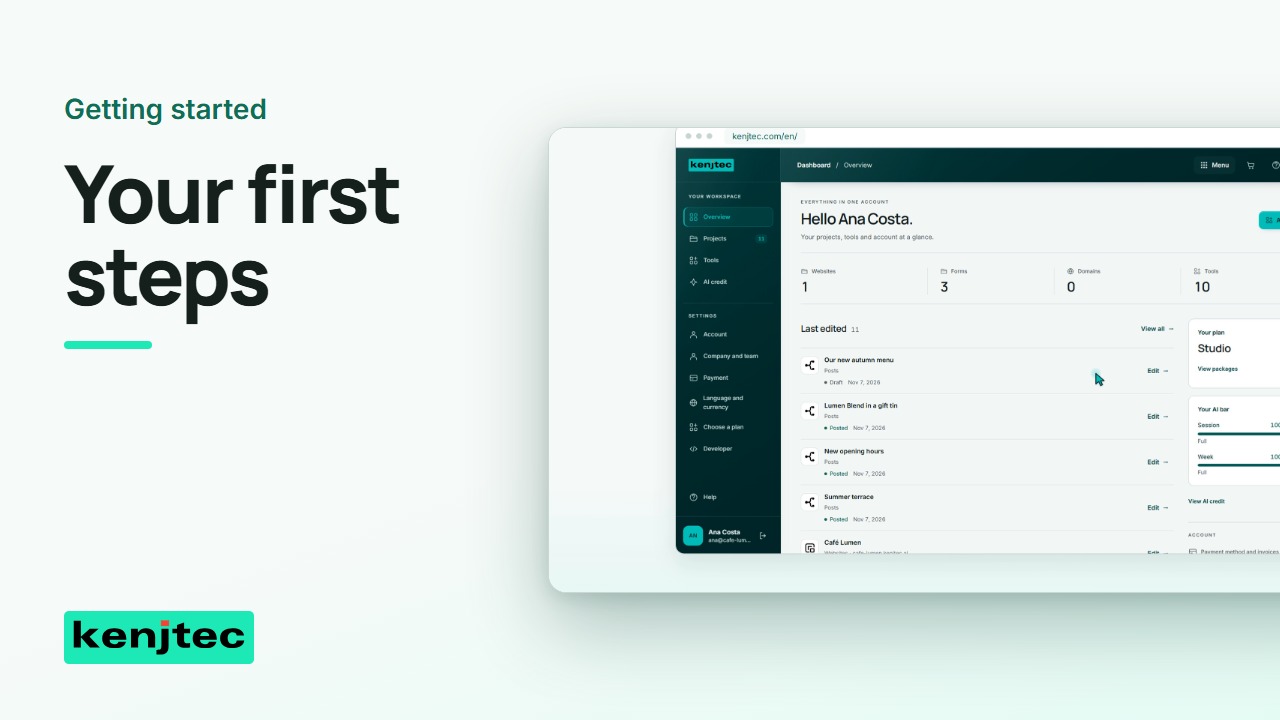 1:26Get started with KENJTEC: find your tools and your addressYour projects and tools start here. Let's find a project, open its tool, and locate your account address.
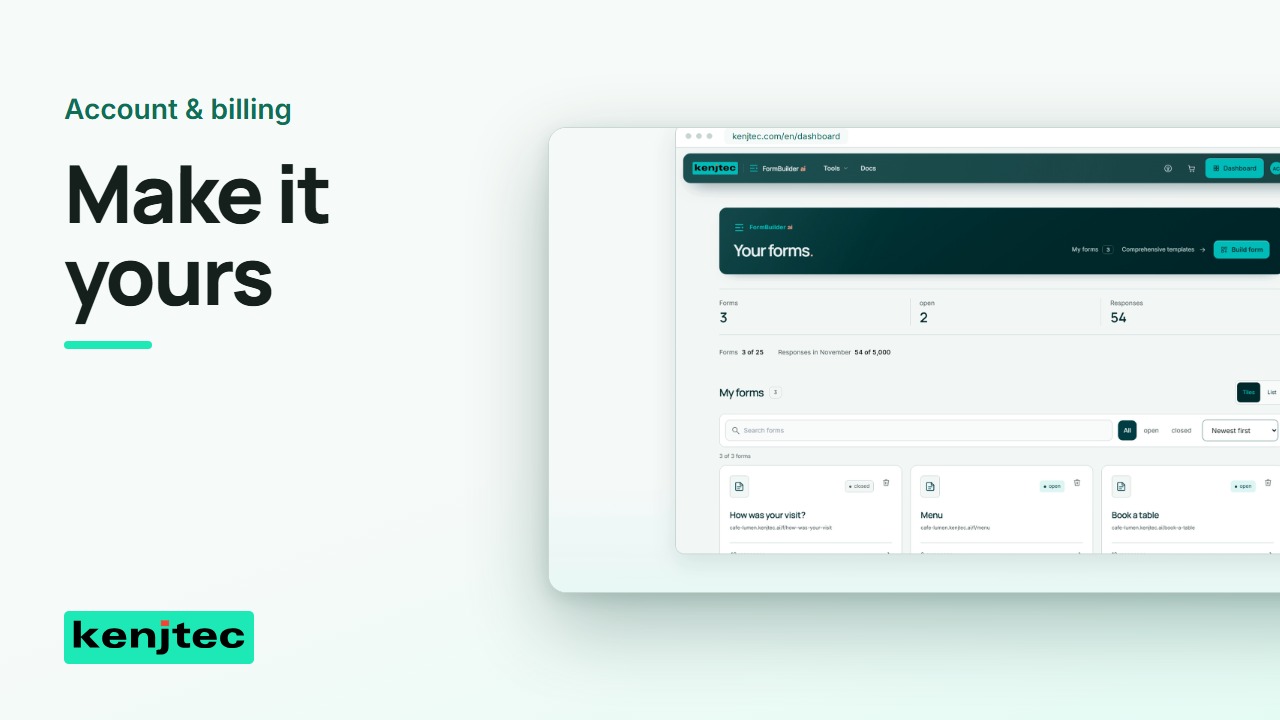 1:23Set your KENJTEC account language, currency and passwordSet the language you work in and the currency you prefer. Then check your account details and password settings.
WebSiteBuilderai
View the tool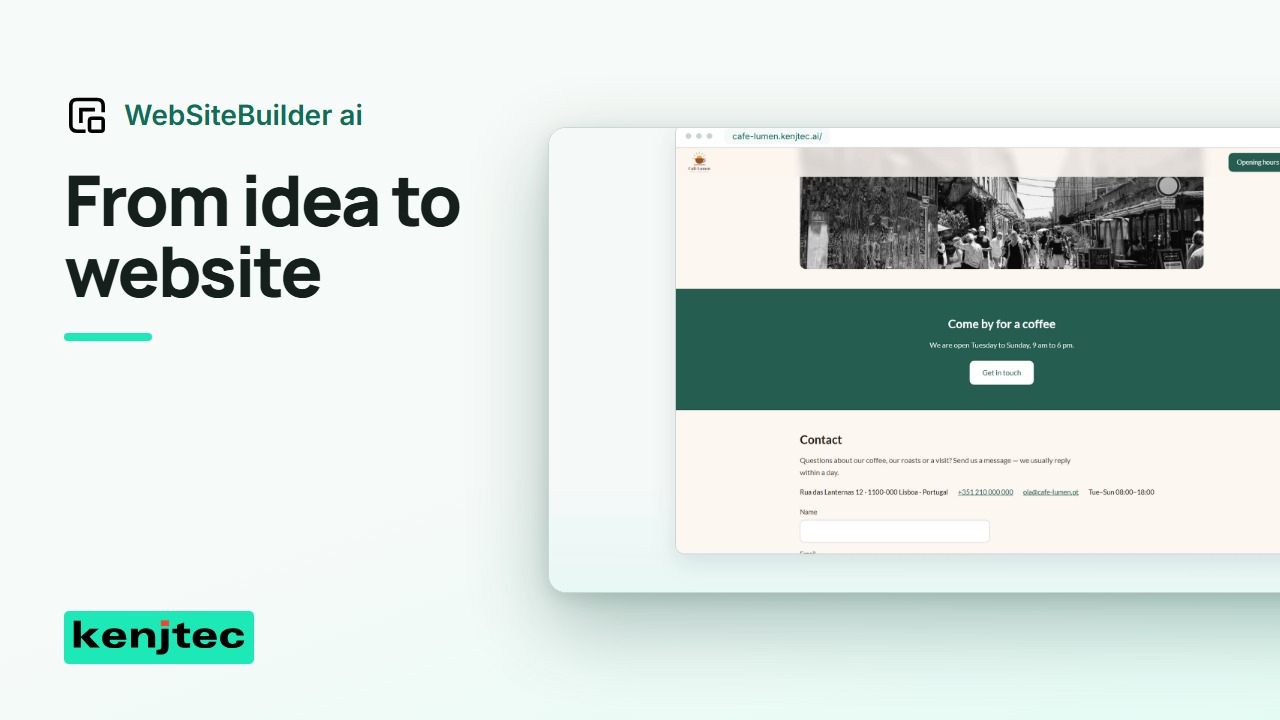 1:54Create and publish a website from your business descriptionThis is the finished demo website. We'll start with a business description, review the draft, and publish it ourselves.
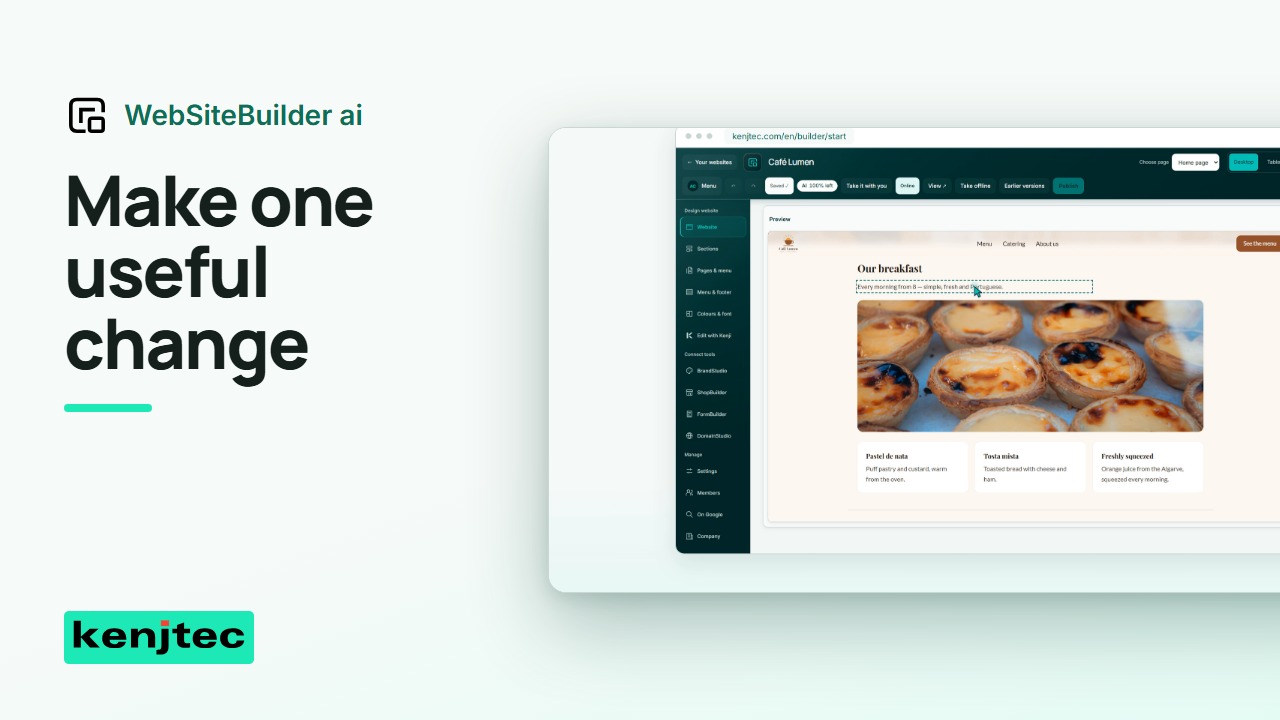 1:32Update your website text and image, then check the resultLet's update one piece of text and replace its image. We'll check both on a smaller screen before publishing.
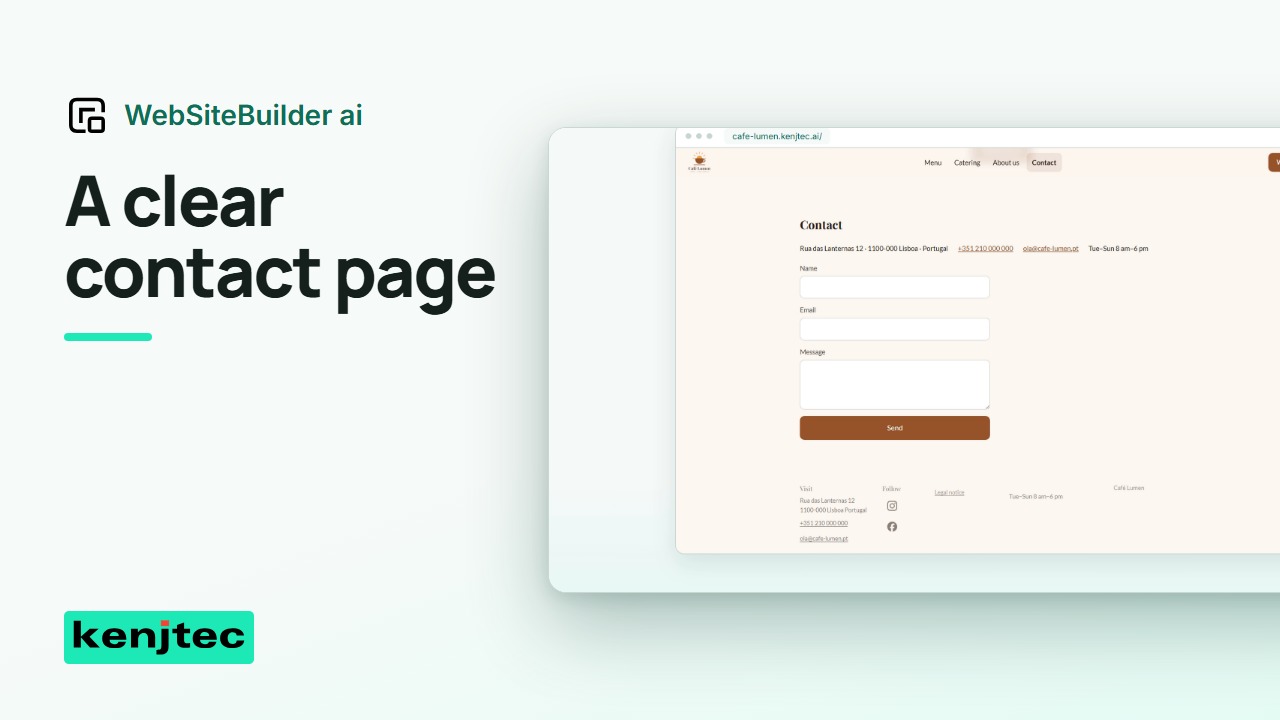 2:14Add a contact page and link it from your website menuA visitor should be able to find your contact page without searching. We'll create the page and check the route to it.
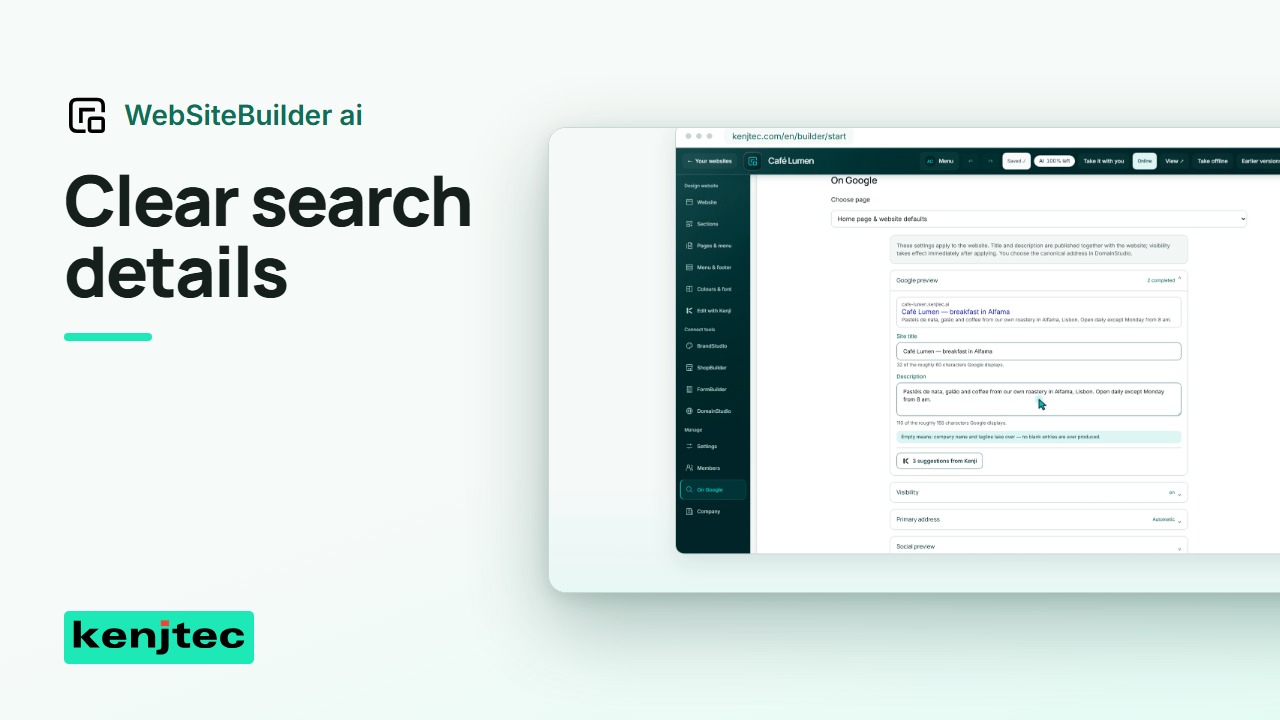 1:24Set website titles, descriptions and search visibilityYour title and description should explain what this page offers. Let's make them specific and check the site's search visibility.
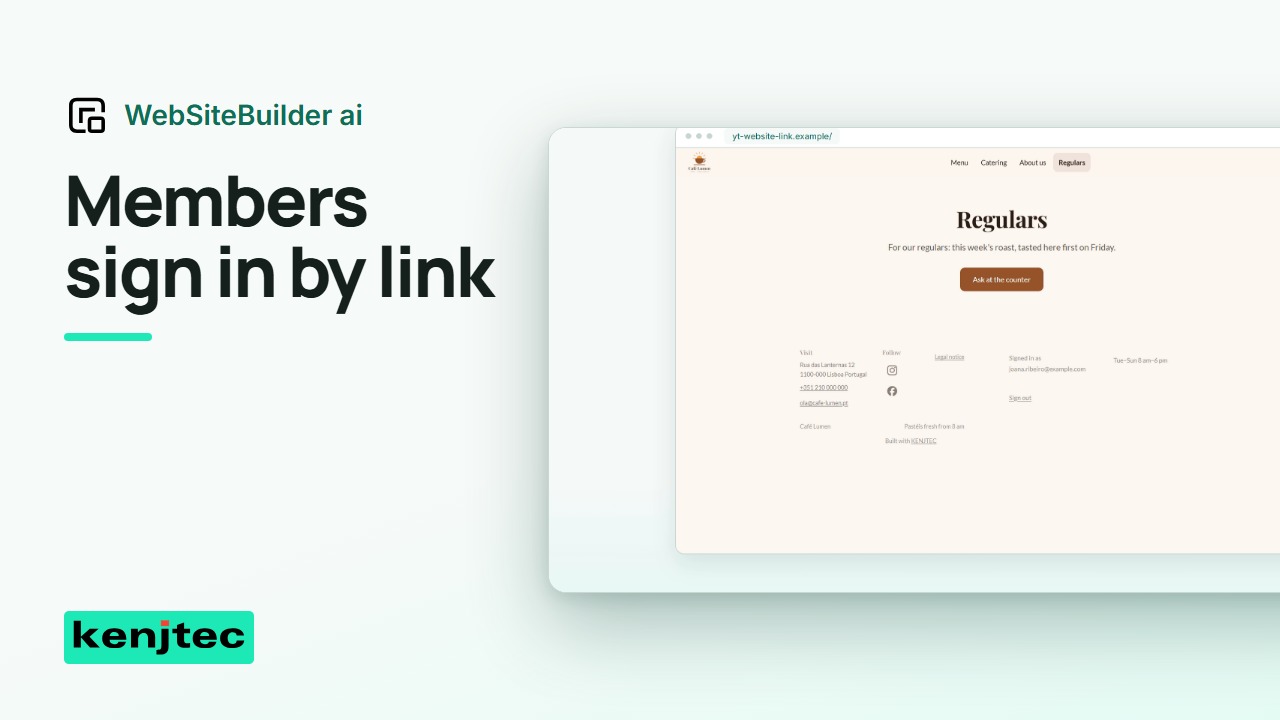 2:29Set up member pages with email-link sign-inMembers can open this page after signing in by email link. Let's set up access and test it from the visitor's side.
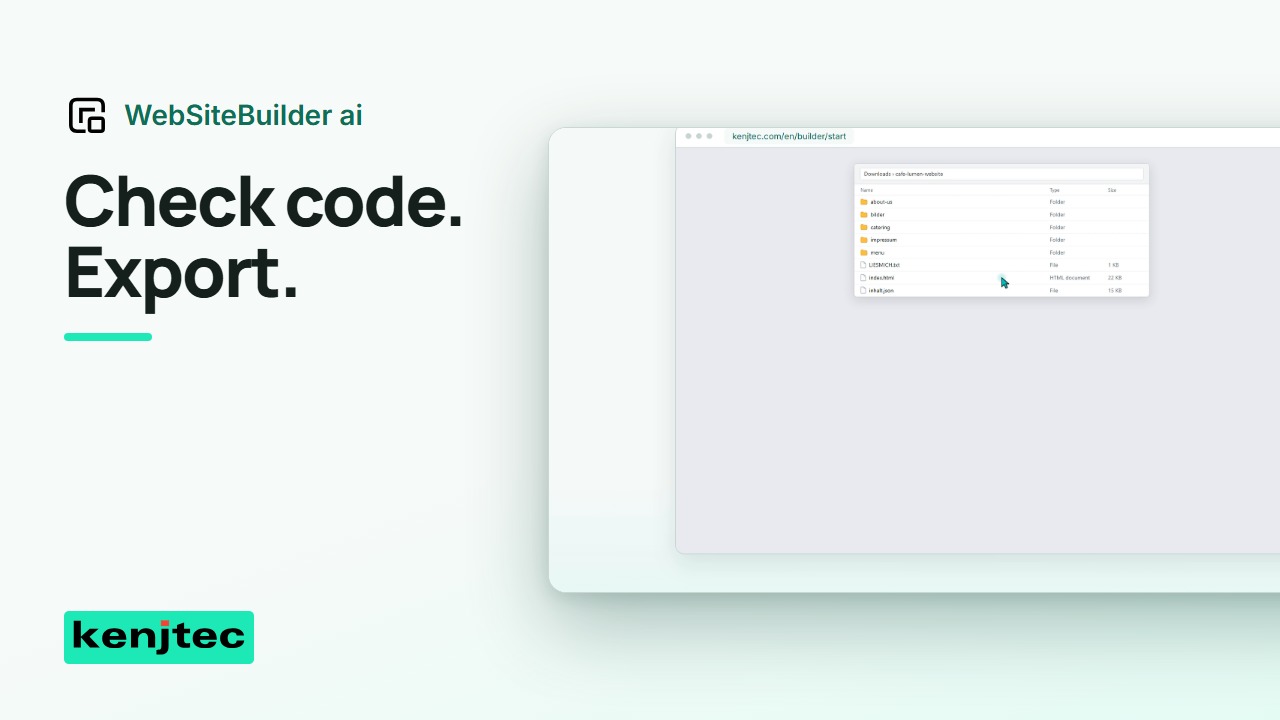 1:58Review custom website code and download your site archiveYou can download a copy of your website. First we'll review one custom-code change, then inspect what the export actually contains.
BusinessCloudai
View the tool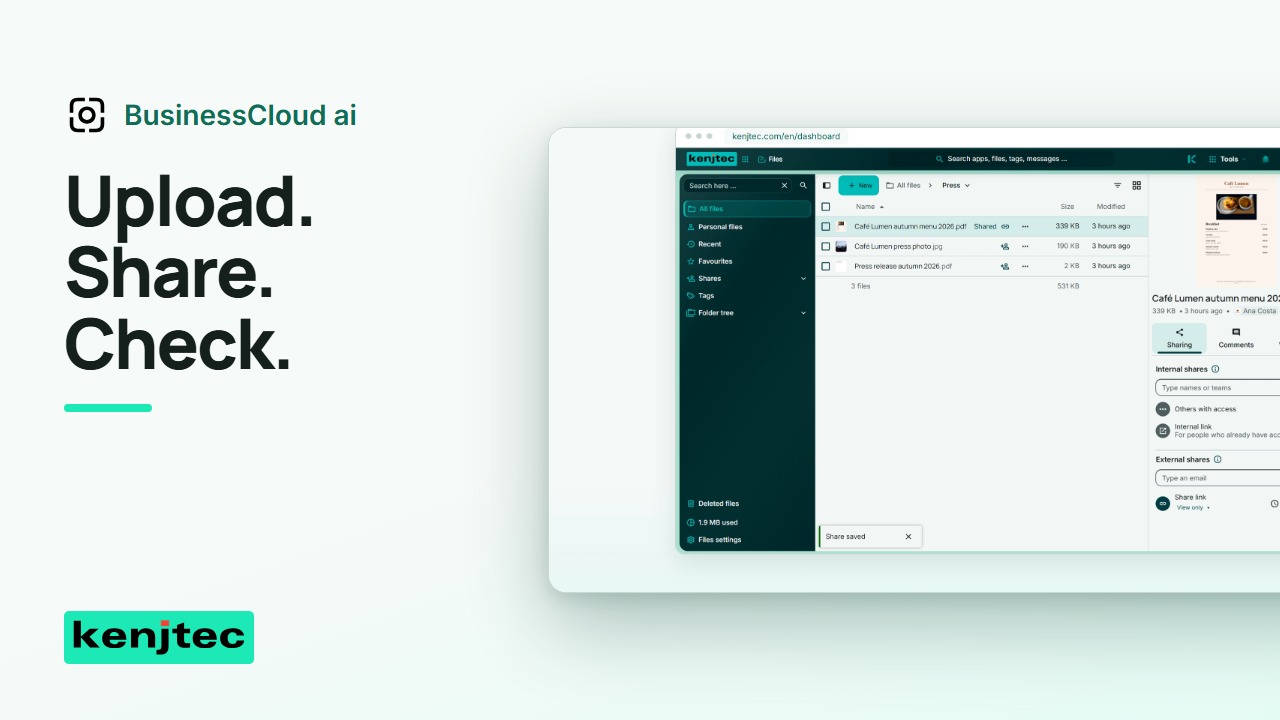 1:51Upload a file and share a link from BusinessCloudLet's share one file and check the link from the recipient's side. We'll keep the same file throughout.
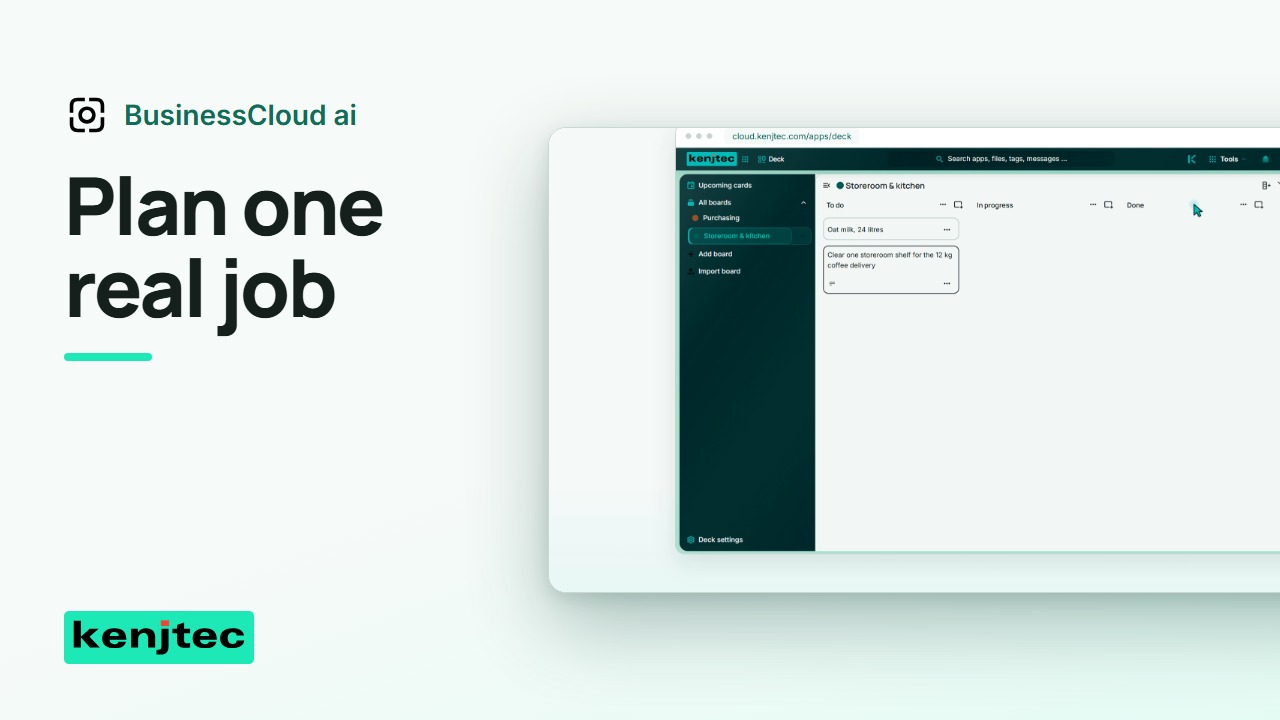 2:16Organise an appointment, a contact and a task in BusinessCloudWe'll organise one job using an appointment, a contact and a task card. These are deliberate steps, not an automatic workflow.
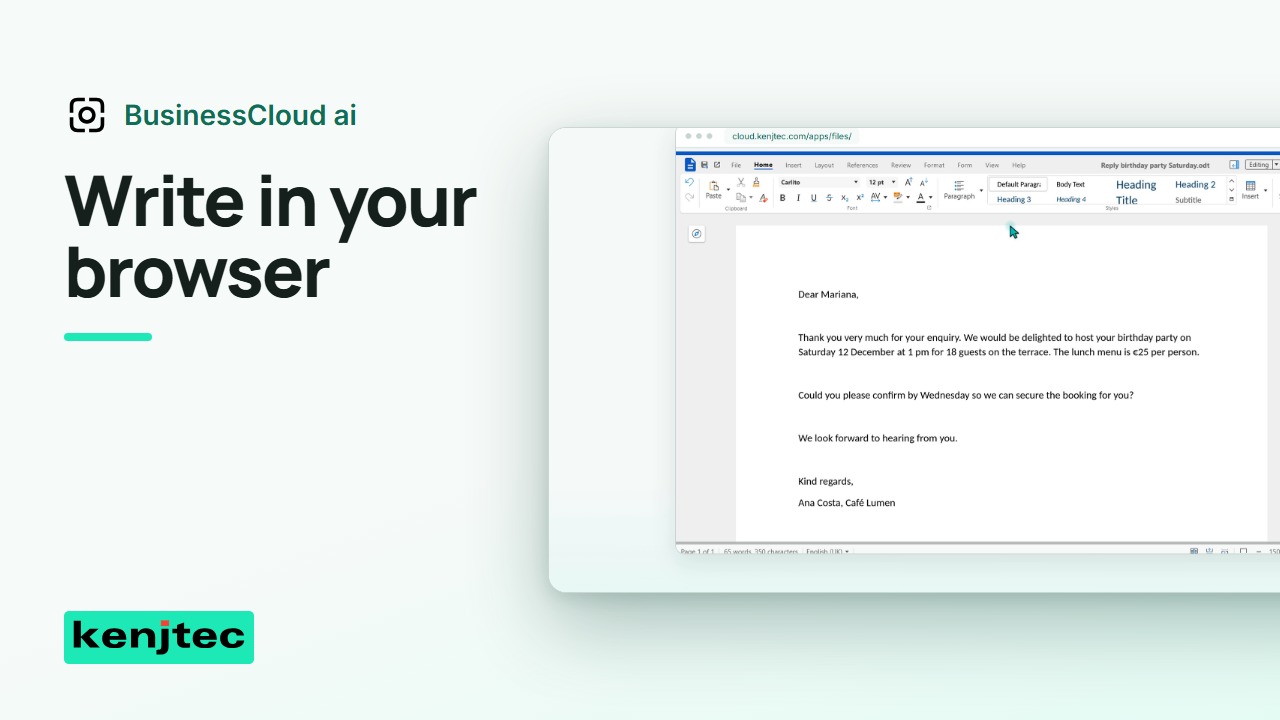 2:30Create a document in BusinessCloud and draft text with AIWe'll create a document in the browser and use AI to help draft its wording. You review and transfer the text yourself.
Invoice
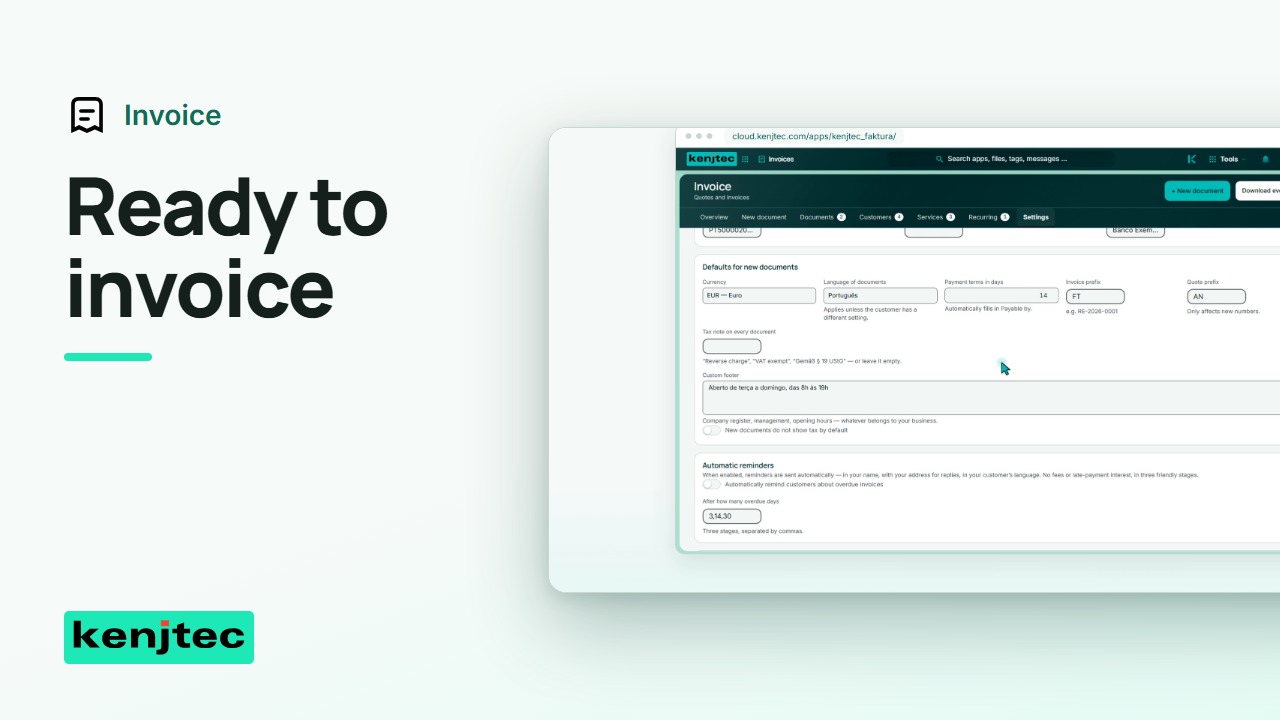 2:21Set up your invoice sender details and first customerBefore writing an invoice, check who is sending it and who should receive it. We'll set up those details first.
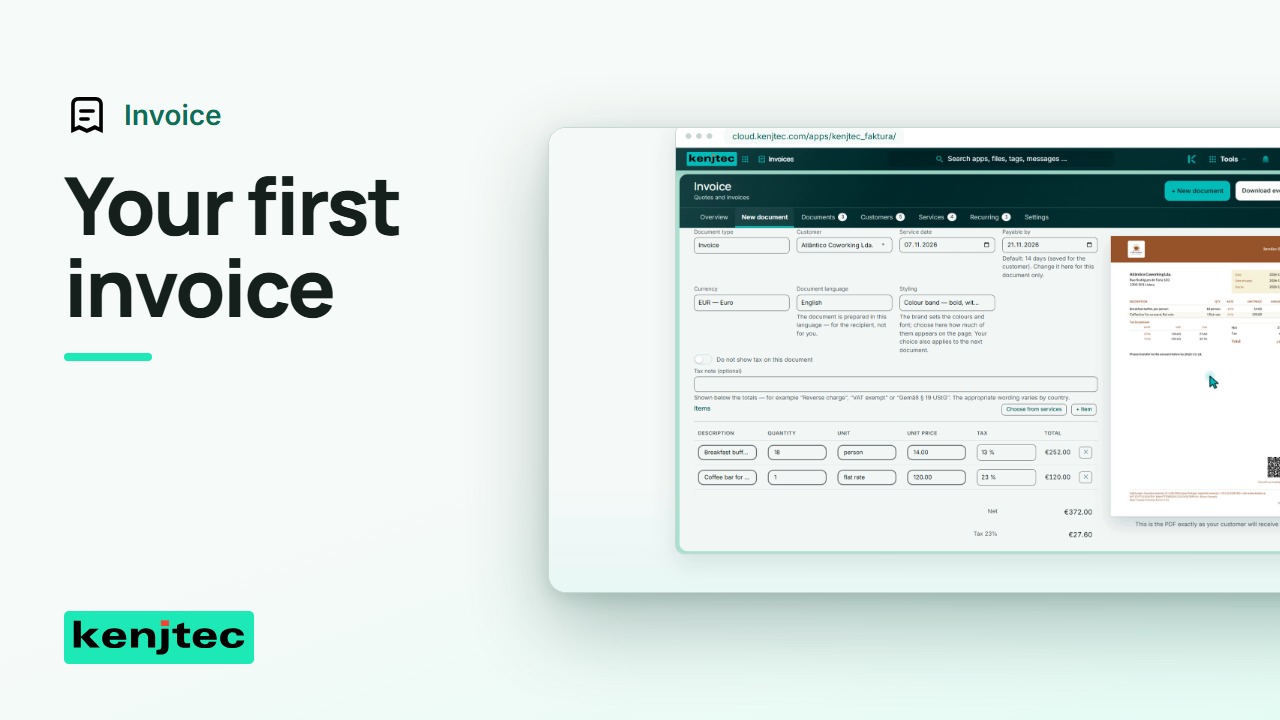 2:01Create, check and send your first invoiceThis is the invoice we will create. We'll check a draft first, issue it deliberately, and send it through the demo email route.
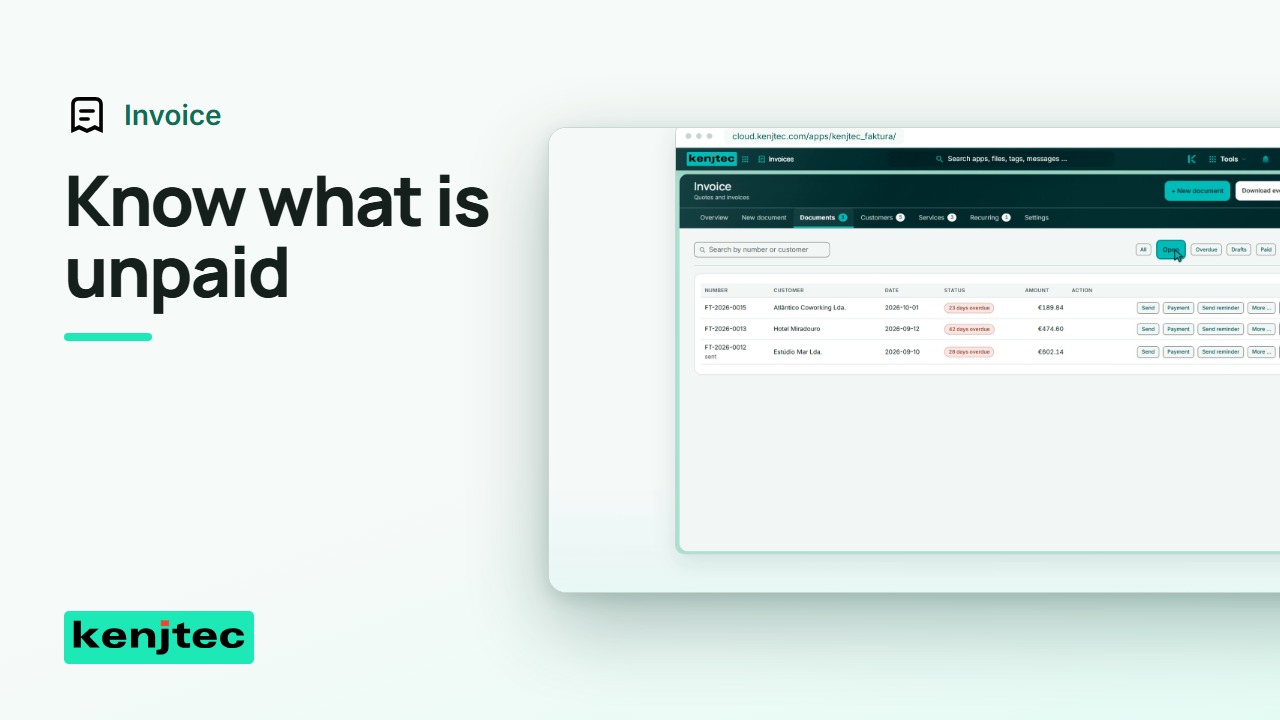 1:41Record an invoice payment and follow up overdue invoicesAn issued invoice is not the same as a paid invoice. Let's record one payment and review a different overdue invoice.
MediaStudioai
View the tool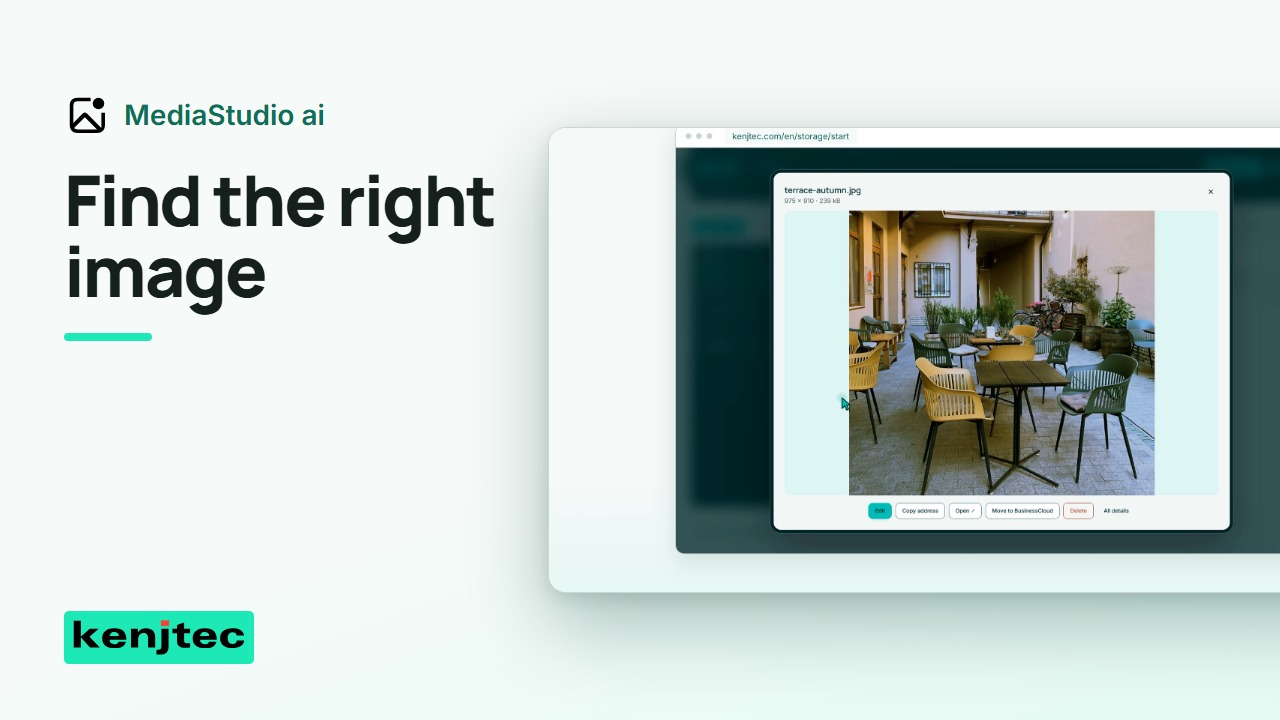 1:26Upload, organise and find business images in MediaStudioUploading is only the beginning. We'll organise one image so you can find the right file when you need it again.
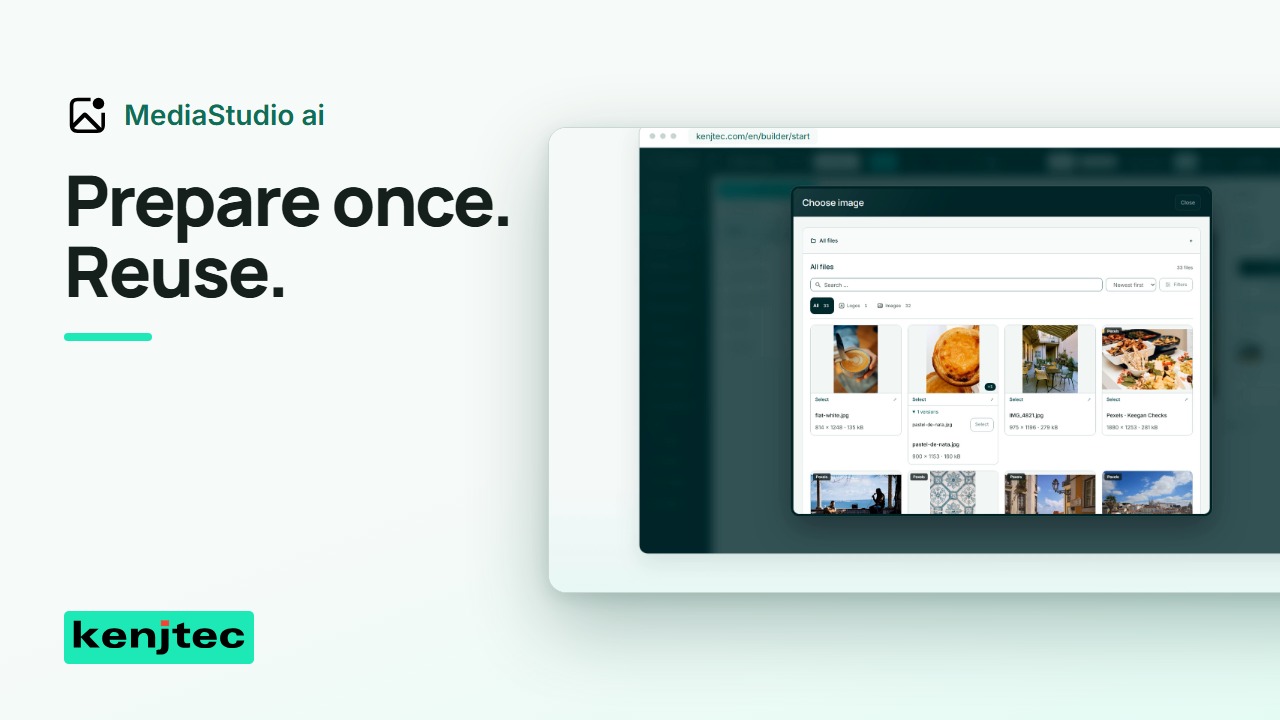 1:40Prepare an image and use it in your KENJTEC toolsWe'll prepare one image and select it for a website. The library helps you reuse the file, but each use is a deliberate choice.
DomainStudioai
View the tool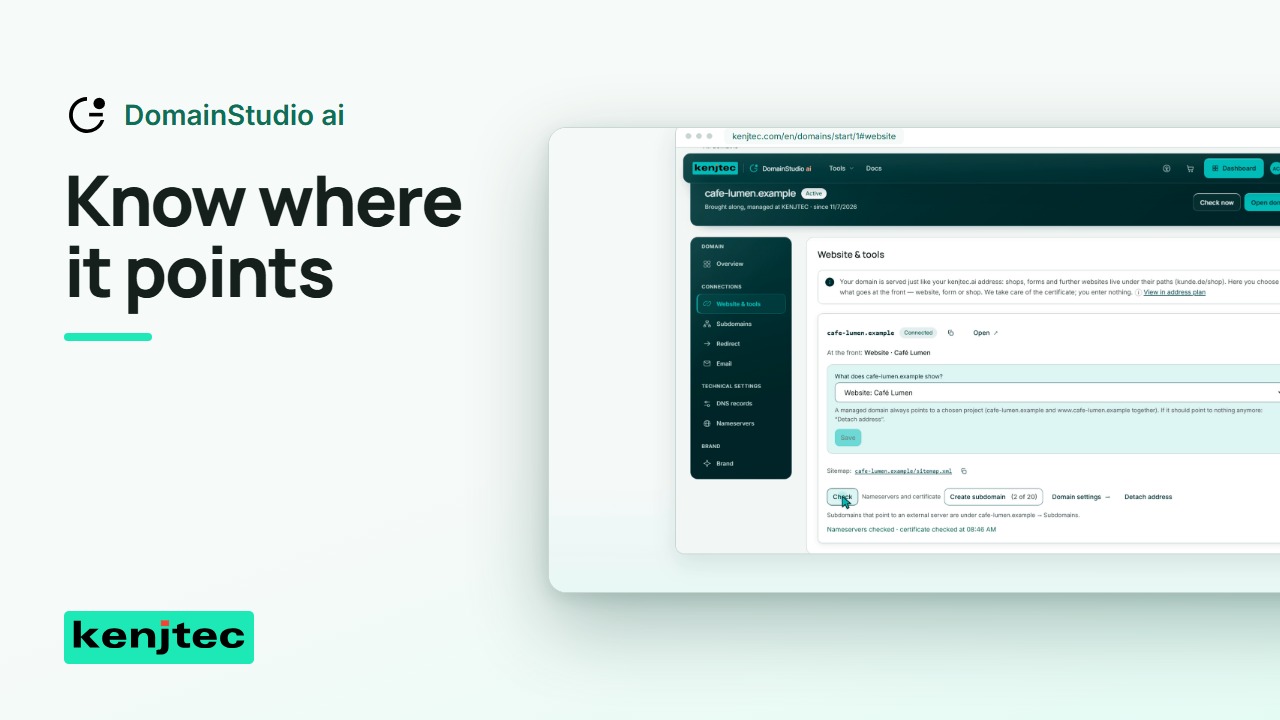 1:15Review domain records and connect the right websiteA domain name needs the right destination. We'll inspect its setup and check which website the address is meant to open.
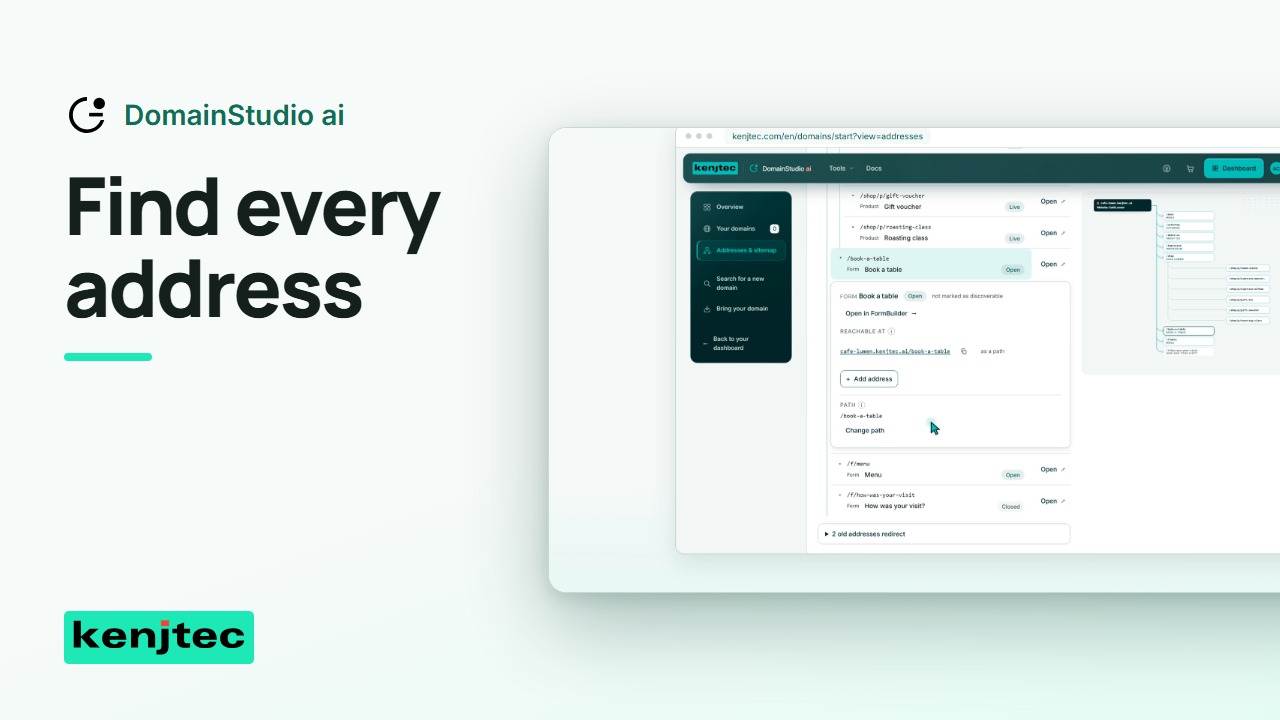 1:08Find your website, form and shop addresses in one placeBefore sharing a link, check where it leads. We'll find a form in the address plan and open its actual public address.
BrandStudioai
View the tool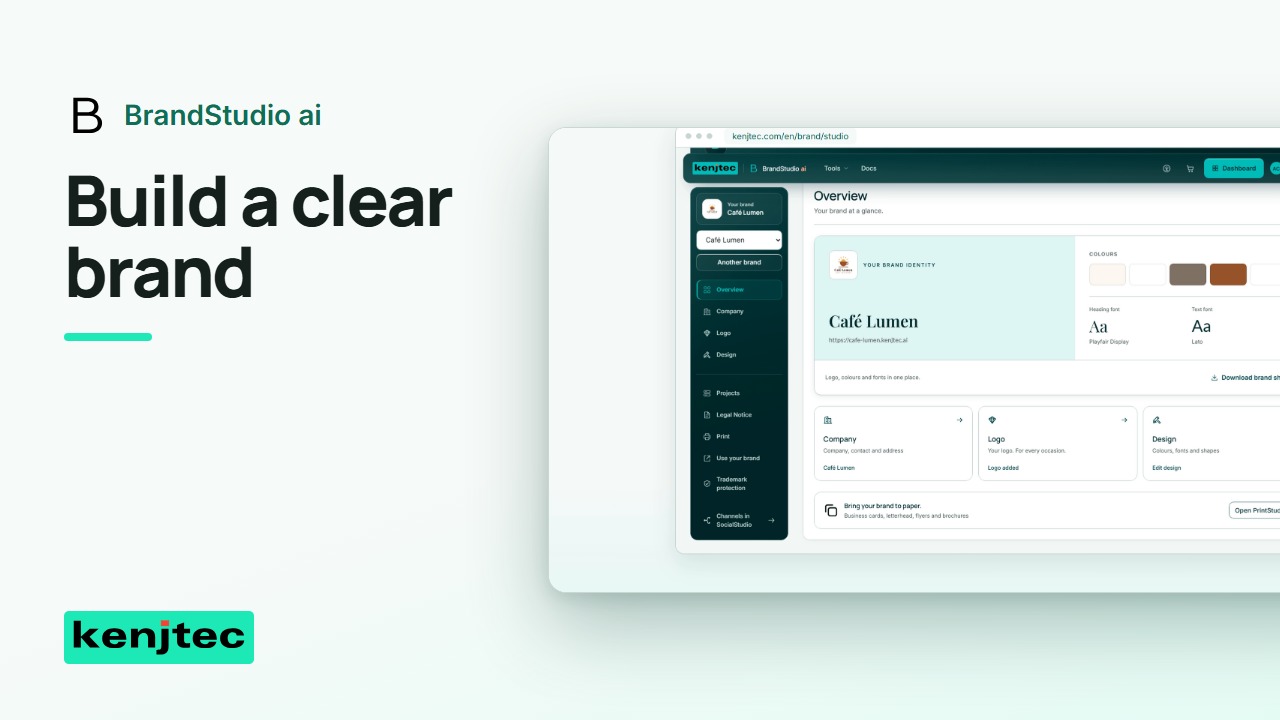 1:21Set your business details, logo, colours and fontsWe'll give this demo brand a consistent starting point: business details, a logo, readable colours and a deliberate font choice.
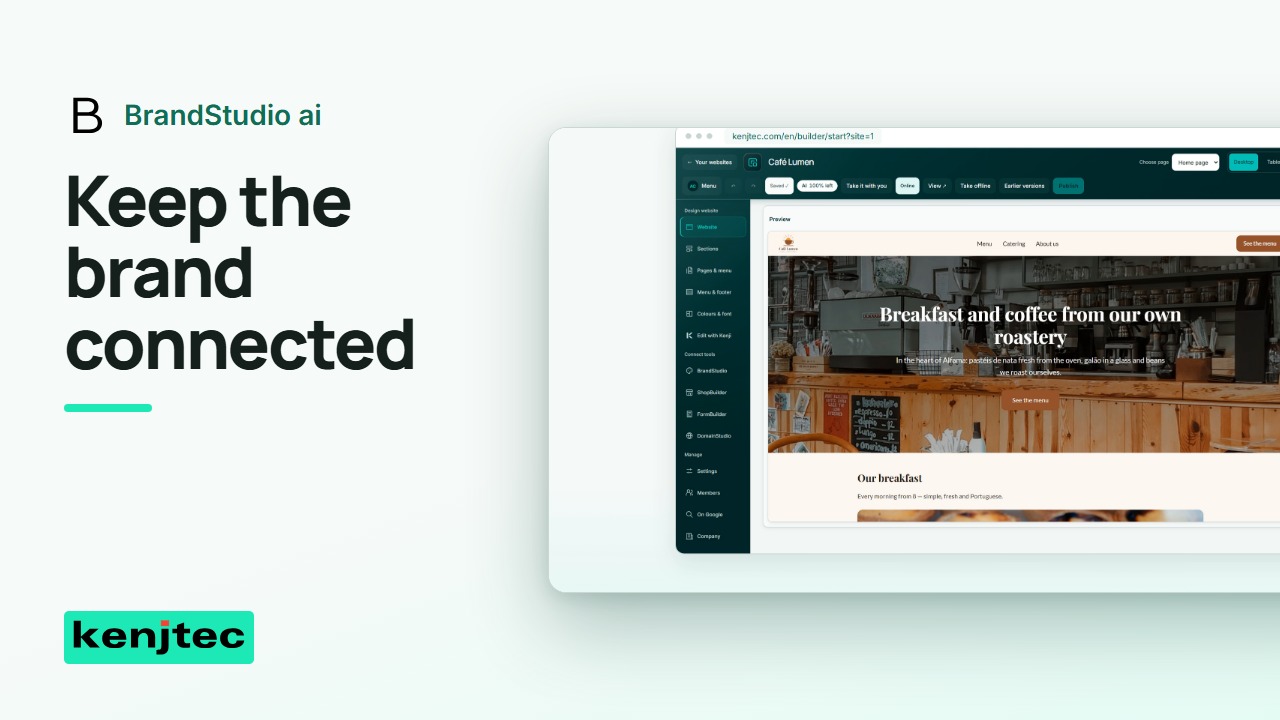 1:11Check how a KENJTEC project follows its brandA project can follow its brand or use its own design. Let's check that choice on one real project.
PrintStudioai
View the tool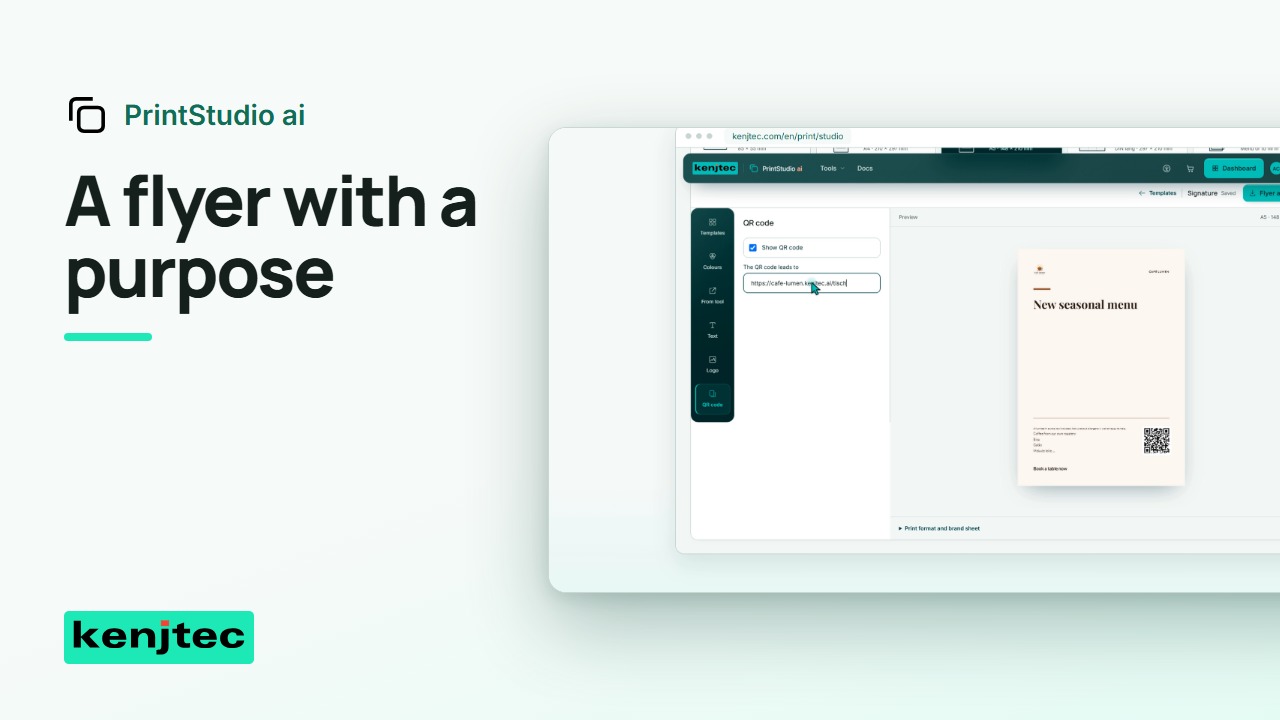 1:18Create a branded flyer and check its QR codeThis flyer has one job: lead people to the right page. We'll build it from the brand and check the QR destination.
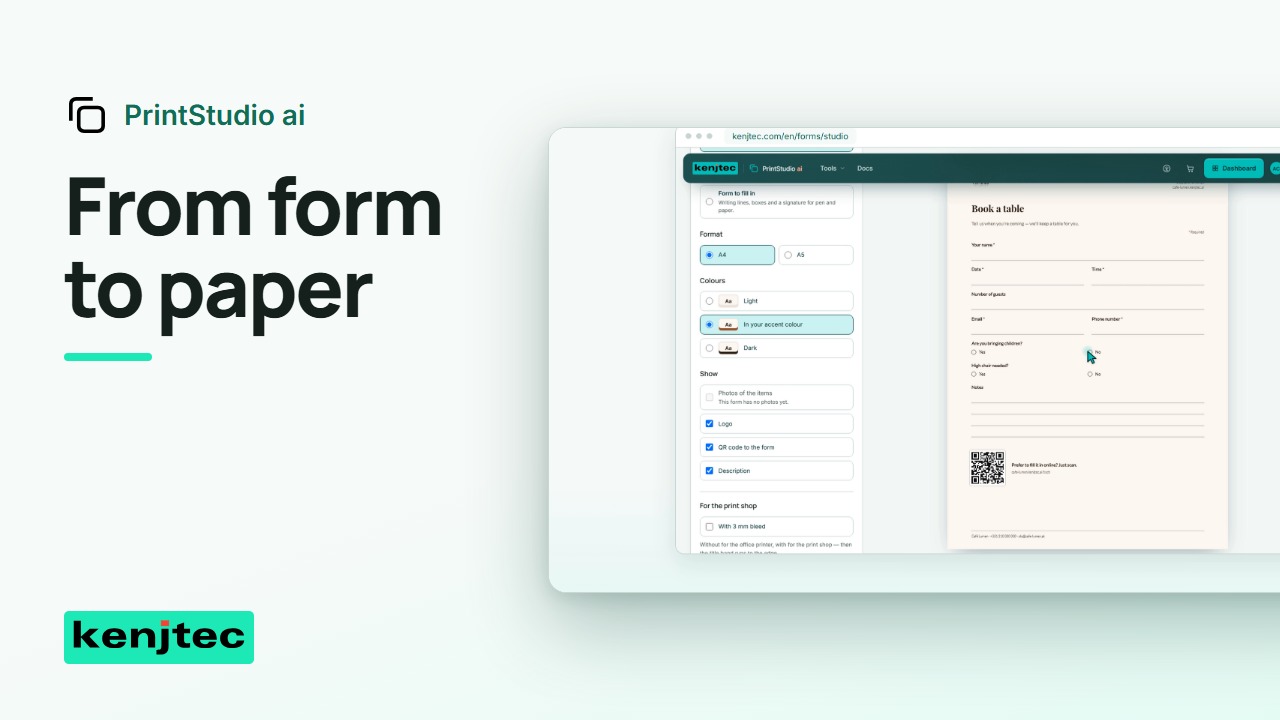 1:04Turn a form into a branded PDF for printingYour online form can also become a paper form. We'll choose the source, check the layout, and inspect the downloaded PDF.
WordPressBuilderai
View the tool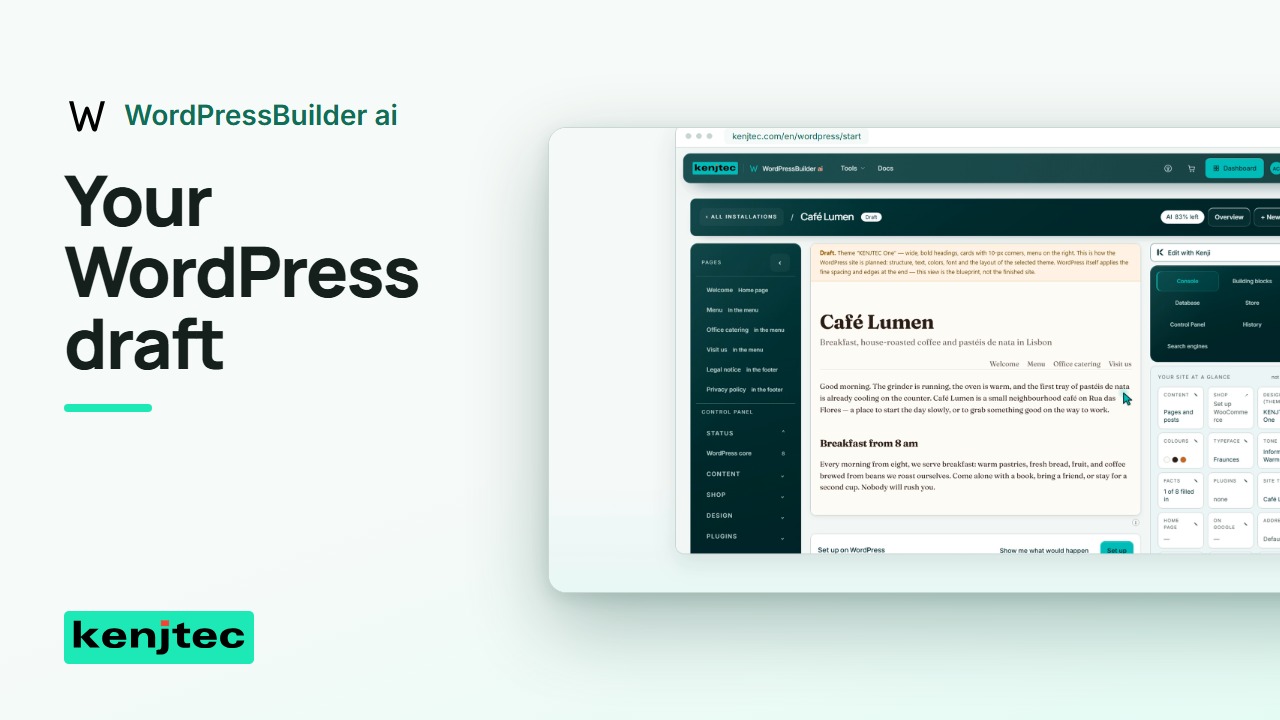 2:15Create and review a WordPress website draft with AIWe'll turn a business description into a WordPress draft, check the content, and review the setup step before proceeding.
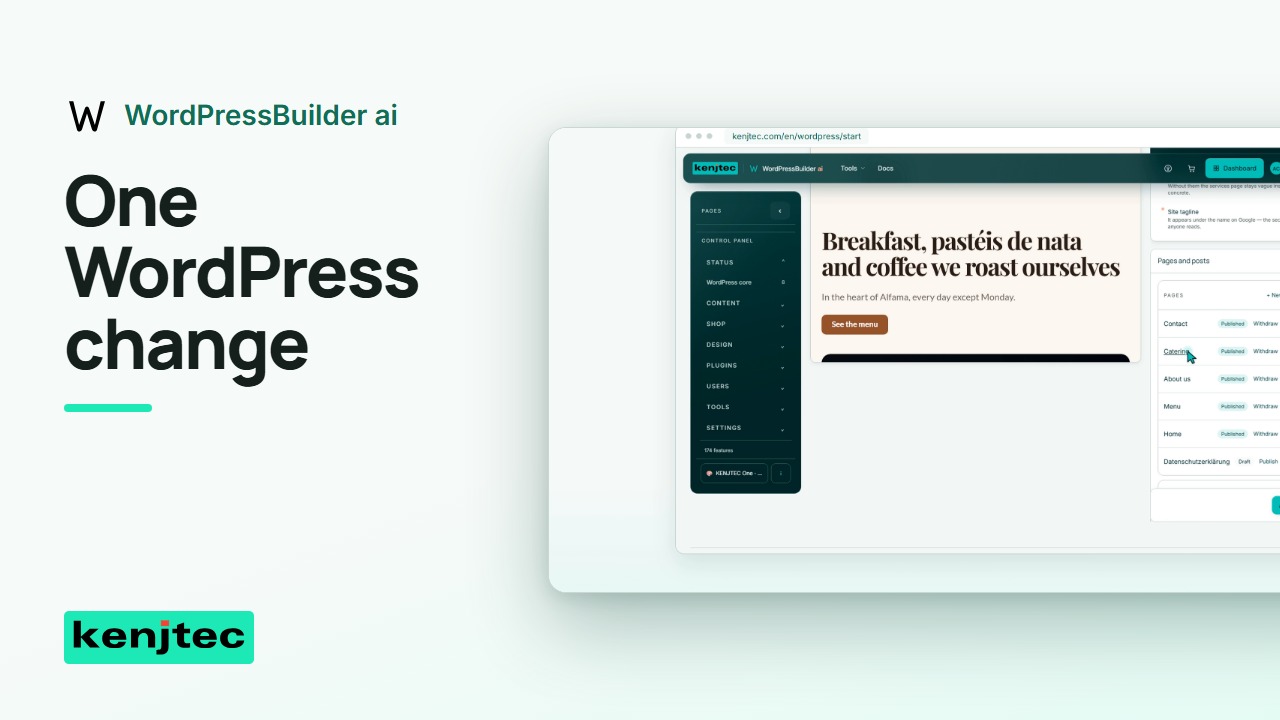 1:20Make and review a WordPress change from the KENJTEC cockpitLet's make one clear WordPress change and check the result. We'll use the cockpit rather than tour every available setting.
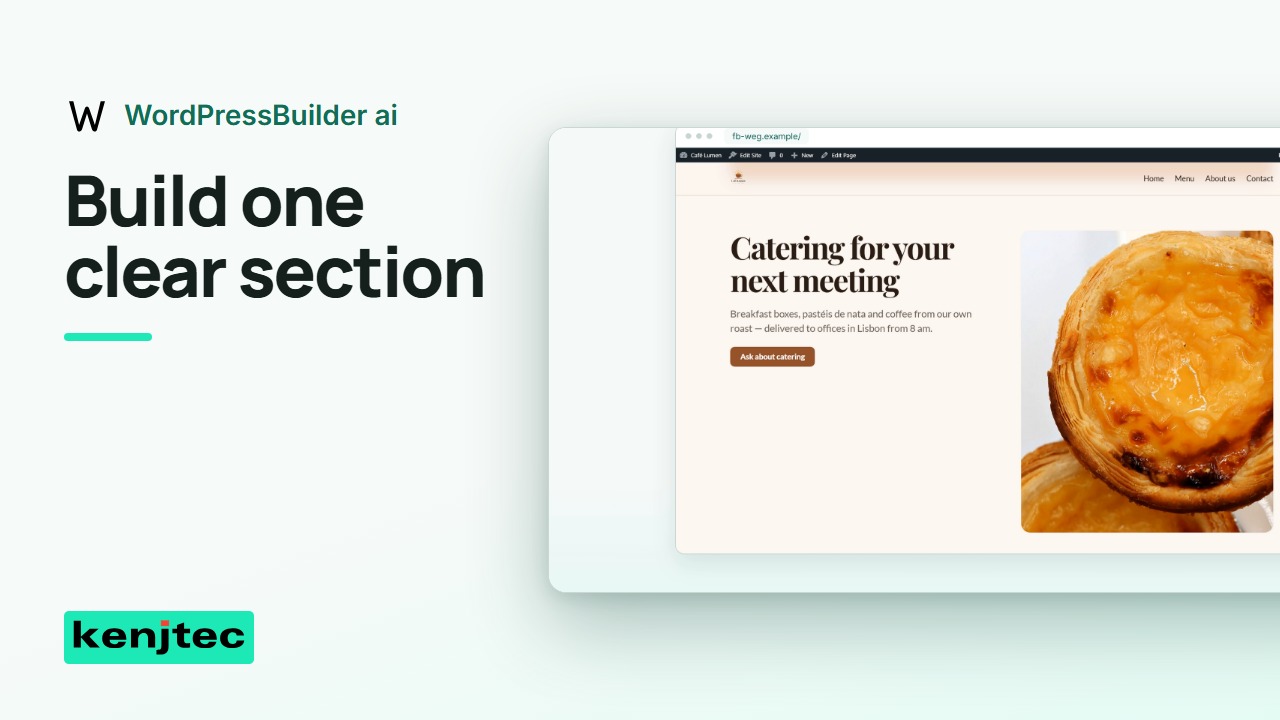 1:57Build a WordPress page section and check it on mobileWe'll add one section that helps a visitor understand the business and take a useful next step.
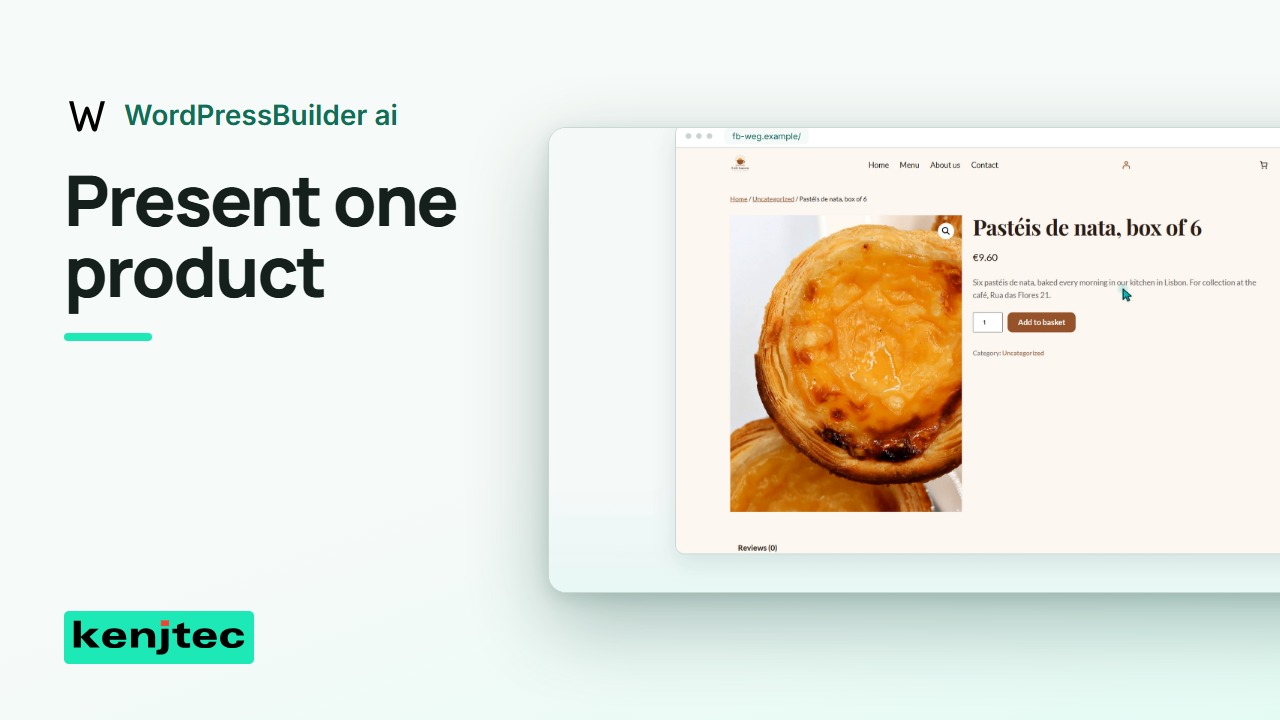 2:00Prepare a WooCommerce product and its search descriptionA product page should tell a buyer what is offered. We'll prepare one product and check the description used for search.
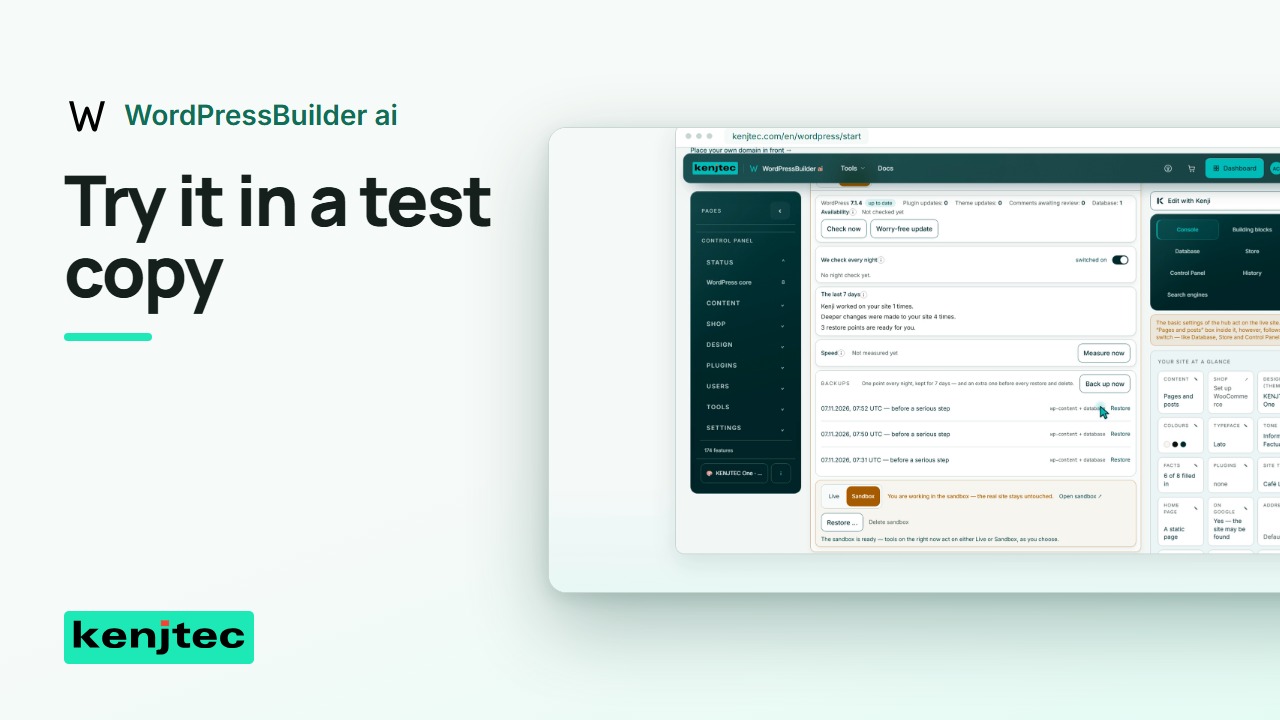 1:26Test a WordPress change in a staging copy before going liveWe'll try a change in a staging copy and compare it with the live site before deciding what to bring across.
FormBuilderai
View the tool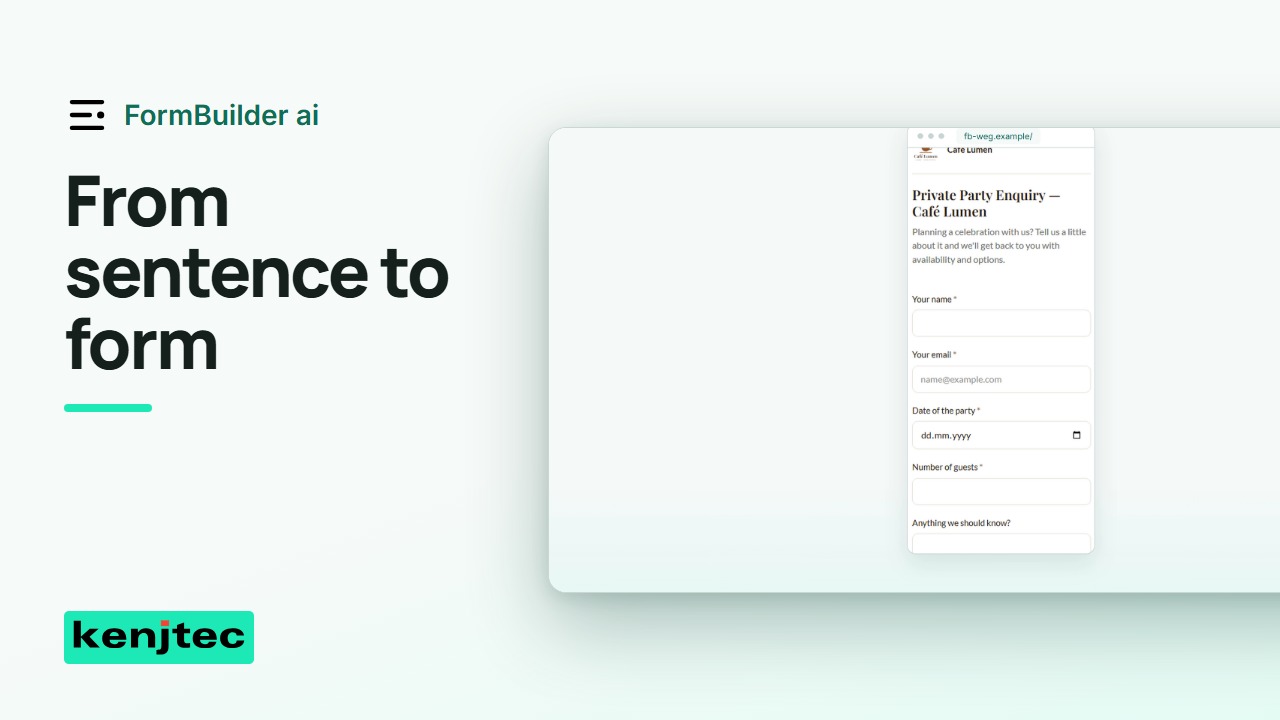 1:22Create an enquiry form from a sentence and test itWe'll build an enquiry form for a café event, check its questions, and test what a visitor actually sees.
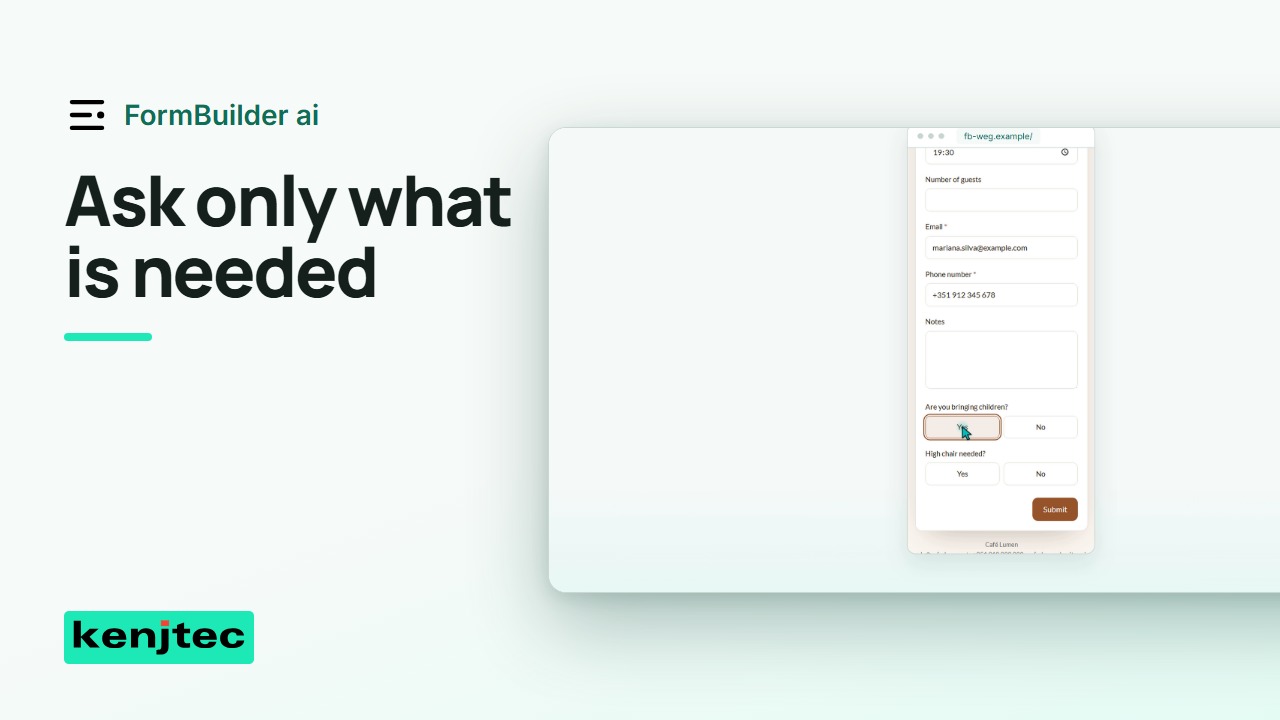 1:34Show the right form questions with conditional logicThis question should appear only when it is needed. We'll create the condition, then test both answers that control it.
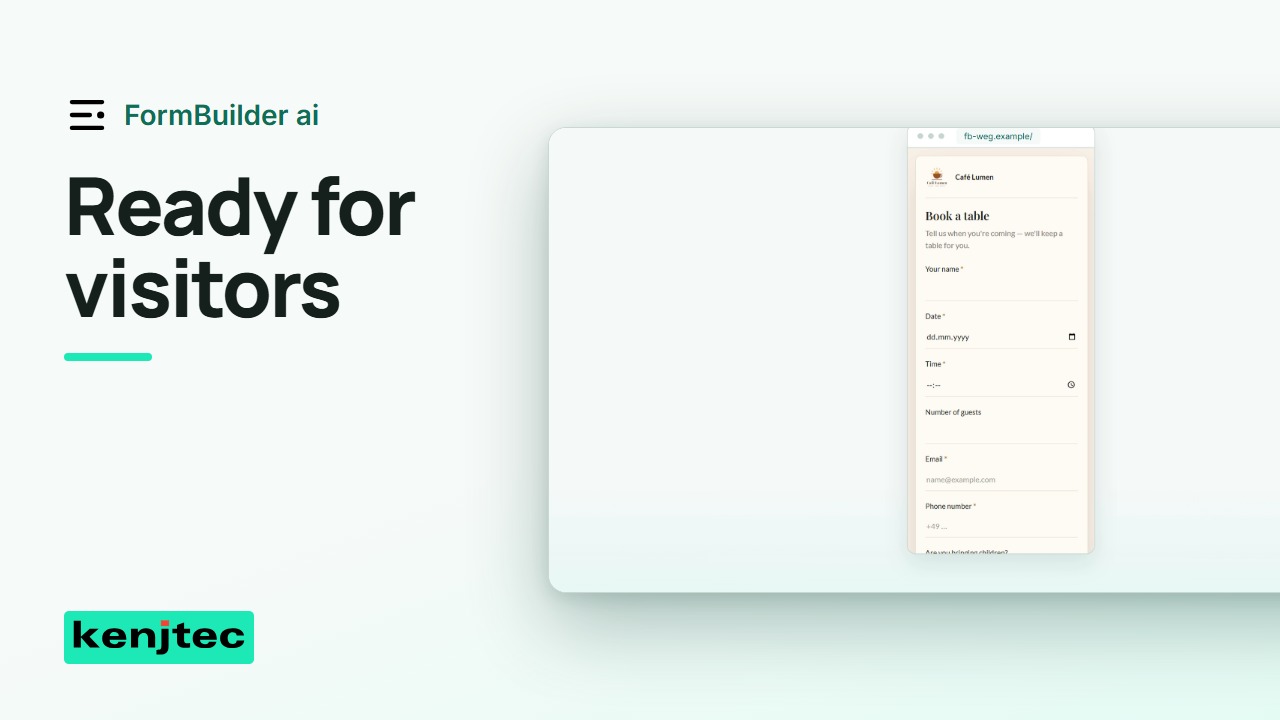 1:17Design your form and share a tested link or QR codeWe'll make this form readable, then check the exact link visitors will open. The test matters as much as the design.
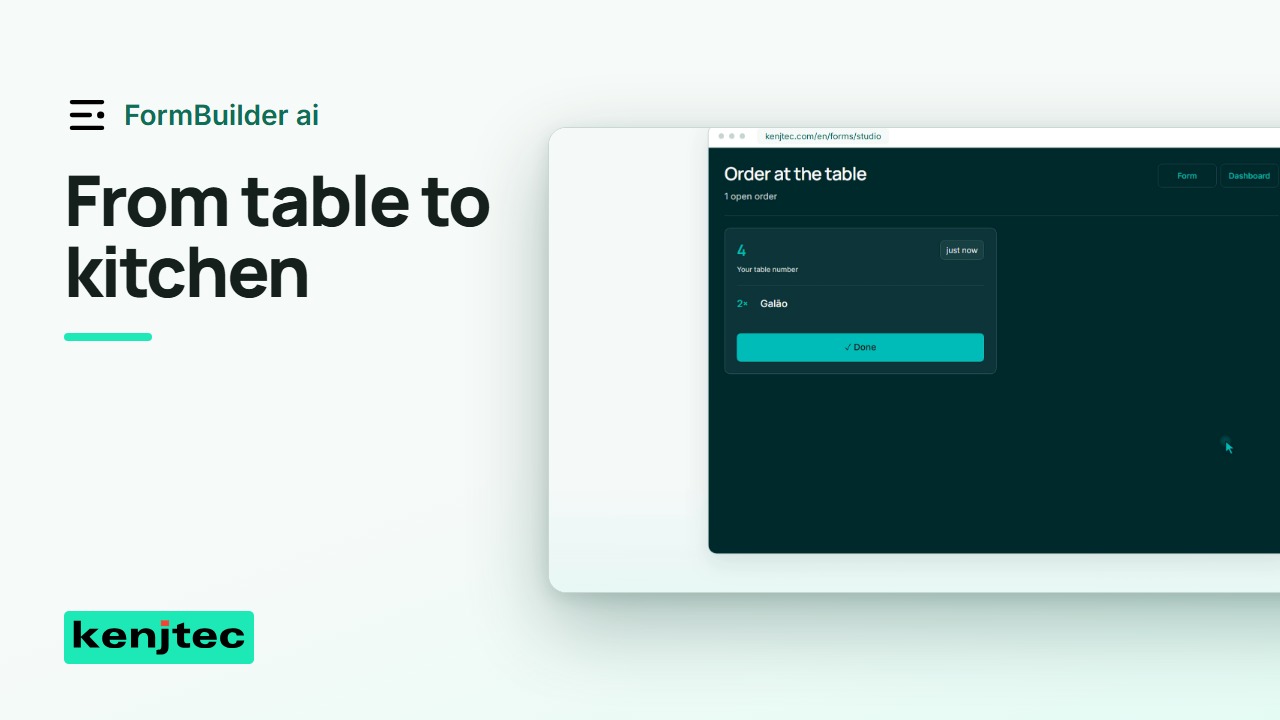 1:22Set up QR-code table ordering in KENJTECA guest orders two coffees at table four. Here is that same order in the kitchen view. Let's set up the route.
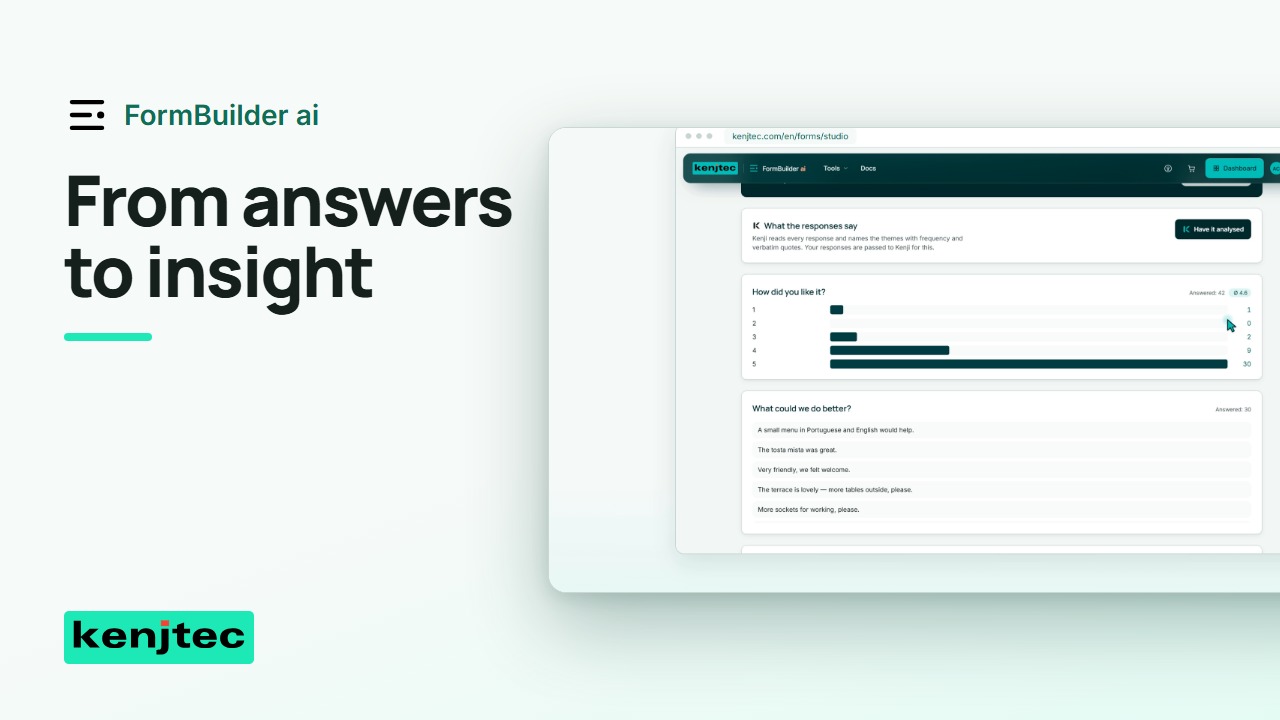 1:11Read form responses, check an AI summary and export resultsWe'll find a response, check a summary against the original wording, and export the results for further work.
ShopBuilderai
View the tool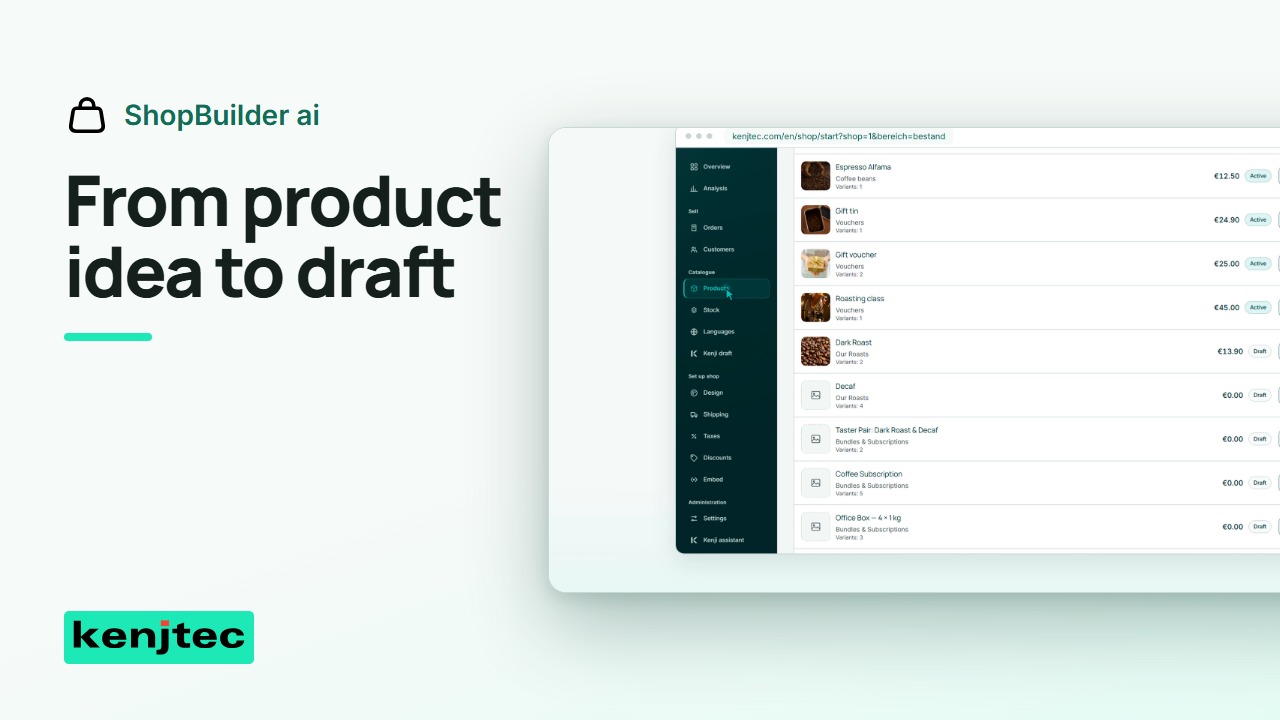 2:05Draft shop products with AI, then set prices and stockWe'll use AI for product suggestions, then review one product and set its price and stock ourselves.
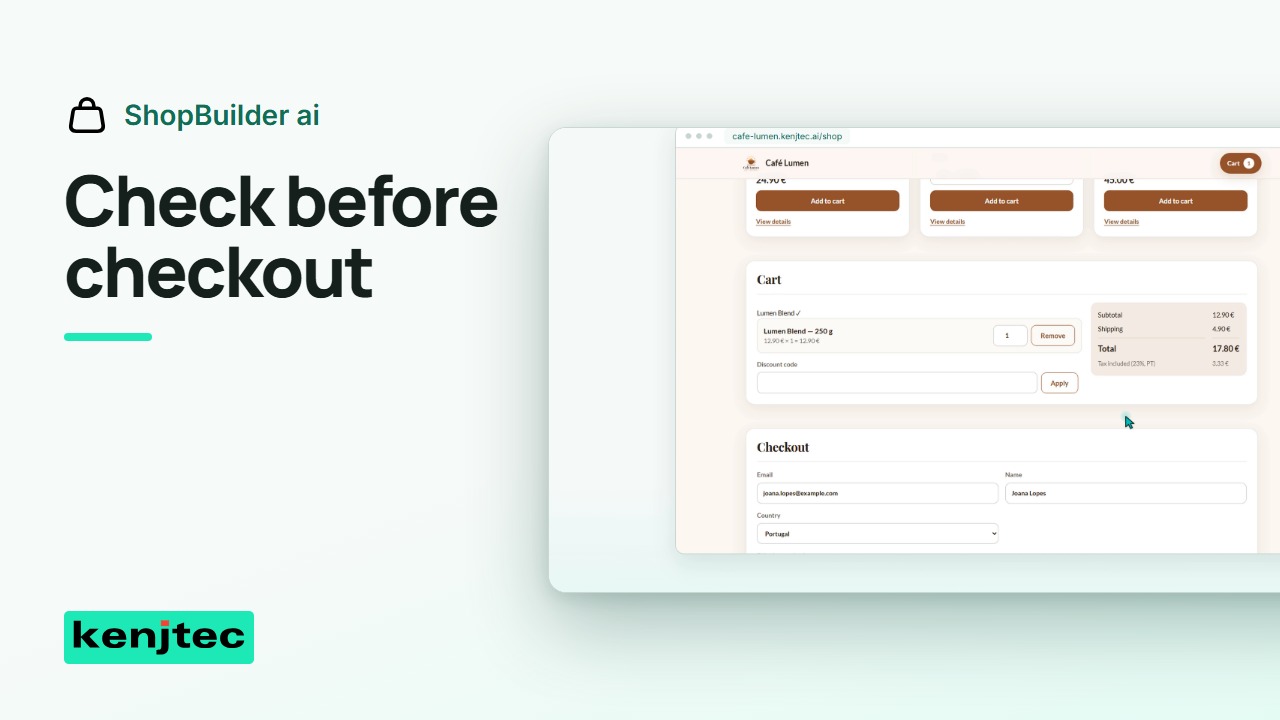 1:54Set shop delivery options and test the checkout summaryBefore a shop is ready for buyers, check its delivery choices and final total. We'll use a test cart without completing a real payment.
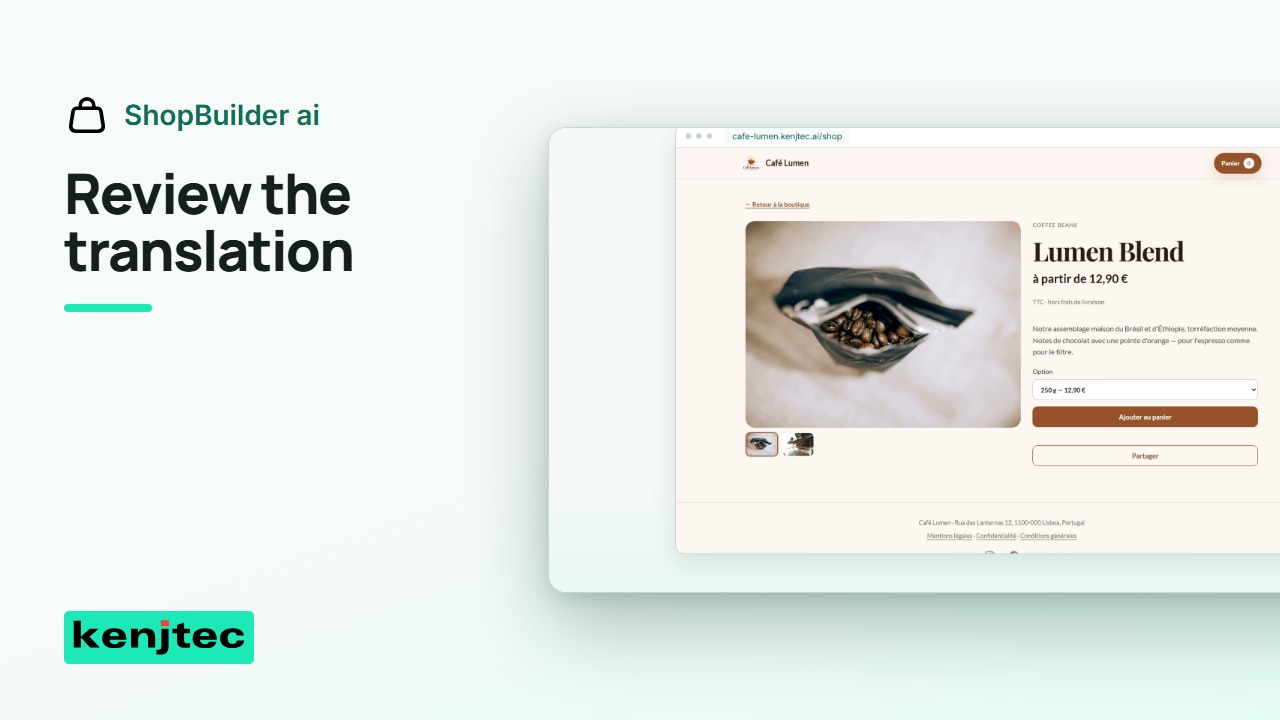 1:36Review translated shop products before making them visibleA translated product description should be checked before buyers see it. We'll review a translation and test the shop's language choice.
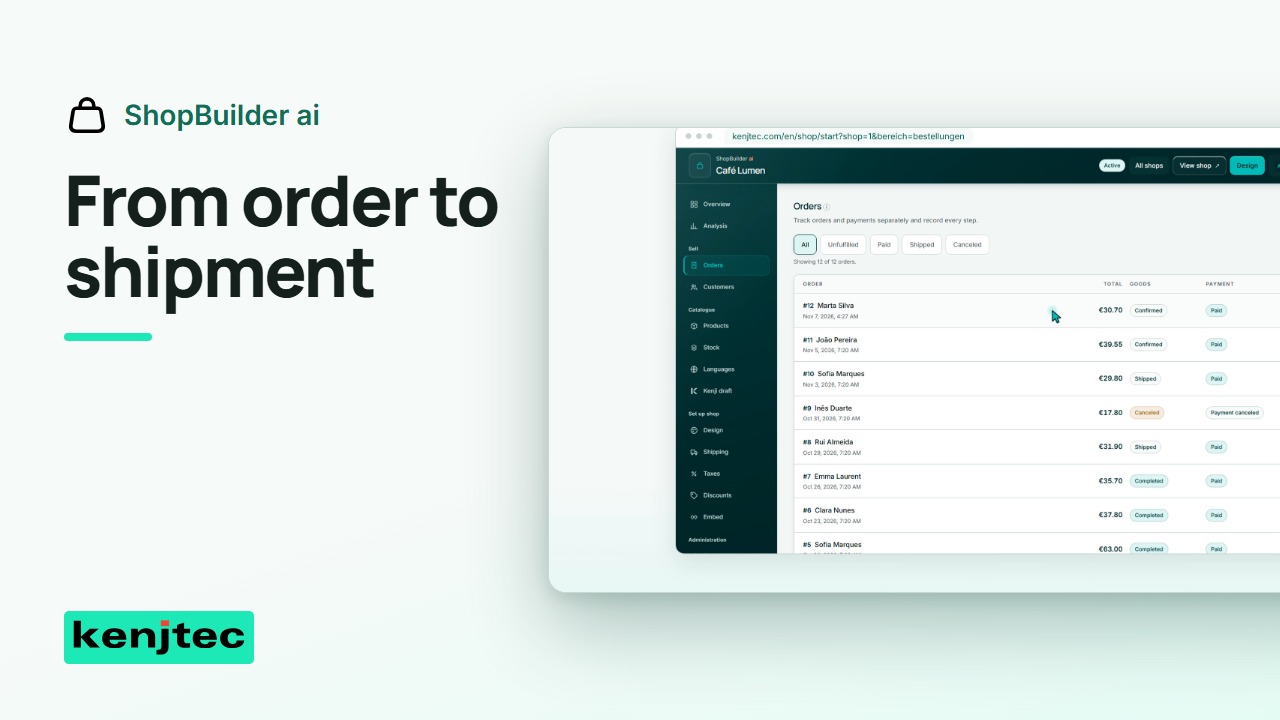 1:15Find a shop order and record its shipmentWe'll check one order, verify its details, and record shipment when the goods have actually been sent.
For developers
Prefer to read?
Every tutorial has a written guide in the documentation, step by step.
SocialStudioai
View the tool